Customizing MantisHub Fields
Customers on a paid plan can customize many facets of MantisHub. These customizations require you to contact our support team with the required information detailed below.
You can also add entirely new custom fields to your project, see Adding Custom Fields for details on how to do this.
There are other possible customizations, other than those listed here. Please reach out to the support team to confirm if any other MantisHub fields can be customized.
Customizing Issue Statuses
Often administrators like to customize the statuses in MantisHub to match their workflow. You can add, modify, or remove statuses by emailing our support team with the information below. All status changes apply globally to your MantisHub. We do not support status changes at a project level. Feel free to use the sample document provided at the end of this article to add new statuses or to modify existing statuses.
New Status
Email the following details to support for new statuses. You can download our example document here.
1. Name- This is the name of the new status e.g. 'Tested'.
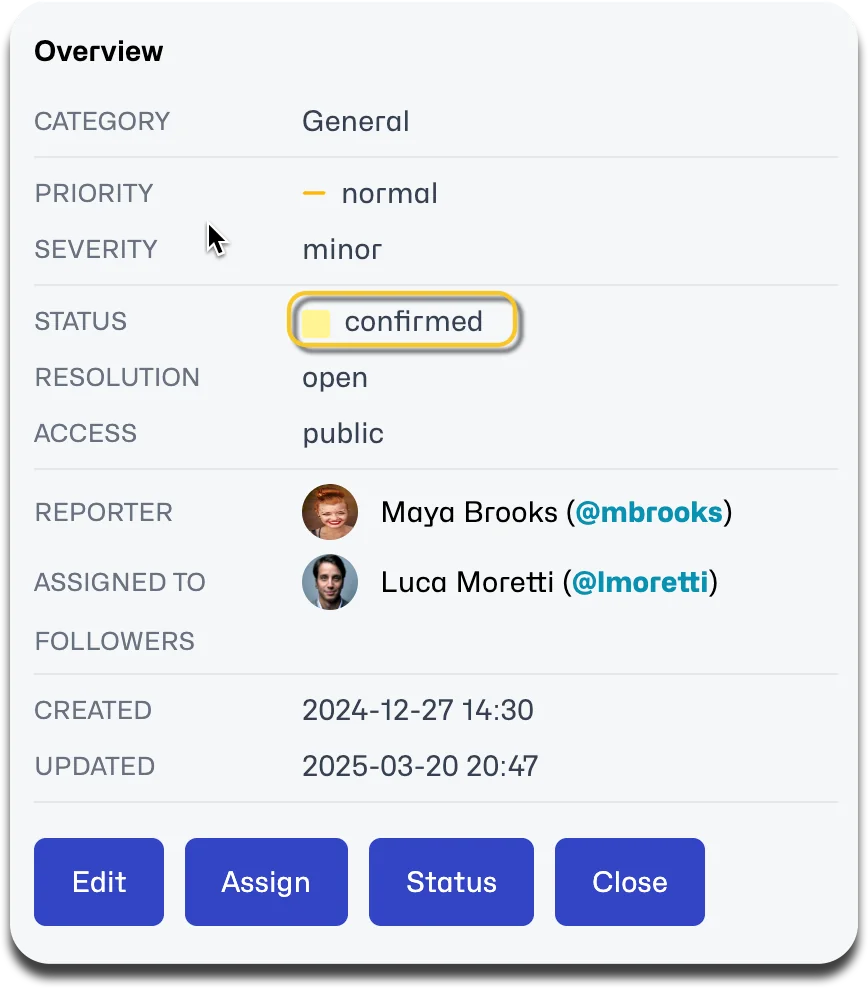
2. Title - This indicates the title of the screen users see when confirming a status change during their normal workflow e.g. 'Moving issue to Test'.
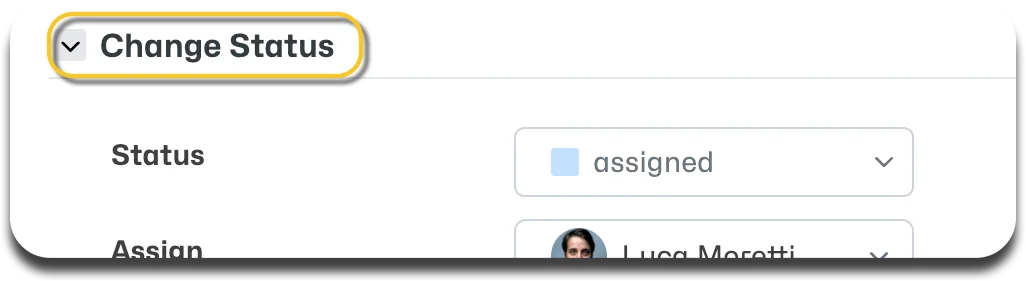
3. Action - This is the description of what has occurred which will appear in the email notification to the reporter and others that are notified on status changes e.g. 'Issue is now being TESTED'.
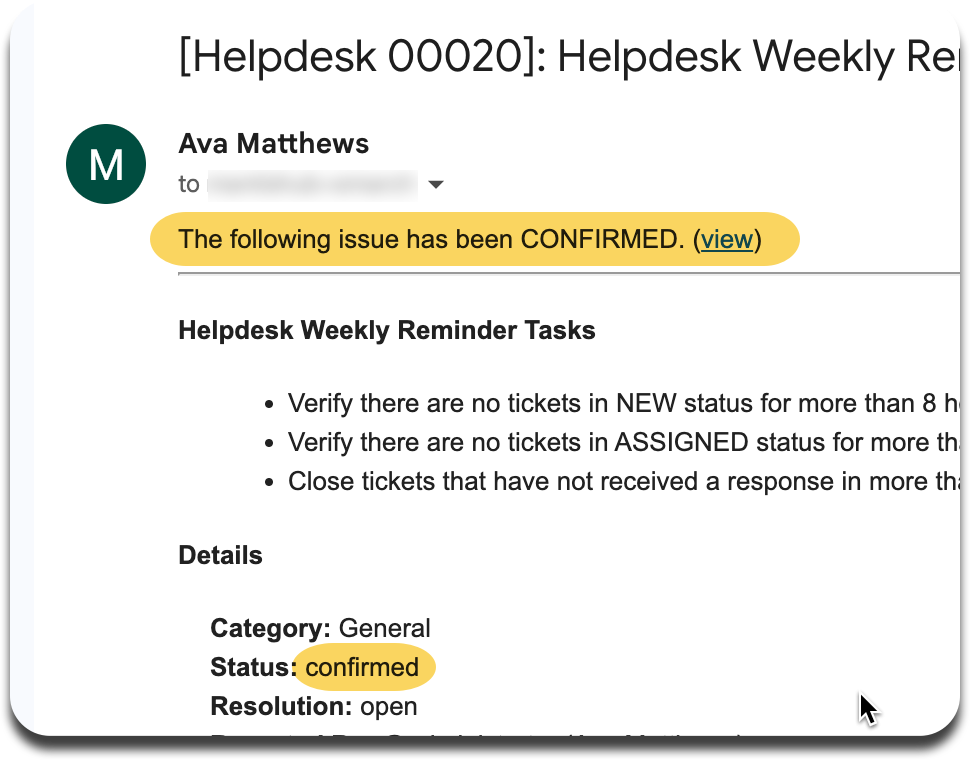
4. Color - This is the color of the square that appears along with the name of the status. Use w3 schools color picker to select the color and provide us with the Hex number. Make sure you compare it to the existing status colors (See Status Codes & Colors) to ensure they are not too similar.
5. Status Order Code - This is the numeric order of the statuses in reference to one another. See default status order codes (Status Codes & Colors). This must be unique. An existing status order code cannot be used for a new status.
Example: A new status 'Tested' that should be after ‘Assigned' (Order Code: 50) but before ‘Resolved' (Order Code: 80) could be given Order Code: 65.
You can choose any order code that is not being used but the order specified is important and should be consistent with your workflow as it will impact reporting, filters and thresholds. For example anything with a code of 80 or higher is reported on as ‘Resolved' and anything with a code of 90 or higher is considered ‘Closed' and hidden by default.
Additionally, if you are using or are planning to use the 'Helpdesk-Report Issues via email' functionality it is important to note that there is code tied to the Feedback (20) and Assigned (50) statuses so we strongly recommend against removing or modifying these statuses. If a ticket is created via email and moved to 'Feedback' (or status code 20 even if it's not called Feedback) because you need more information from a customer, when the customer responds via email the ticket will automatically move to 'Assigned' (or status code 50 even if it's not called Assigned).
Modify an existing status
Provide the following details to support (See example document at the bottom of this page):
- Name - Provide the name of the old status and what the name of the new status should be.
- Title - Provide the new title for the screen users see when confirming a status change.
- Action - Provide a new description of what has occurred which will appear in the email notification to the reporter and others that are notified on status changes.
Color or Order can be modified upon request but is not required. If they are not specified the color and order will remain the same.
Remove/Hide an existing status
Customers can also request to remove/hide any of the status options by contacting the support team with the statuses they would like removed. We strongly suggest that ‘Resolved’ and ‘Closed’ statuses are not removed or modified. An alternative to removing ‘Resolved’ is to modify the resolution values.
Important Note Prior to requesting a status be removed, the customer should validate that no issues are currently assigned to those statuses. Once the status has been removed an error will appear when an issue in an ‘old’ status is opened. Also the ‘old’ status is not searchable, it is problematic to change these after the fact.
Language
All information except for Status Order Code and Color need to be provided to the support team in English as well as any other language in which it needs to be displayed. This is for both new statuses and modifying of existing statuses. Check available languages here.
Other Field Customizations
Other popular field customizations include:
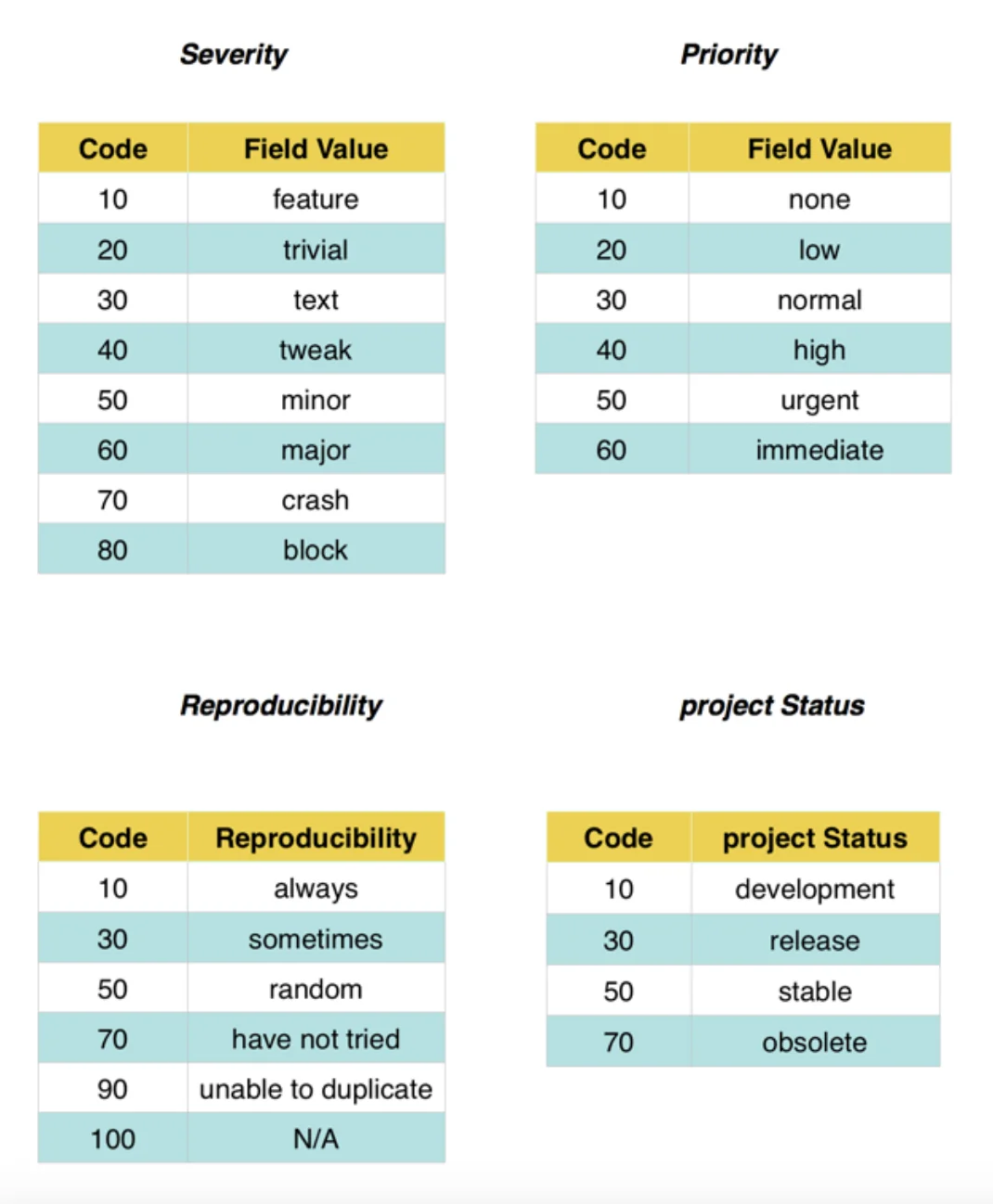
severity,priority, andreproducibility
Project fields can also be customized such as project status.
To customize these fields, email our support team and include the following information in a word/excel/pdf document:
- Field you wish to customize.
- The name of the new field value in English and in any other language you need it in. Choose from our list of supported languages.
- The field value order within the existing values from lowest to highest. This is best displayed as a number in reference to the current value code. See the relevant table below for a list of existing field values and their codes so you can nominate an appropriate order in relation to the existing values.
For example: If you need to add a new priority value with name 'escalating' and you want to have it appear between 'high' and 'urgent', you can give it an order of 45.
INFO
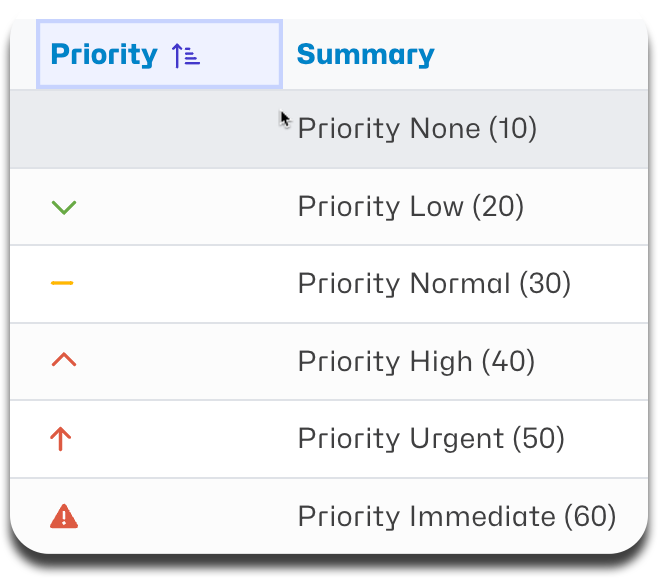
In the case of priority, corresponding icons are visible on the View Issues screen. These icons are linked to the order code and cannot be modified. Therefore you will need to keep priority listed from the lowest 10 to the highest 60 in line with the system definition of high-low priority.
Important Note If you'd like to remove a field value entirely, please make sure you have no issues in your system with this field value set before sending in your request. You can filter on this and change the value. If you do leave issues with this value, once we remove it for you, you will have an invalid value in your issue (something like '@10@') and you will no longer be able to filter on this.
Field Values and Codes