
Assigning Issues
Assigning Issues - Classic UI article
How to assign an issue
There are multiple ways to assign an issue.
- Manually assign an issue on ticket creation.
- Automatically assign an issue, based on category, on ticket creation.
- Open an existing issue and assign it. You can select 'Assign' or modify the assignment when editing the issue, changing the issue's status, or closing the issue.
- Assign multiple issues at once using group actions.
When assigning an issue, you will see a drop-down list of available users. By default, only users with an access level of 'Developer' or higher can handle (be assigned) issues. Therefore, when you click on the drop-down list to assign an issue, only users with these access levels for the project to which the issue belongs will appear in the list.
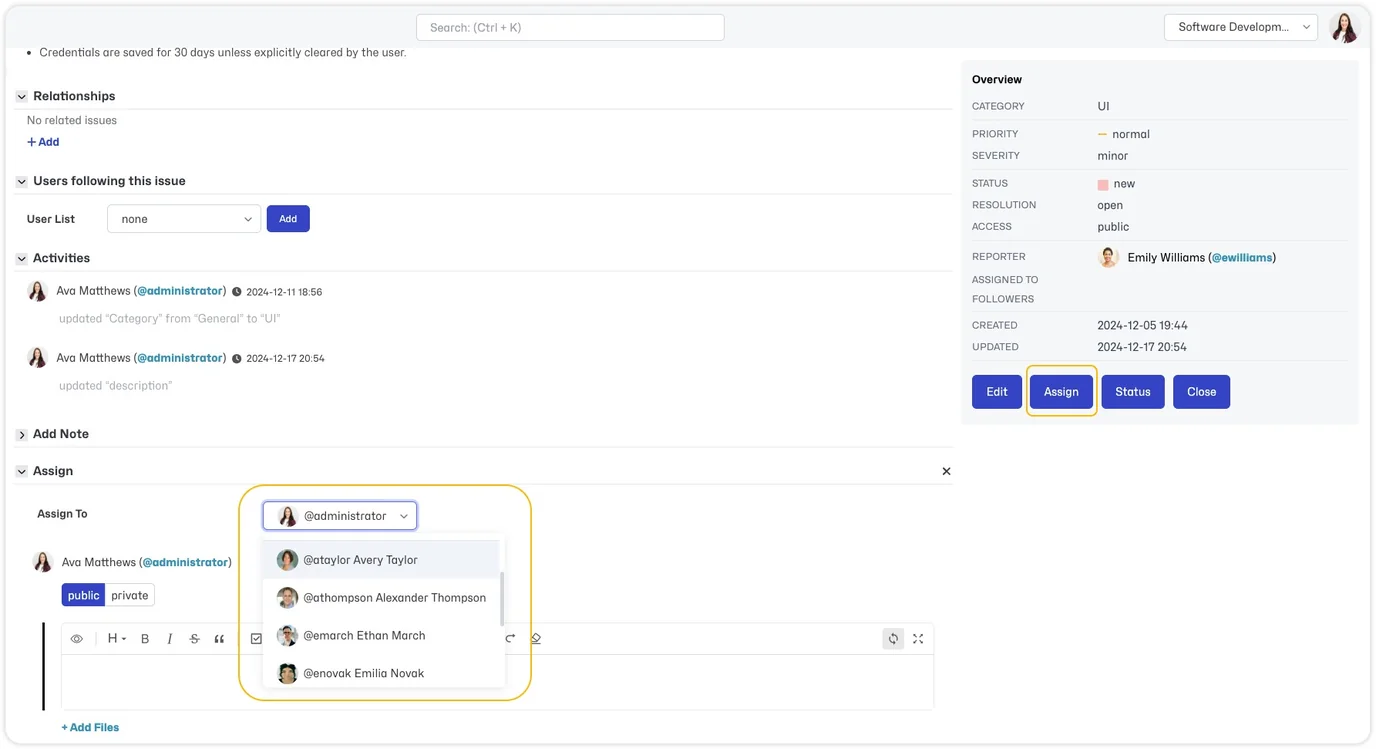
Team/Group User
A 'team' user can be created when you want to assign an issue to a group rather than to a specific individual (e.g., Migration Team). To do this, you will create a user account with the email address set to a distribution list that includes all users who should receive email notifications for the team user (e.g., migrationteam@bytecrafters.com).
Missing a user in the 'Assign To' list
If you feel that users are missing from the 'Assign To' drop-down list, here are a few things you can check.
- Ensure the user has the global access level 'Developer' or higher and is enabled.
- If the project is public and the user has a global access level of 'Developer' or higher but isn't appearing in the list, check that they haven't explicitly been added to the project with a lower access level. The user's access level at the project level will override their global access level (for details on defining access levels, check out this article.
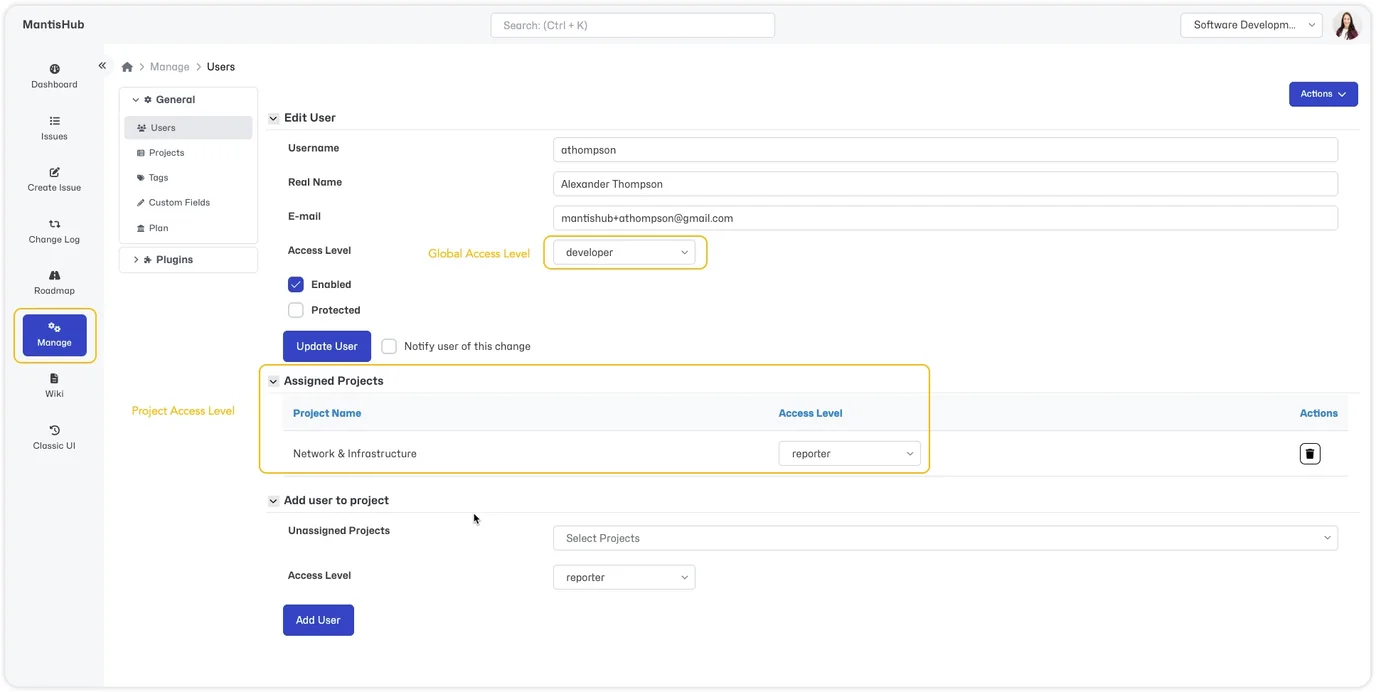
- The default setting allows 'Developers' or higher to handle/be assigned issues. However, this can be overridden in the Workflow Thresholds via 'Handle an Issue' permissions, allowing additional or fewer access levels permission to have an issue assigned to them. Verify the access level the user has corresponds to the Workflow Threshold permissions.
- If the project is private, you may not have added the user to the project. You can add the user to the project either via the user configuration or the project configuration.