Configuring AuthHub for Single Sign-on (SSO)
MantisHubs AuthHub is available for qualifying plans and enables Single Sign-on (SSO) by integrating with your identity provider of choice to authenticate and provision your MantisHub users.
A list of supported providers and the qualifying plans are listed below:
- Azure AD (Office 365) - for Platinum volume plans (200, 300, 500, 1000 users)
- Google / Google Suite - for Platinum volume plans (200, 300, 500, 1000 users)
- Github - for Gold plans and above
- Bitbucket - for Gold plans and above
Enabling SSO
Go to Manage - Plugins - Plugin List and if you are on the correct plan, you will see AuthHub listed in the Available Plugins section. Simply click on the Install button.
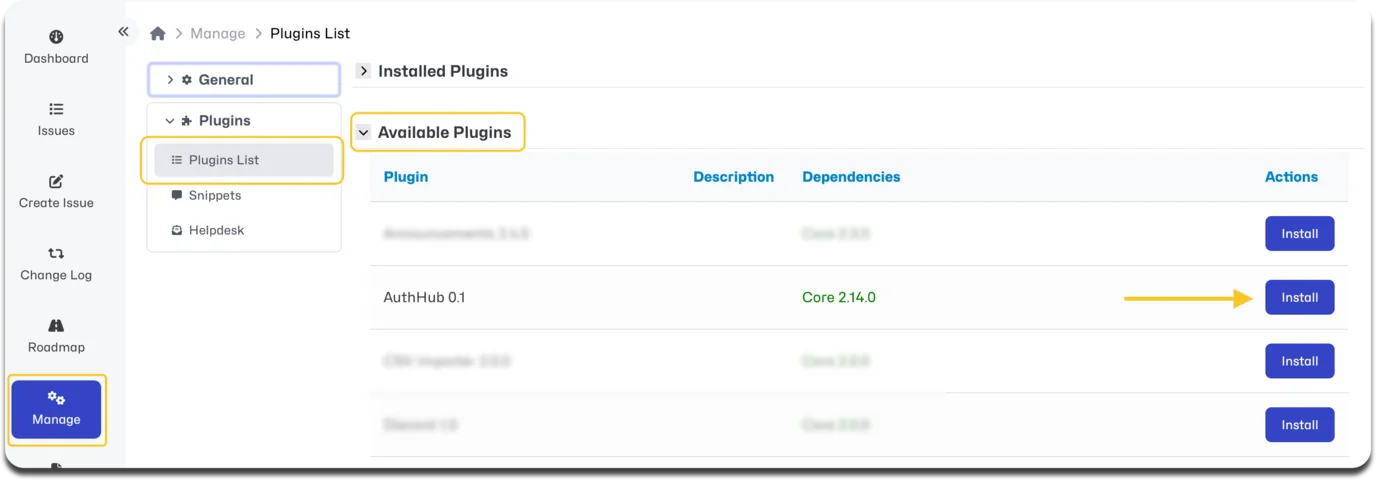
You will now need to configure the AuthHub settings before you can begin using it.
Configuration
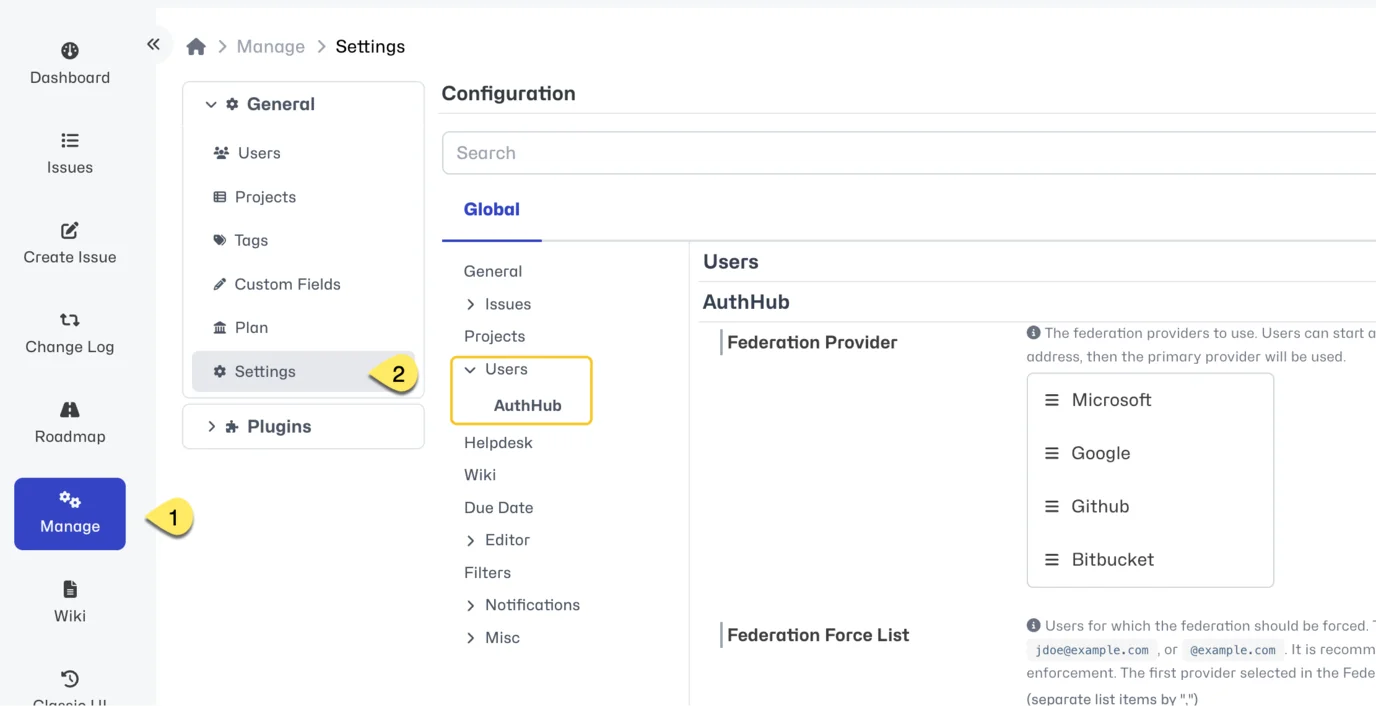
To configure AuthHub, head to Manage - General - Settings. Under Users select AuthHub
Define your provider(s)
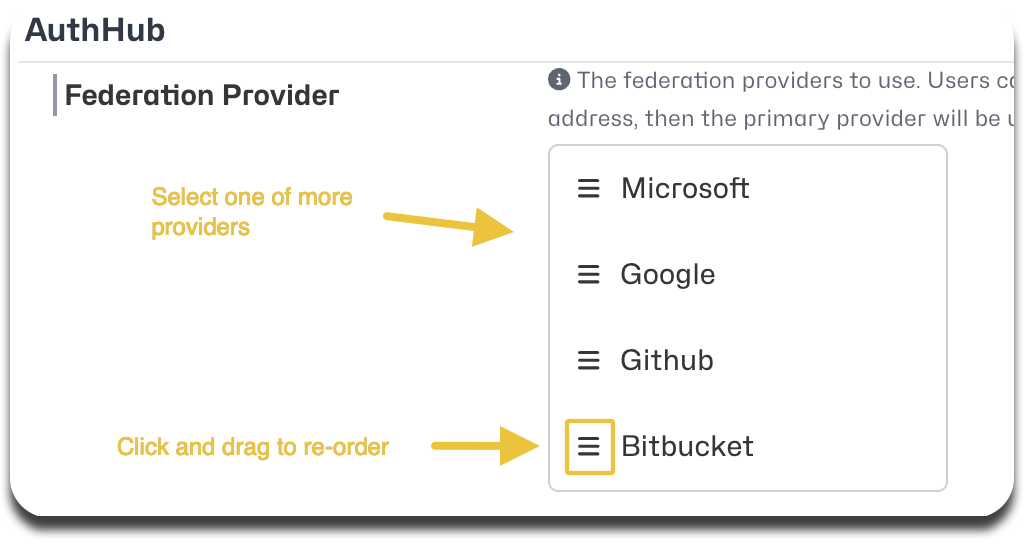
Select your primary federation provider from the drop-down list. You can select multiple federation providers which will display multiple login options for your users. You can also re-order the options displayed at login by dragging a listed provider up or down the list via the hamburger (3 vertical lines) icon next to the provider name.
Force SSO login
By default, your users will still have the option to create and use their MantisHub credentials as well as using your federation provider. If you wish to force users to be authenticated through SSO then you will need to define a force list. You can define this using domains (@example.com), email addresses (jsmith@example.com) or usernames (jsmith) or a mix of all. We highly recommend you thoroughly test user access over a few days to ensure everything runs smoothly before implementing a force list.

Allow users to use both credentials
Once you have created a force-list you may need to define certain users that will retain permission to log in using MantisHub native credentials. Note that this list has higher precedence over the force list. It is always recommended that you have at least one administrator account on this list to retain access to the system as they may need to disable or troubleshoot sign-on federation issues. You can specify this list using usernames, email addresses or domains. e.g. jsmith, jsmith@example.com or @example.com

Auto Provisioning
Enabling Auto Provisioning: For users not already created in MantisHub, you can turn on auto-provisioning so that a MantisHub user account will be automatically created for users who successfully authenticate to your primary federation provider (i.e. the first one in order). This is OFF BY DEFAULT but to turn it ON as well as set default access levels you need to configure it as follows:
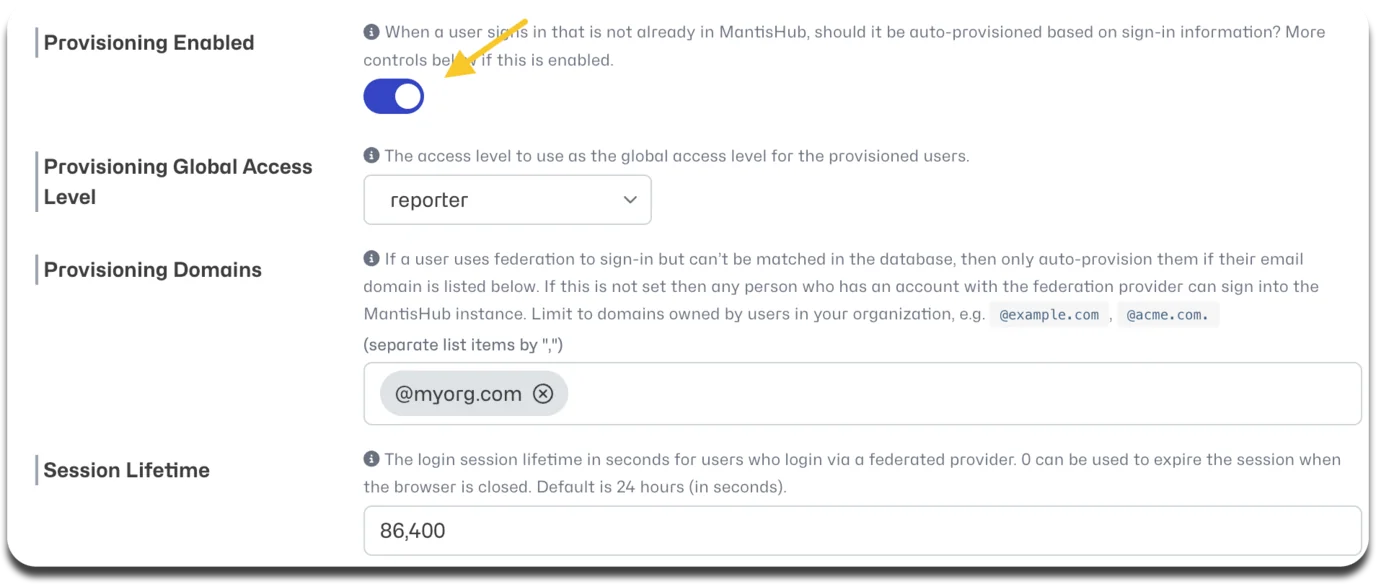
Firstly, under Provisioning Enabled click the toggle button to turn it on.
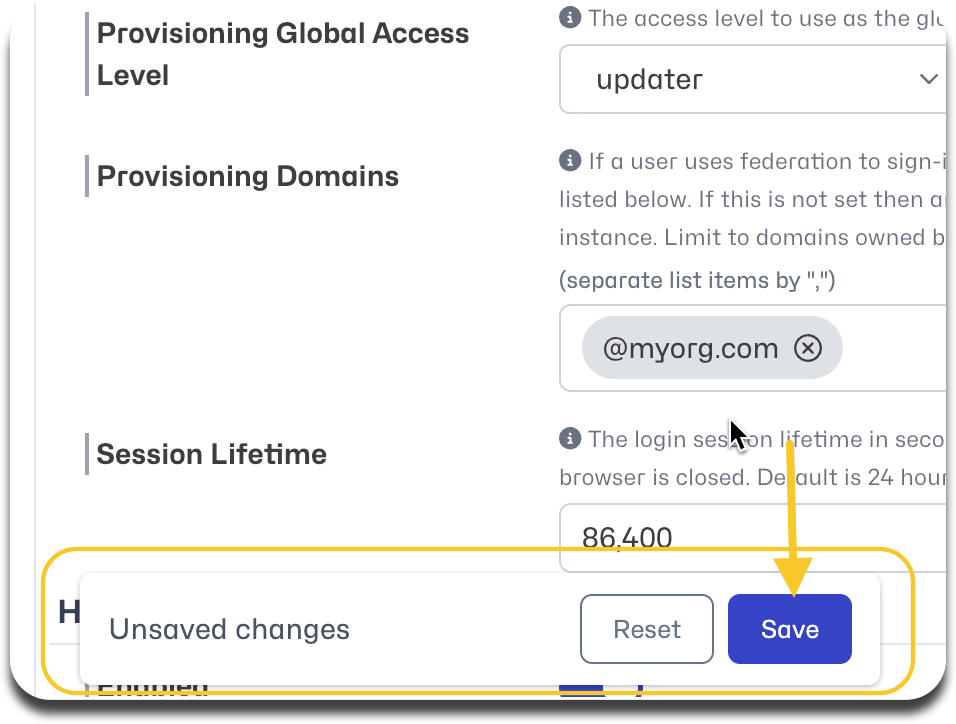
Secondly, set the Provisioning Global Access Level for the newly provisioned user. The default global access level is reporter, to change this by select an alternate user level here.
Thirdly, define your Provisioning Domains. This is a list of domains that are allowed to be auto-provisioned for MantisHub. Note that if this is left blank then any users who have an account with the federated provider can sign up to your MantisHub instance so be sure to limit this to domains owned by your organization.
Lastly, you can optionally change the Session Lifetime if needed. The default is 24hrs. Note that this setting will apply to all SSO authenticated users, not just those who are auto-provisioned.
Make sure to save any settings in the "Unsaved Changes" pop-up.