Attaching Files
Attaching Files - Classic UI article
MantisHub supports attaching files to issues (default max size 250 MB each). You can attach a file when creating an issue or adding a note to an issue. In either case:
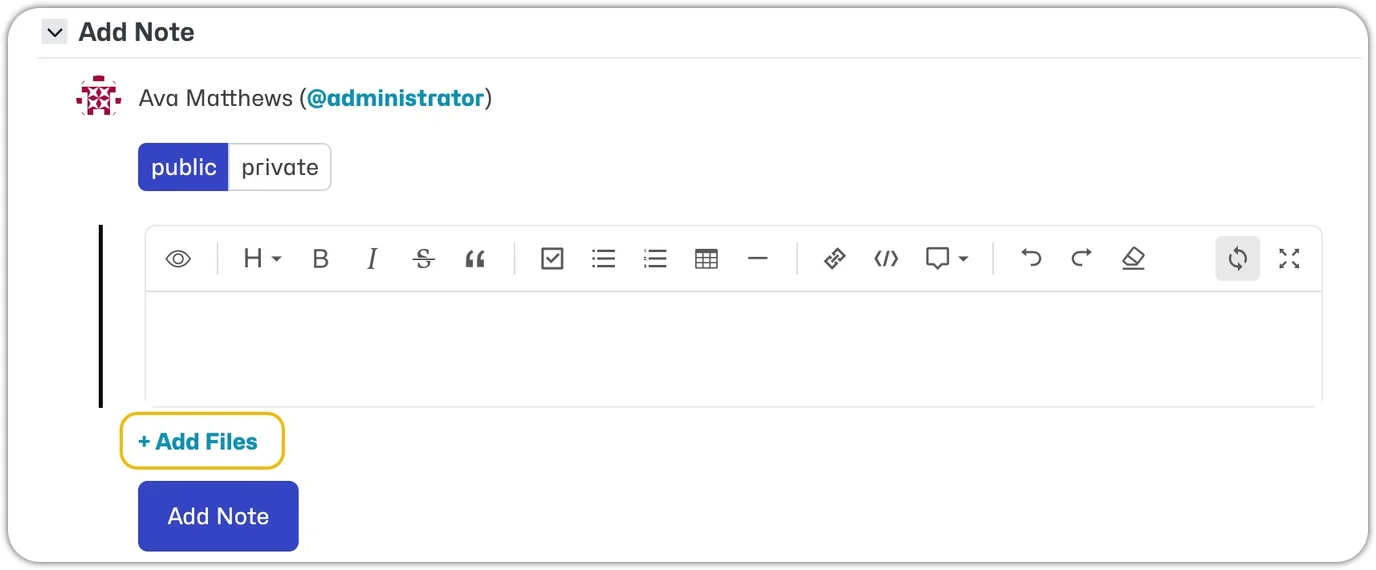
- Select '+ Add Files'
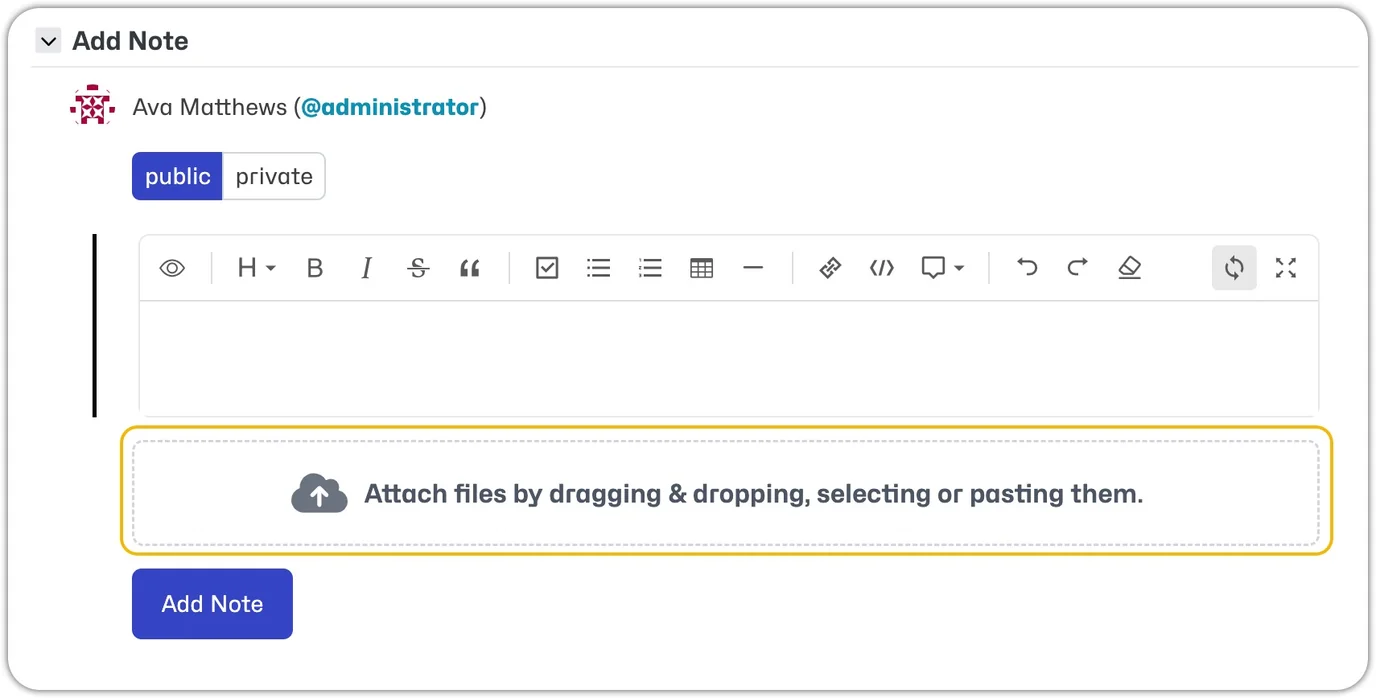
- Attach files by dragging & dropping, selecting from your computer/mobile, or pasting.
- You will see a preview of the attachment(s).
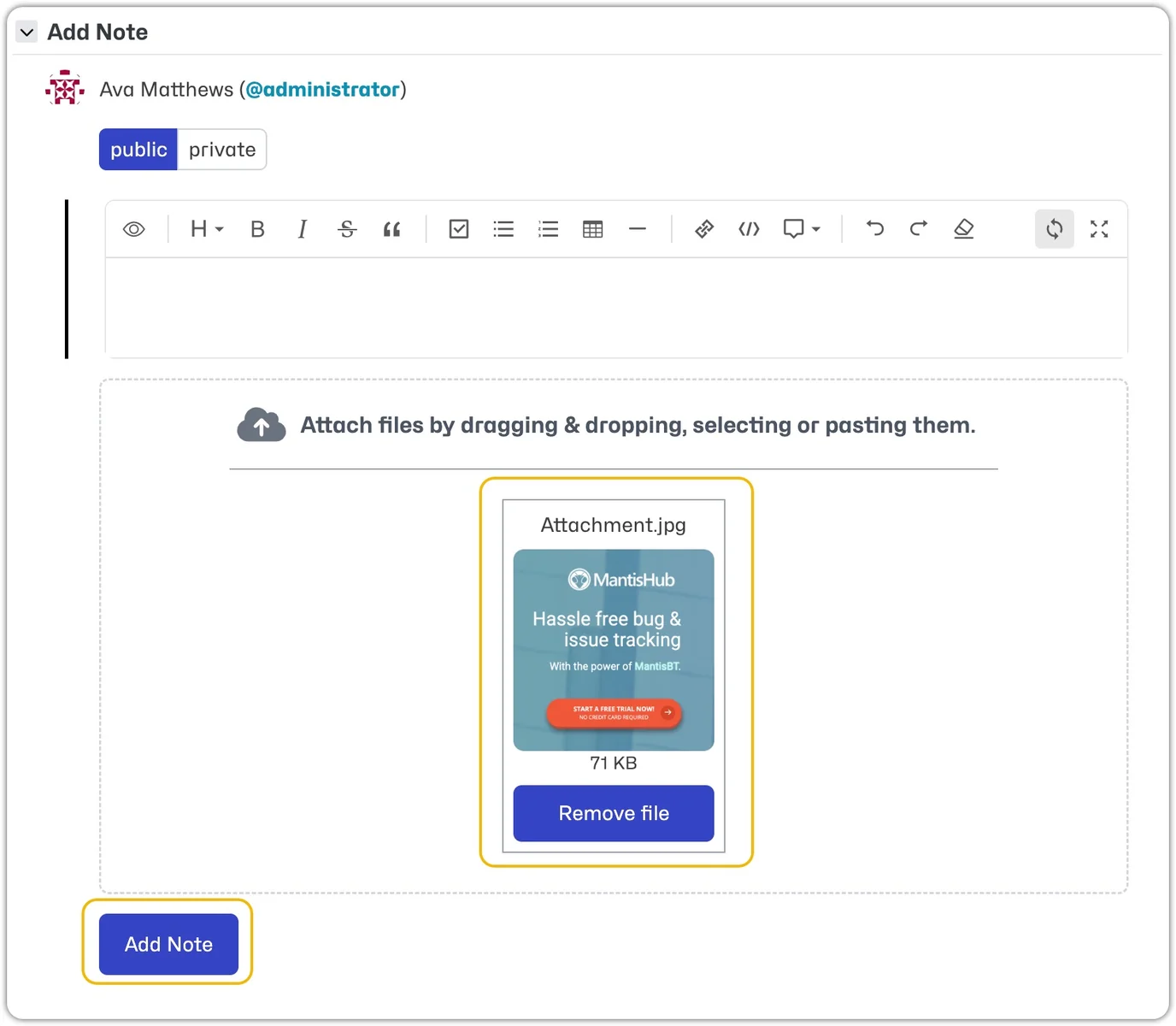
- Select 'Create', 'Submit', or 'Add Note'.
- The attachment will be visible once the issue is created or a note is added.
Public & Private Attachments
Both public and private notes support attachments. If notes are changed from public to private or vice versa, attachments associated with those notes will also change to have the same view status.
Preview Attachment
By default, attachments that are image or text files smaller than 256 KB are previewed inline when viewing the issue.
Note: This preview size is configurable (see Configurations section below).
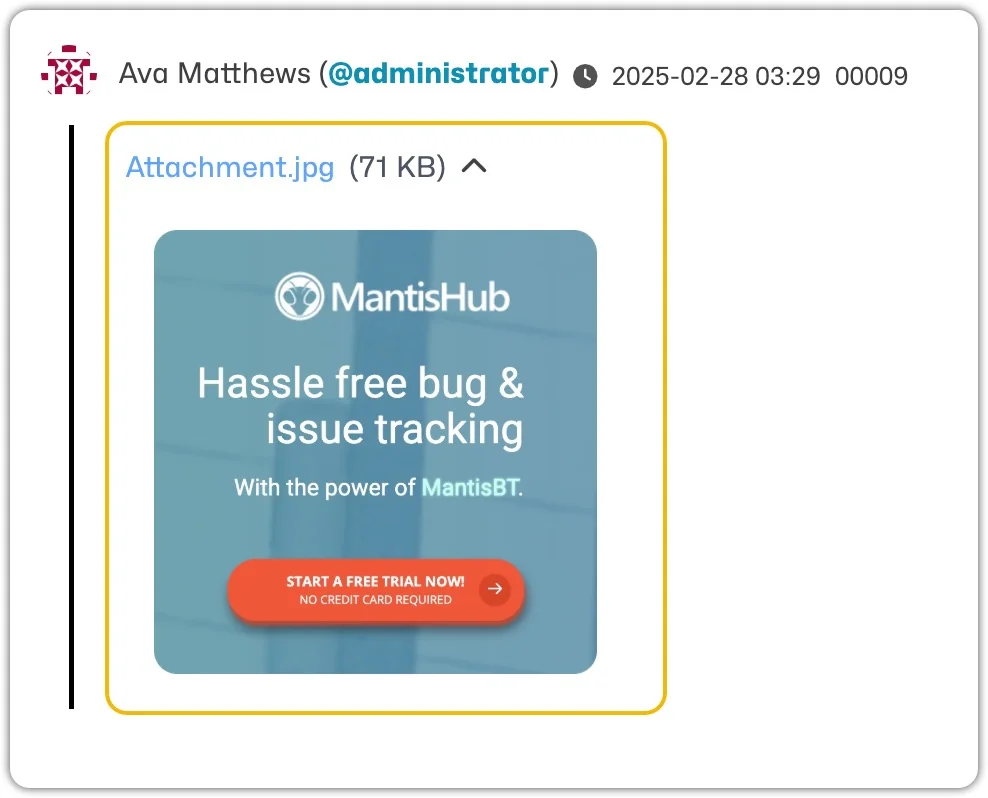
You can play video and audio files inline without having to download them. All other attachments can be downloaded or opened when clicked by the user.
Delete Attachment
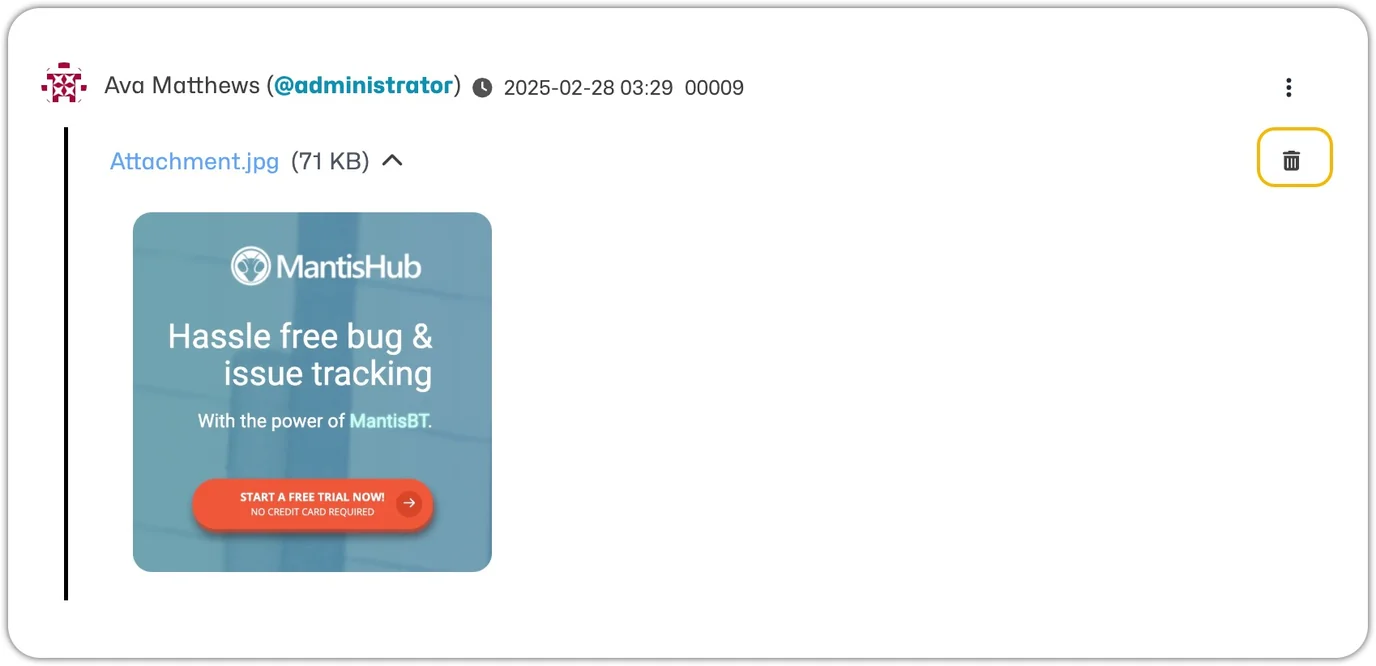
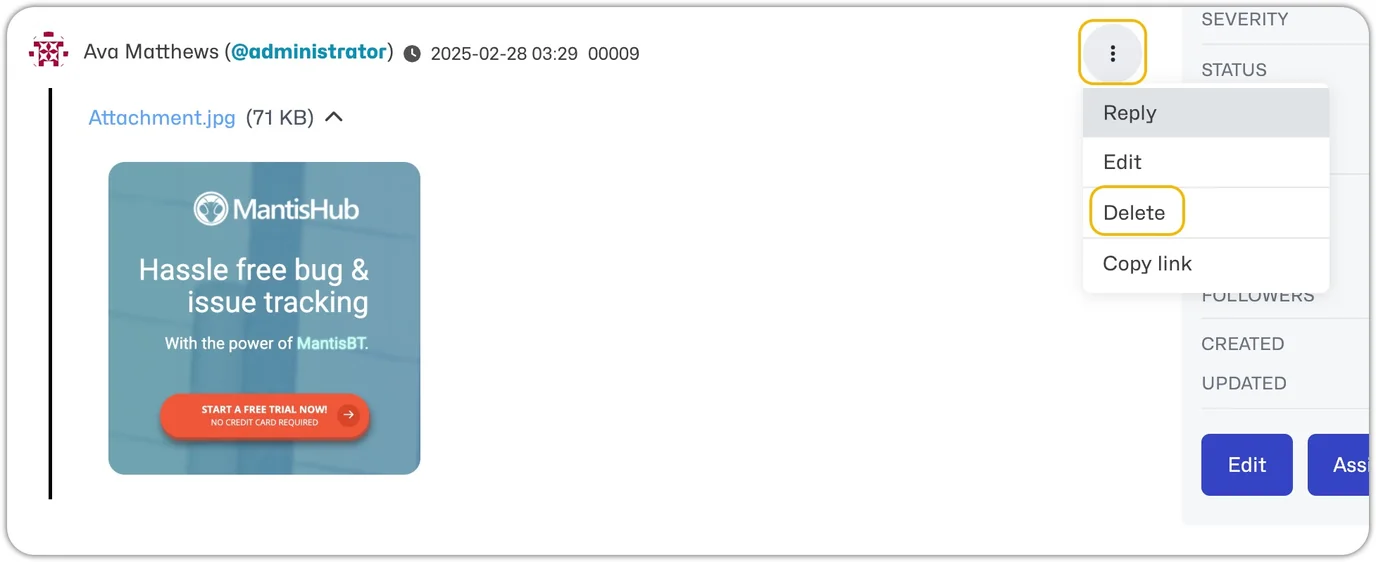
You can delete an attachment by opening the issue, going to the 'Activities' section, selecting the trash can icon or the ellipsis menu, and 'Delete.'
Configurations
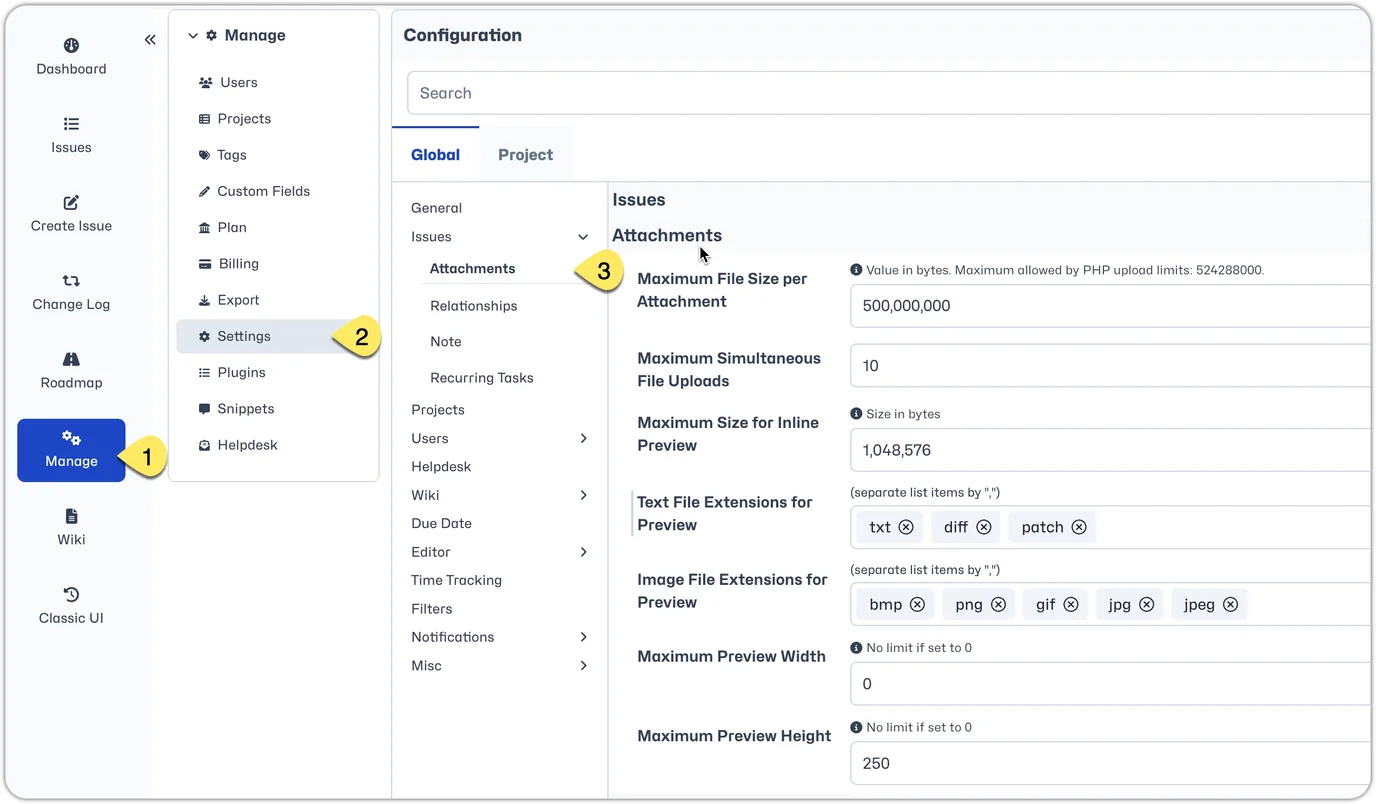
To make configuration changes to how attachments are handled, go to 'Manage' - 'Settings' - 'Attachments'. You will find several configuration options including:
- The number of attachments that can be added at one time;
- the maximum size for upload of files.
- the maximum size for previewed files
Note that file sizes are to be specified in bytes.
The maximum upload size and the inline preview size are independent settings. The upload limit controls whether a file can be attached; the preview limit controls only whether eligible image or text files are shown inline. Increasing the preview limit does not increase the upload limit. Files that exceed the preview limit can still be attached and downloaded when they are within the maximum upload size.