Chat Integration for Microsoft Teams
Part of the Microsoft Office suite, MS Teams is a chat application that provides a platform for team communication. Integrating MS Teams with MantisHub allows mapping MantisHub projects to MS Teams channels. This means you can receive notifications into MS Teams when issues are actioned.
Setting up MantisHub and Microsoft Teams Integration
1. Create a new Workflow
The first step is to create a webhook URL for your MantisHub configuration. We will document the current process here but please check the Microsoft website for up to date processes.
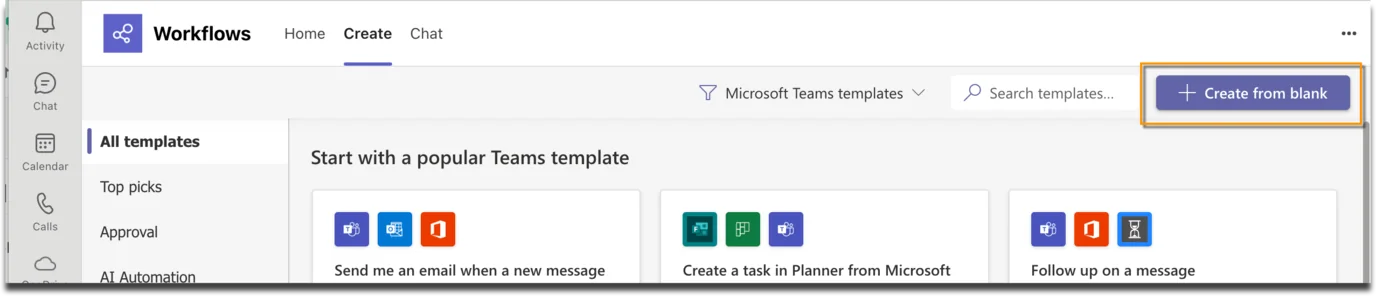
- Within your MS Teams application, you will need to search and find the 'Workflows' app. Once there, click "New Flow"

- Click 'Create from Blank'.
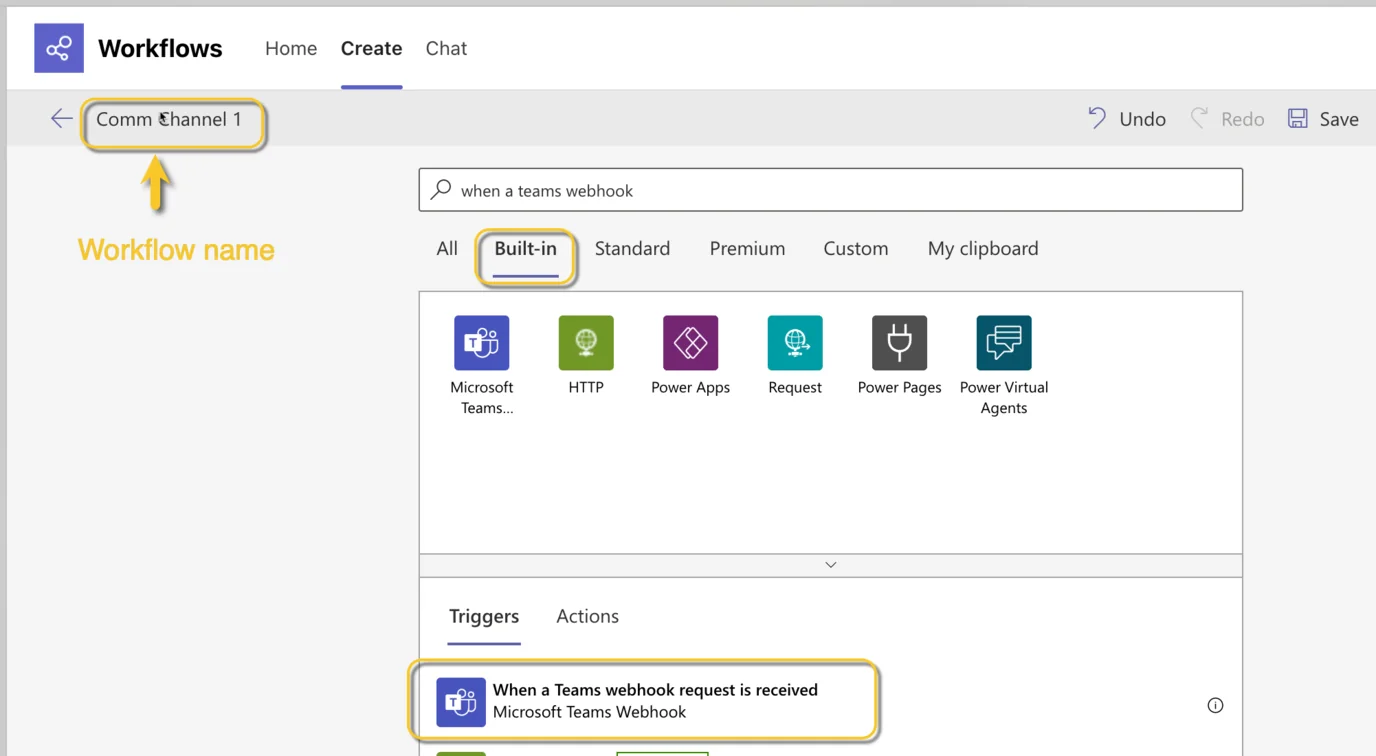
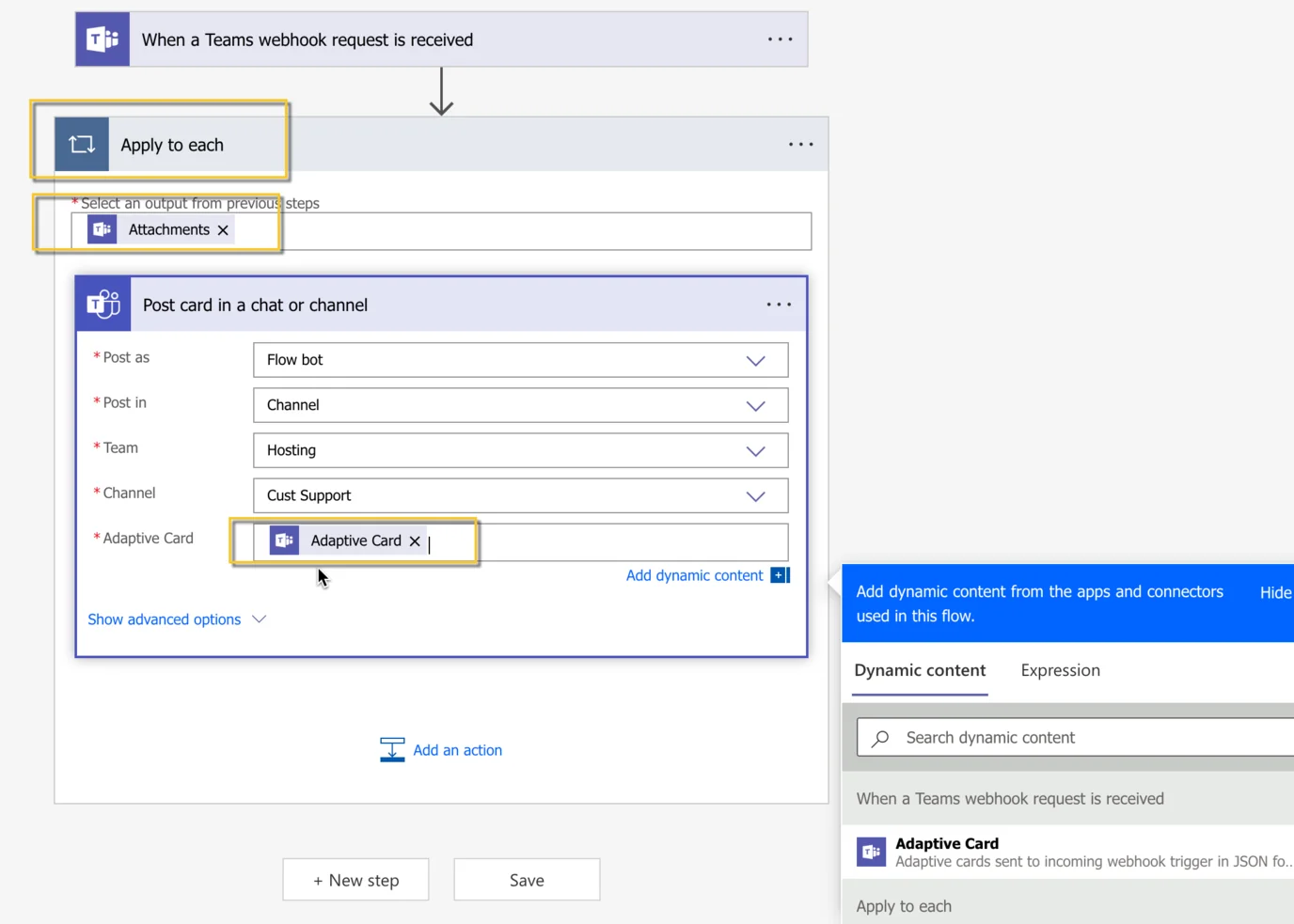
- Select 'Built-in' then search for and select trigger, "When a Teams webhook request is received". You should also give the workflow an appropriate name.
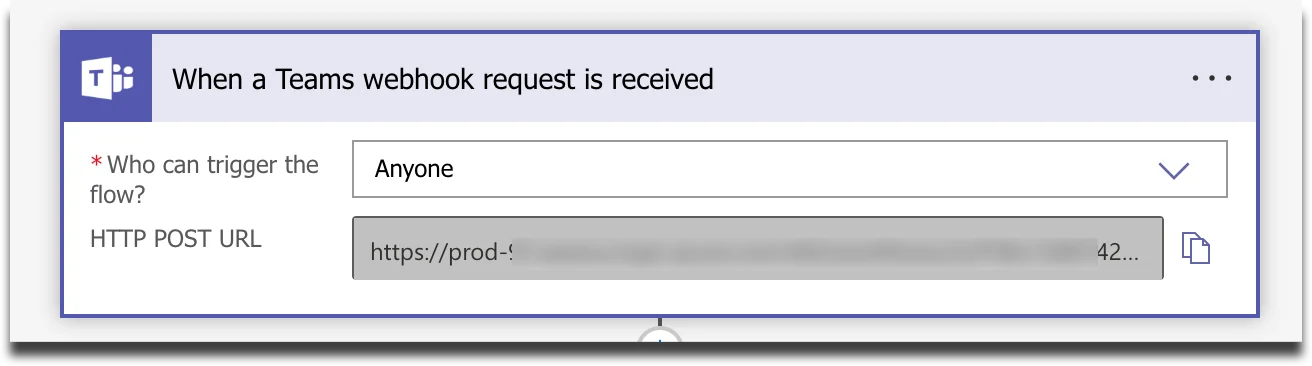
For “Who can trigger the flow?”, choose “Anyone” or optionally, you can also choose specific users if needed.
Click on “New Step”
- In the “Choose an operation flow”, click Control.
- Then select 'Apply to Each.'
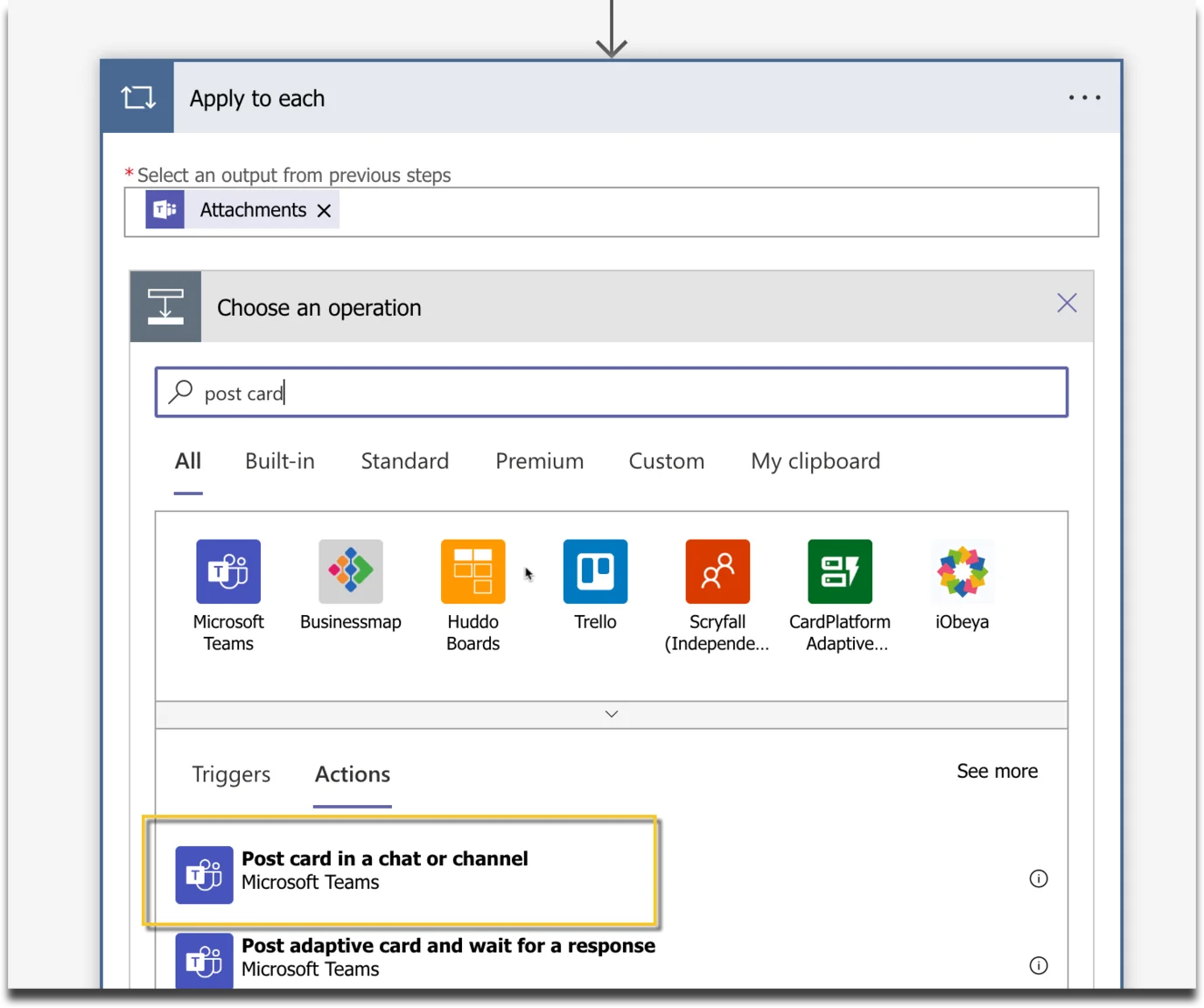
In “Select an output from previous steps”, choose “Attachments”
Click Add an action then search for “Post card in chat and channel” and select it.
- Configure the Post card action:
- Post as: Flow bot
- Post in: Channel
- Team: your_team_name
- Channel: your_channel_name
- Adaptive Card: Adaptive Card
- Click Save. After saving, a webhook URL will be generated under the “When a Teams webhook request is received” flow. Copy the URL displayed as "HTTP POST URL". This is the webhook URL you will need to configure in your MantisHub plugin.
2. MantisHub Plugin Configuration
Please note that MS Teams plugin configuration must still be done via the Classic UI
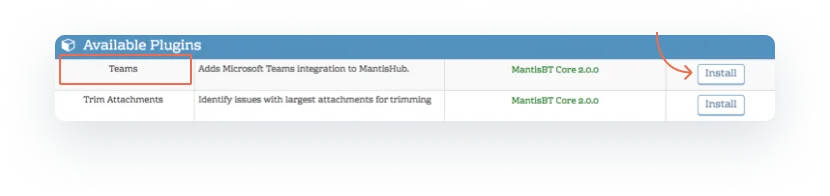
Go to Manage - Manage Plugins. If you haven't already installed it, you should see the Teams plugin in the Available Plugins section. Click install then click the Teams hyperlink to go into the plugin configuration.
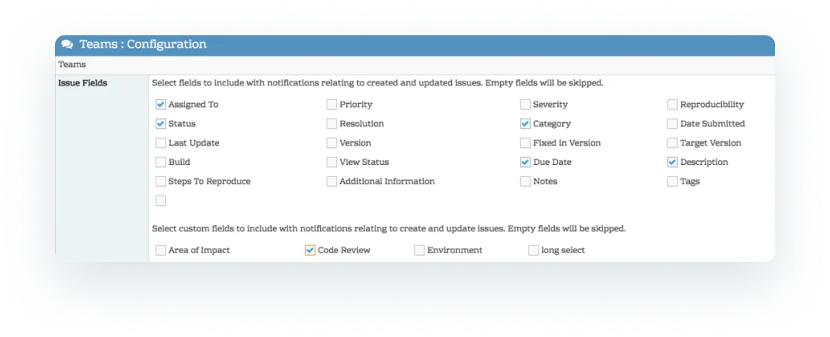
Within the plugin configuration, you can select here the included fields, including custom fields, and type of updates you would like in your Teams notifications. See the Notifications section further down in this article for details.
Next, paste in your generated webhook url next to the relevant MantisHub Project. For multiple mappings, you will need to create a Teams webhook for each channel/project pairing. Any project left unmapped will not broadcast any updates to Teams.
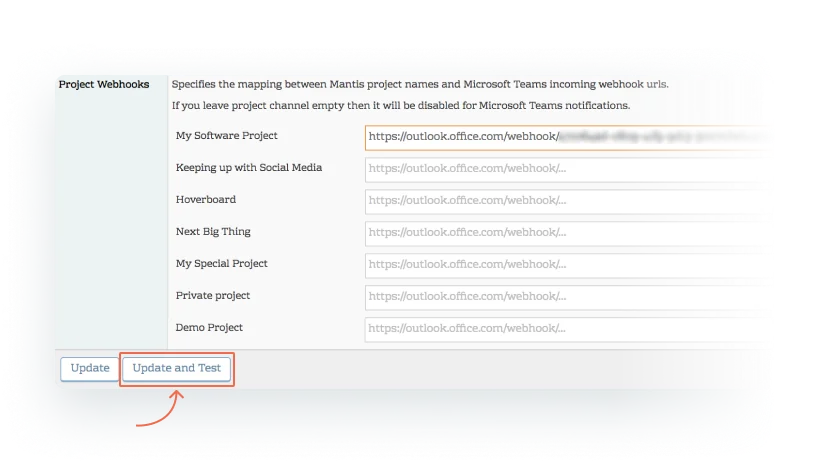
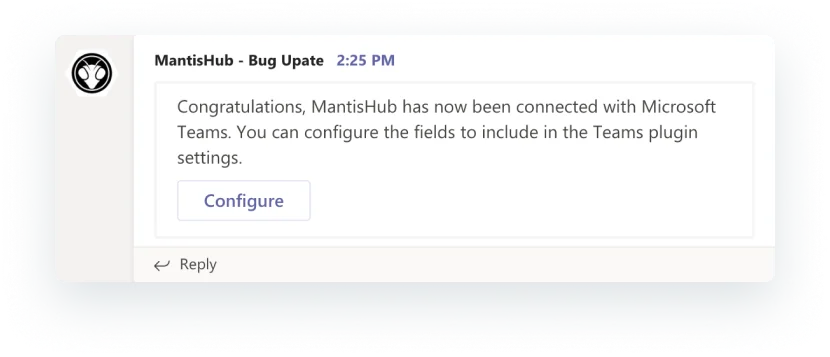
Click update and test to save the configuration and generate a test notification to Teams. A notification like the one below will be sent to the projects Teams channel.
Notifications
You will receive Teams notification when:
- Issues are created
- Issue status is changed
- Notes are added. For private notes, you will receive a simple notification that a private note has been added, the contents of the note will be hidden. For public notes, the note content will be included in the notification.
- Issue assignment is changed.
- An issue is deleted
- An issue is moved to the mapped project. (At this point there is no notification when an issue is moved out of a project)
Note that for all notifications the Issue ID and Summary will always be shown and are hyperlinked. So if you click on them it will open up a new desktop or mobile browser page directly to the MantisHub issue.
In your MantisHub Teams plugin configuration, you will find some options in the 'Issue Fields' section. The fields chosen here will determine what fields are displayed on issue creation. It will also determine if you are notified of a change relating to these fields. For example, say you have priority checked and severity unchecked, you will receive notifications if the priority is changed but not if the severity is changed.
Access to project notifications to a Teams channel will be viewable by all Teams users with access to the channel, independent of their MantisHub permission for access the MantisHub project/issue. However, if such users click through to MantisHub, their access will be validated.
Examples
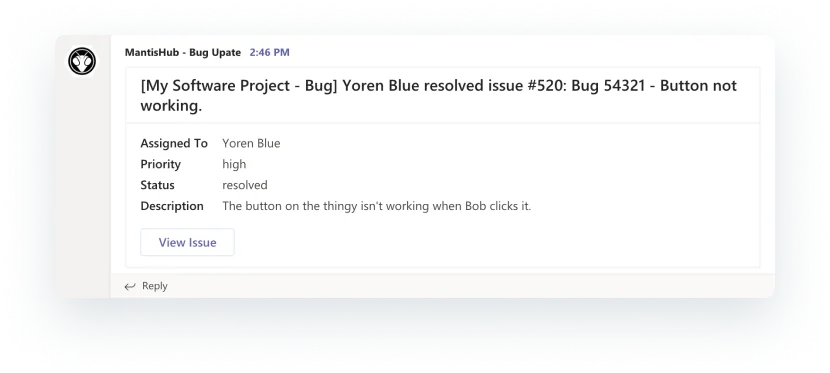
Below are some sample notifications. These are updates for the 'My Software Project' MantisHub project for an issue in the 'Bug' category being posted to the 'My Software Project' Teams channel. Issue fields checked in the plugin configuration include: Assignment, Priority, Status, Category, and Description.
*When an issue is created:
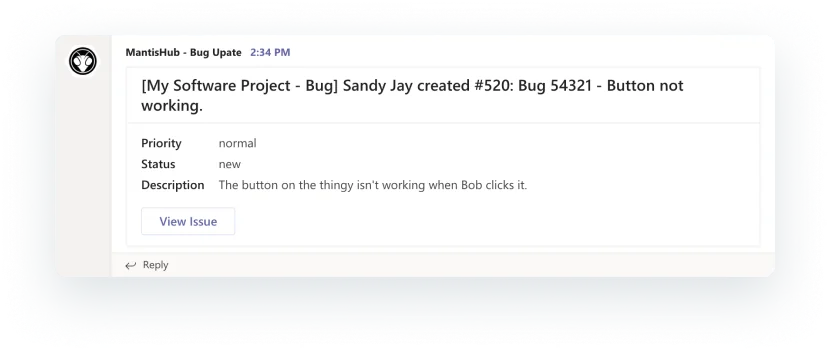
When a team member assigns an issue to themselves:
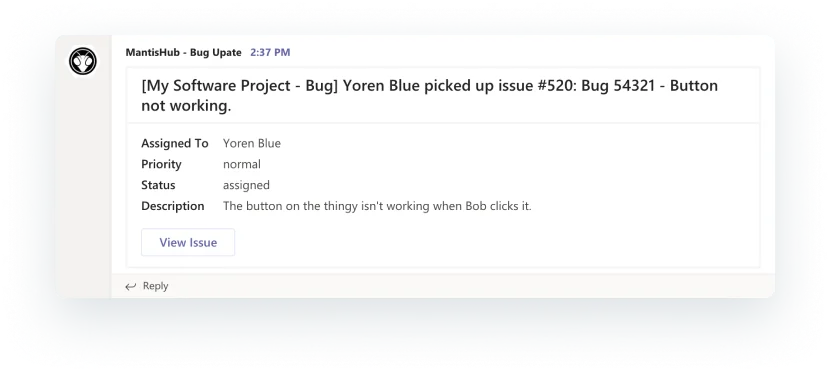
If assignment, priority or status is changed:
A user adds a public note: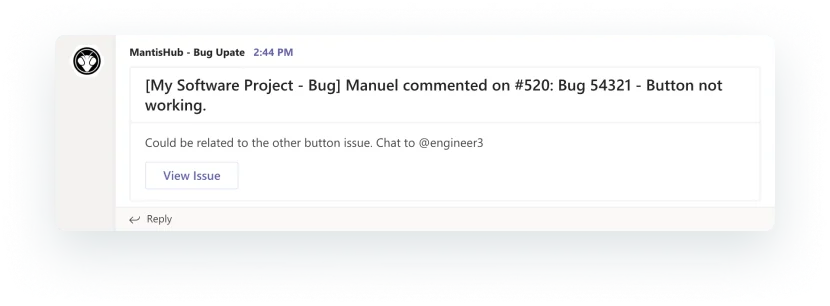
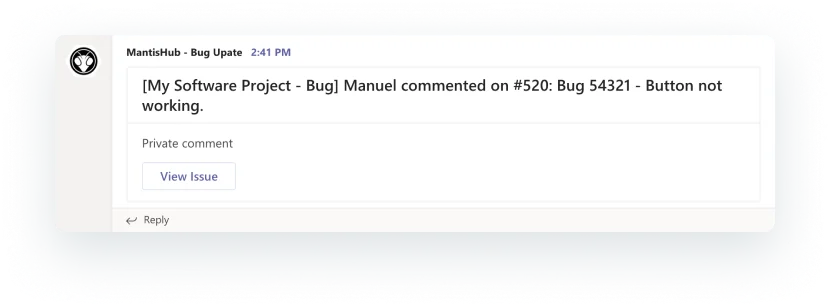
A user adds a private note: