
Recurring Tasks Plugin
Recurring Tasks Plugin - Classic Article
The Recurring Tasks plugin is only available for Platinum + plans. Check out this article to upgrade your plan or reach out to our support team.
Recurring Tasks allows you to automate the creation of new tickets for your regular, repeating tasks. You can set tasks to run daily, weekly, monthly, or annually. A new ticket will be created at the scheduled time in your chosen project with the details you provided during setup. A 'Trigger Now' option also allows recurring task creation to be manually triggered.
For example, you can use scheduled Recurring Tasks to create a ticket for your weekly scrum, monthly payroll, or annual performance reviews. You can trigger a Recurring Task manually for a preset template ticket to re-stock paper for the printer.
Enable Recurring Tasks
To enable this plugin, go to 'Manage' - 'Plugins' - 'Plugin List' - scroll down to 'Available Plugins' and select 'Install' for the Recurring Tasks plugin.
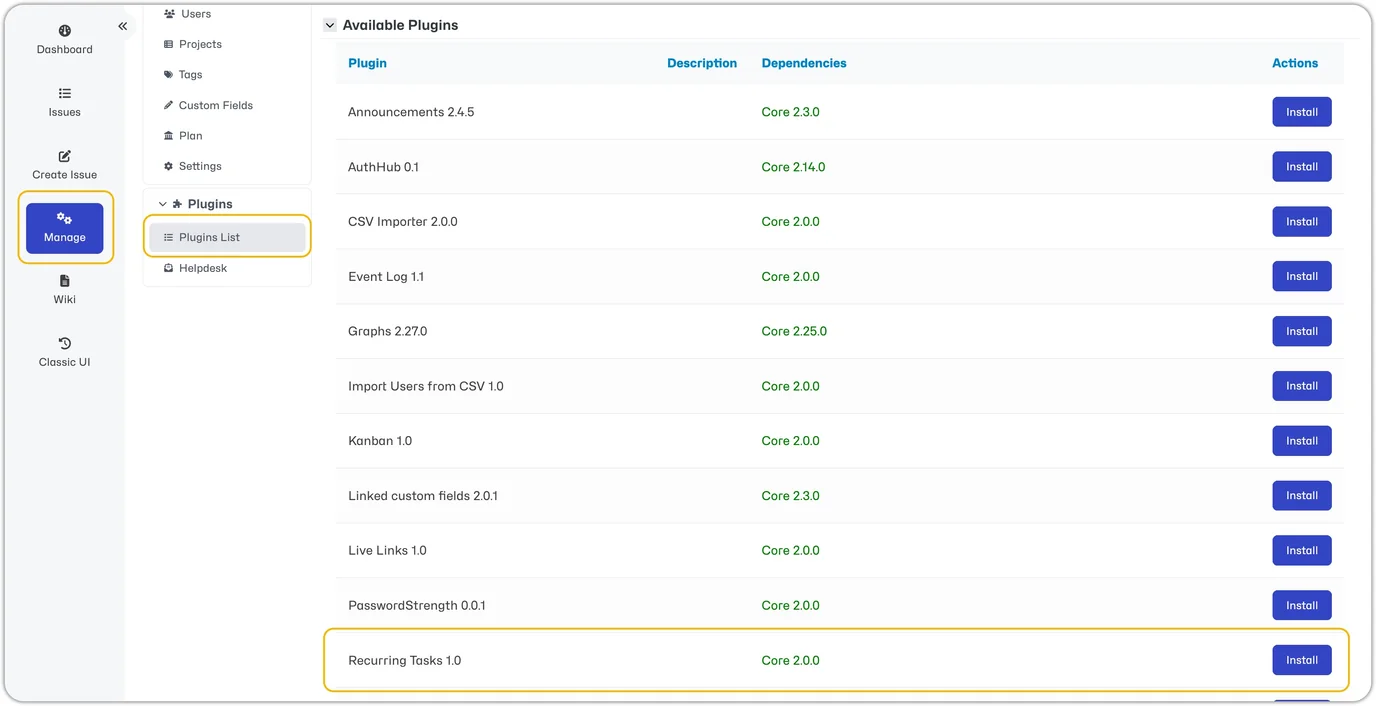
Users with 'Developer' access level and higher have permission to create a recurring task by default. Please revert to the Classic UI to modify this setting.
Create a Recurring Task
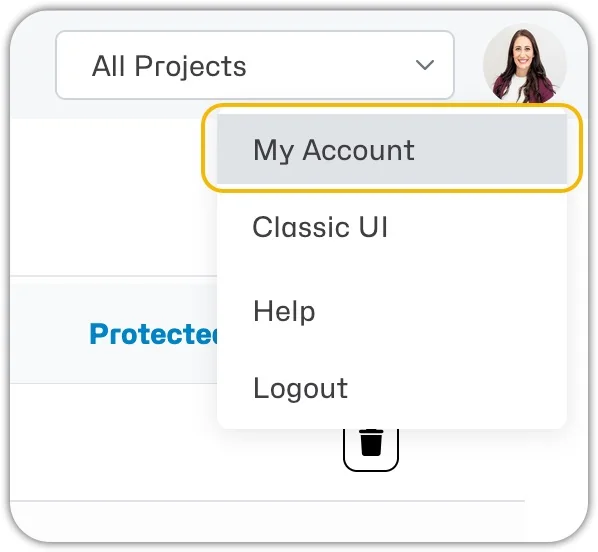
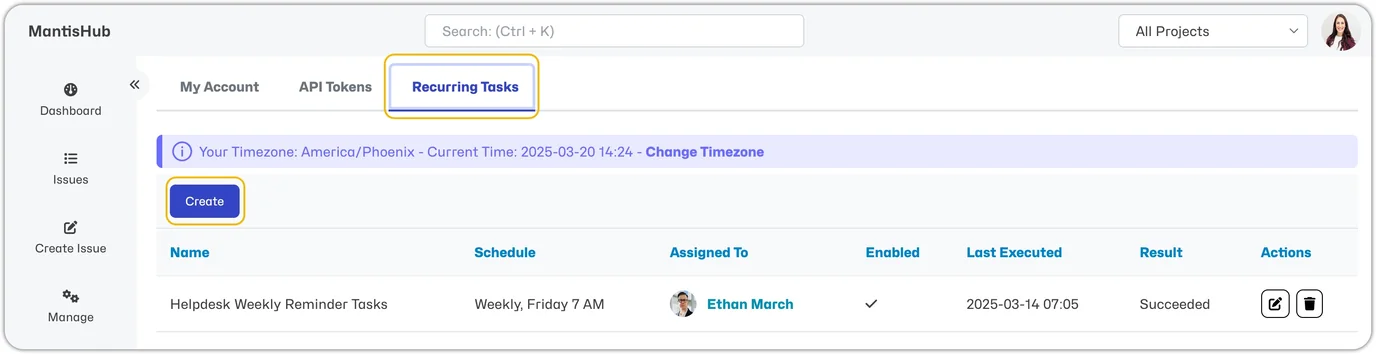
The Recurring Task functionality is available in your personal account settings. Go to the user drop-down menu at the top right of your screen, select 'My Account,' and then click the 'Recurring Tasks' tab.
To create a recurring task, click the 'Create' button. If your project selector is set to 'All Projects,' you will be prompted to select a project. If you already have a specific project set in the selector, it will be created in this project.
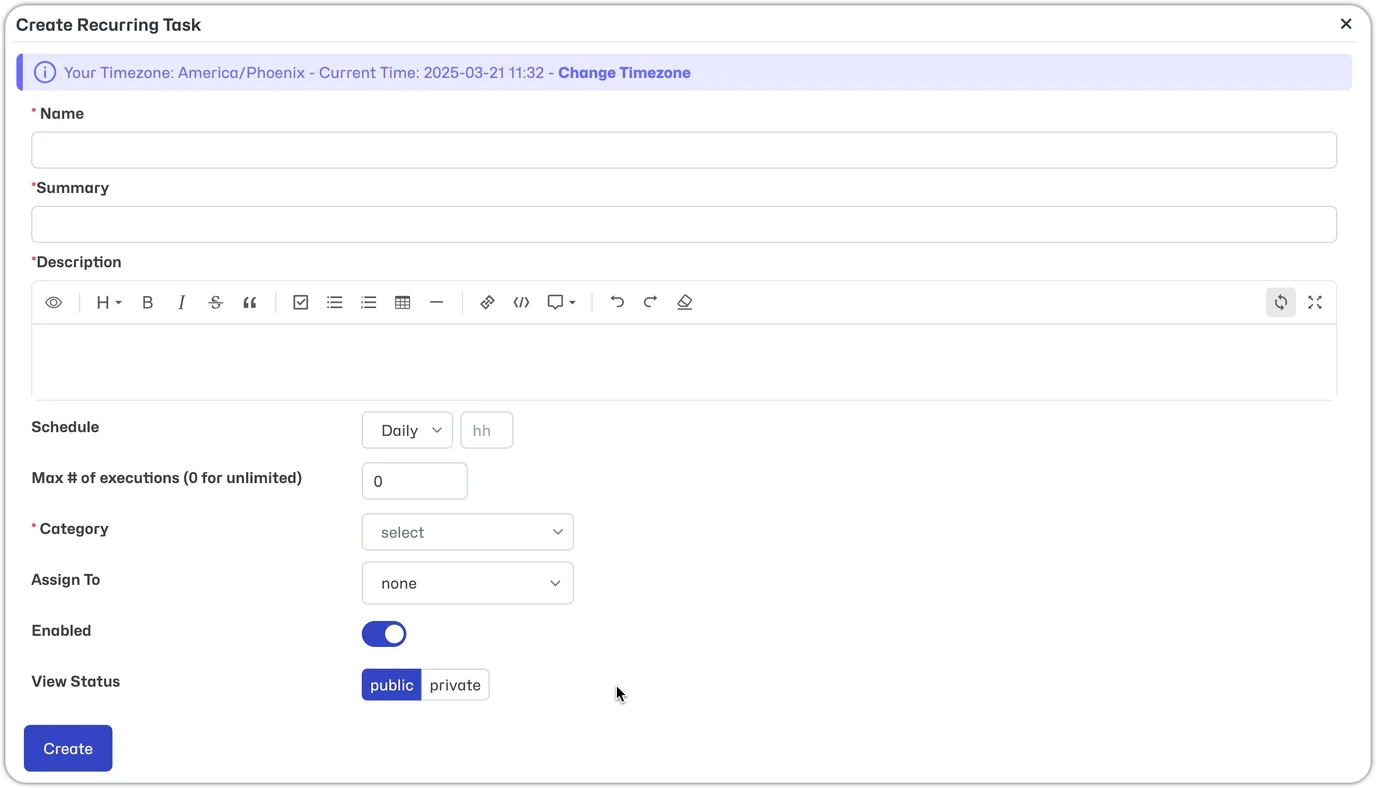
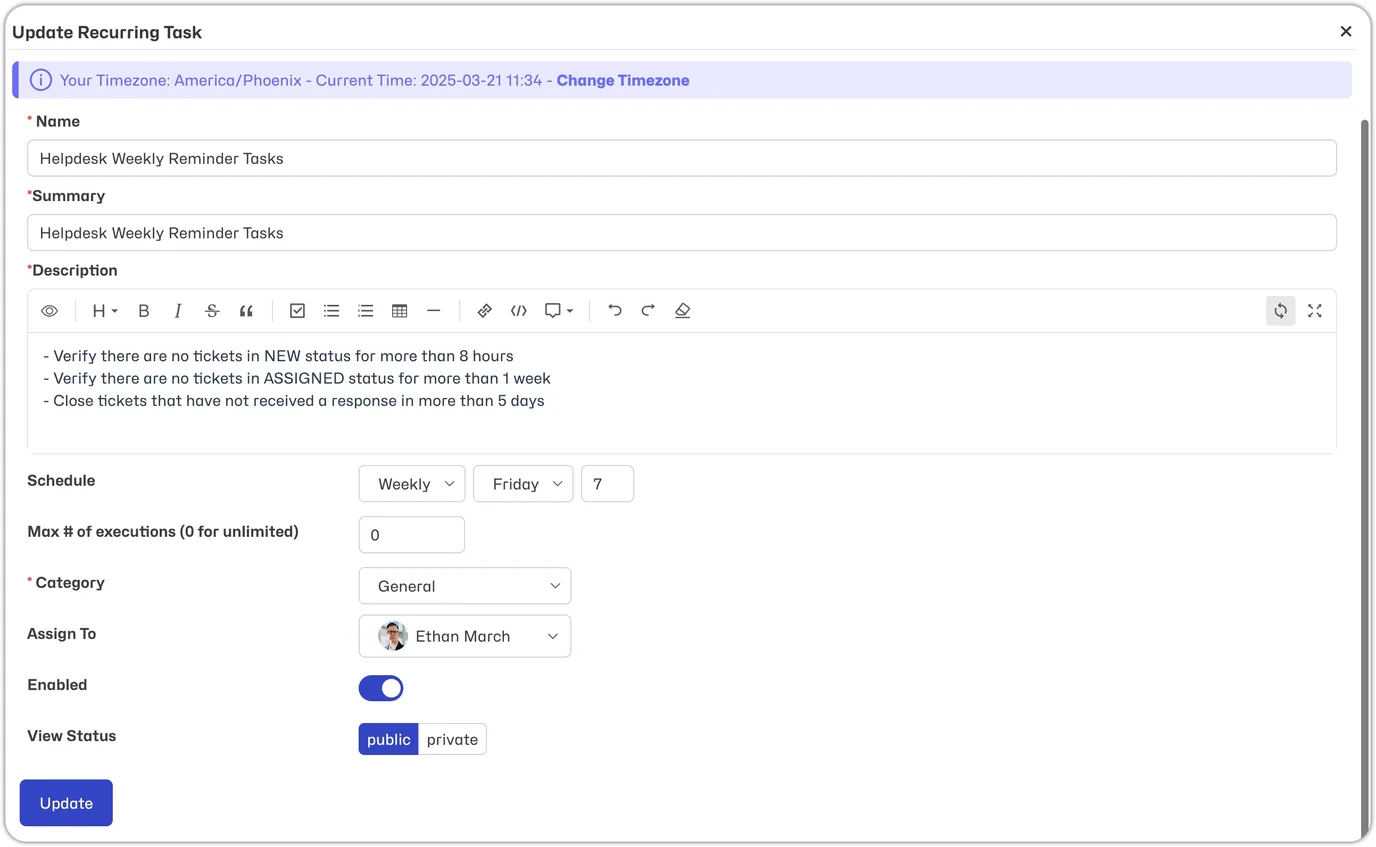
Enter the following details:
- Name: This is the name of the recurring task.
- Summary: Ticket/task summary
- Description: Ticket/task description
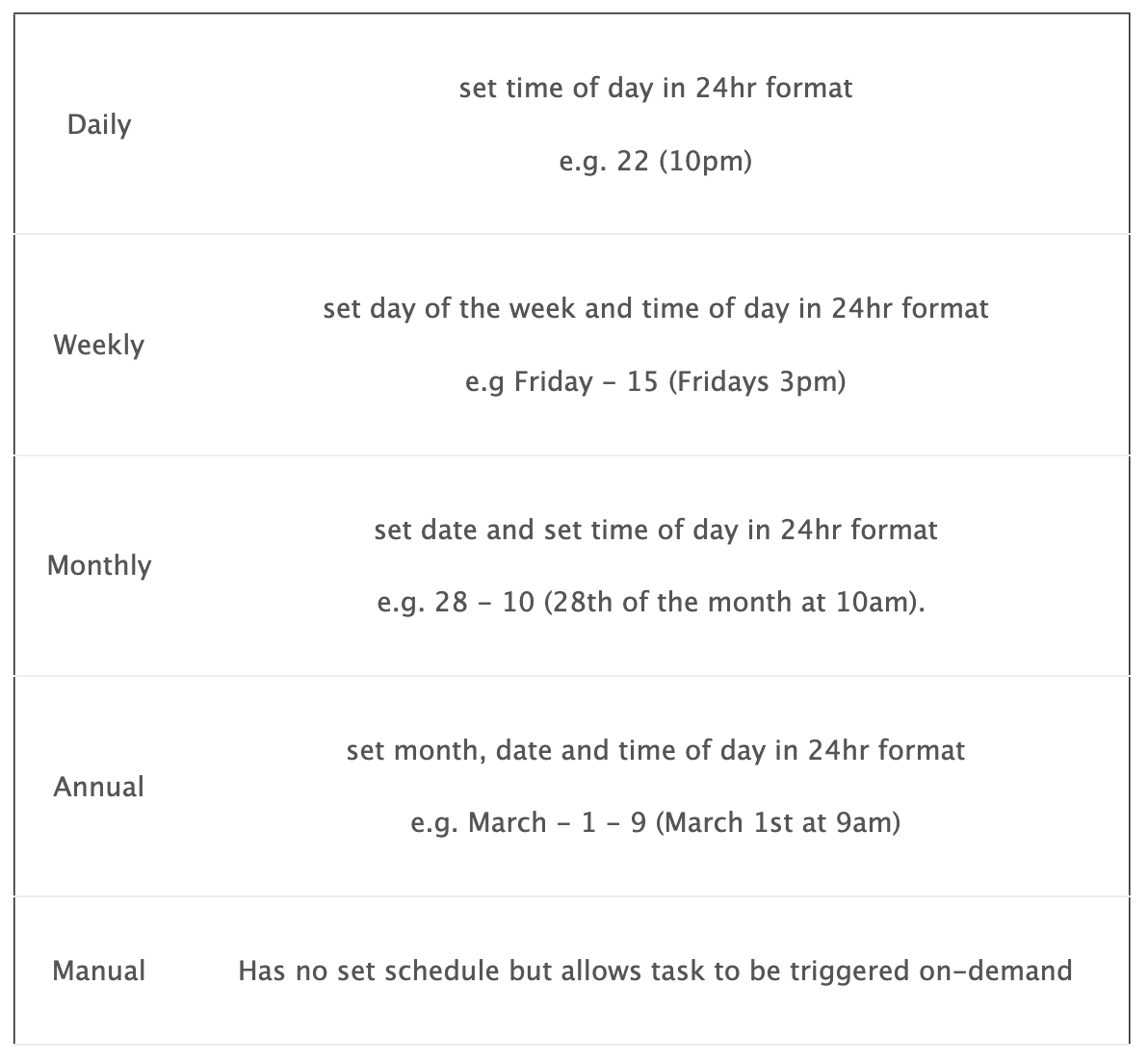
- Schedule: Depending on your frequency, you can set tasks as shown in the table below. If you need tasks to run multiple times a period (e.g., Weekly Tues. & Thurs.), you must create separate tasks. When configuring your schedule, the timezone used will be your personal timezone settings.
- Max # of Executions: You can limit the number of times this task automatically executes by entering a value for the 'max # of executions' or leave this as 0 for unlimited.
- Category: Ticket/task category
- Assign To: You can set an automated assignment; this will override category-based auto-assignment.
- Enable: This must be 'on' to execute the Recurring Task. You can disable a task rather than deleting it.
- View Status: Ticket/task privacy setting.
Tip: When configuring your recurring task, you can use dynamic date fields to insert the current date within the Description or Summary. Use the syntax '{date}' to insert date formatted based on short_date_format. Or use '{date:format},' which inserts the date based on the format you define as detailed in here
Modify Recurring Tasks
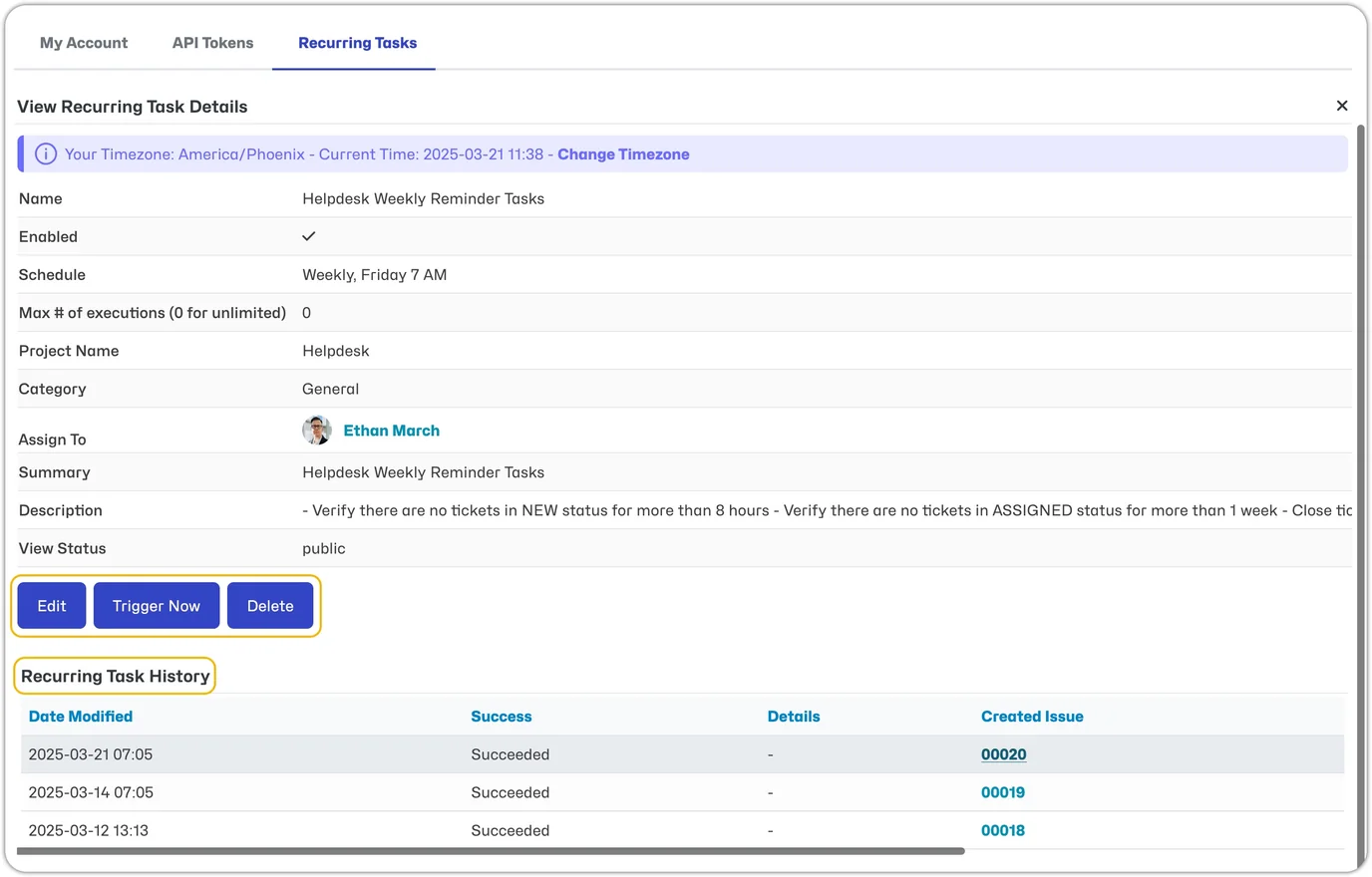
Select a task under Recurring Tasks to:
- View details
- Edit
- Delete: Instead of deleting a recurring task, don't forget that you can disable the task by editing it and unchecking the enabled option. Disabling means no new tickets will be created, but you can always re-enable it if needed.
- Manually trigger: Use the 'Trigger Now' button to trigger your manual tasks or your scheduled tasks when you don't want to wait for the next scheduled execution. This will create a ticket immediately.
- View History: You can see a Recurring Task History displayed, which will list the tickets created and their time of execution.
Lastly, please note that if the user owning the tasks is disabled or the project is disabled, the recurring task won't run.