
Restricting User Access to Issues
There are many use cases within MantisHub where you may want to restrict user access to certain issues. You may be using MantisHub to service several different customers and need segregation of issues so they don't see each other's tickets. You may want to communicate with the dev team on an issue without the reporter seeing details or you may wish to prevent reporters from taking further action on the ticket beyond reporting it. Whatever your use case, there are a few ways to restrict access in MantisHub:
Public vs Private Projects, Issues & Notes
Projects
The first thing you should look at is making projects public or private. Public projects are available to all your users but private projects need administrators to specifically add users to access these projects. You can even set your projects to be private by default if this will be your typical setup.
Issues
If you need to restrict access to specific issues, you can set an issues 'view status' to be private. As with projects, you can also set the default issue view status to be private.
Within Mantis, there is a natural demarcation point with user access levels which differentiates what we call 'team members' vs 'reporters'. Team members usually work toward actioning tasks or issues and have greater functional access as well as the ability to handle or be assigned tasks. These access levels are developer, manager or administrator. Reporters are generally your consumers or customers/clients and are access levels viewer, reporter or updater and have limited functional access to an issue as their access level names suggest.
The private view status uses this demarcation, and by default, only developers and above can view private issues. There is however a configuration setting that will allow you to amend this natural threshold if absolutely necessary to your workflow. To make this change, head to Manage - Settings - Issues and amend the View Private Issues Threshold setting to define the minimum access level allowed to view private issues.
You can configure this for all projects or for a specific project. To set it for a project, click on the Project tab in Settings and make sure the correct project is set in the Project Selector.
Notes
At times you may wish to make restrictions even more granular to the issue note level. For example, it may be useful for developers to collaborate within a reported issue without the reporter viewing developer comments. To set a note as private, select private button above the note.
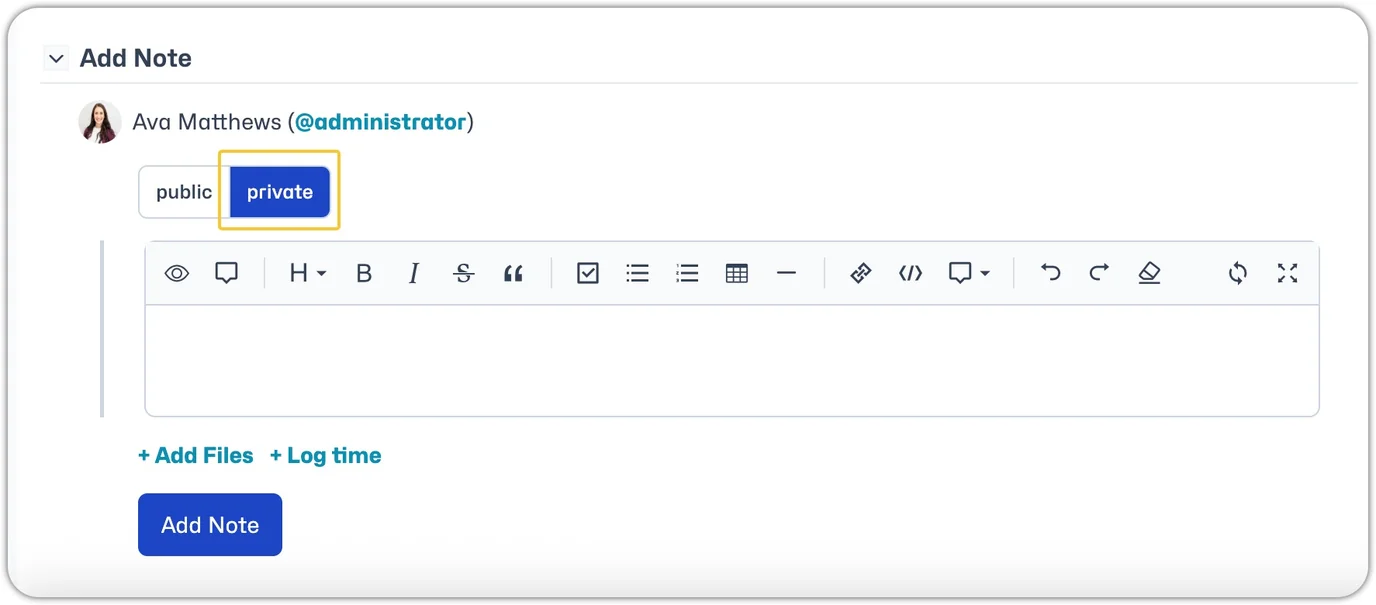
Private notes are viewable by team members (developer, manager or admin) with access to the issue. Again, this is customizable with a configuration setting. Go to Manage - Settings - Issues - Notes and amend the View Private Note Threshold. As with private issues, issue notes can be set to private by default.
You can configure this for all projects or for a specific project. To set it for a project, click on the Project tab in Settings and make sure the correct project is set in the Project Selector.
Configure Users to View Only Their Own Issues
The second way to enforce more stringent restrictions to user access is by locking down the workflow thresholds option to "View others Issues". By default, this is set to ANYBODY which means everyone can view issues if they have access to the project/issue.
You can change this configuration to limit users so they only see issues related to them. Access is restricted based on user access levels; for example, you can prevent all reporters or updaters from viewing others' issues. This will restrict a user's access to only issues they have reported, are assigned, or are following.
To limit access, switch to the Classic UI and amend the Workflow Threshold setting (see image below).

Within the UI, it's just a checkbox, so check all access levels you would like to have open access. Access is still subject of course, to the public/private settings of your projects and issues etc.
You can set this for all projects or just for one or more specific projects using the project selector within the workflow threshold page.
Thresholds & Transitions
You can further control certain specific actions (e.g., reopening an issue, adding a note, or updating status) according to access level, including the option to limit users to their 'own' issues through the workflow thresholds. Check out this article on Workflow Thresholds for more details.
Checking User Access
Note that administrators can always test a user's access to projects and issues using the Impersonate function. Read here for more details. This is recommended to ensure you have securely set your permissions.