
Managing Categories
Managing Categories - Classic UI article
Once you've created your projects, you'll want to create Categories. Categories allow you to divide your issues into specific areas like 'user interface,' 'backend,' 'marketing,' etc. This could be based on the type of issues, the feature areas within your software, or the expertise of your various teams.
You can have categories specific to a project or defined globally across all projects.
Global Categories
You can add, edit, disable, or delete global categories under 'Manage' - 'Projects' - 'Global Categories' section. All projects will inherit global categories.
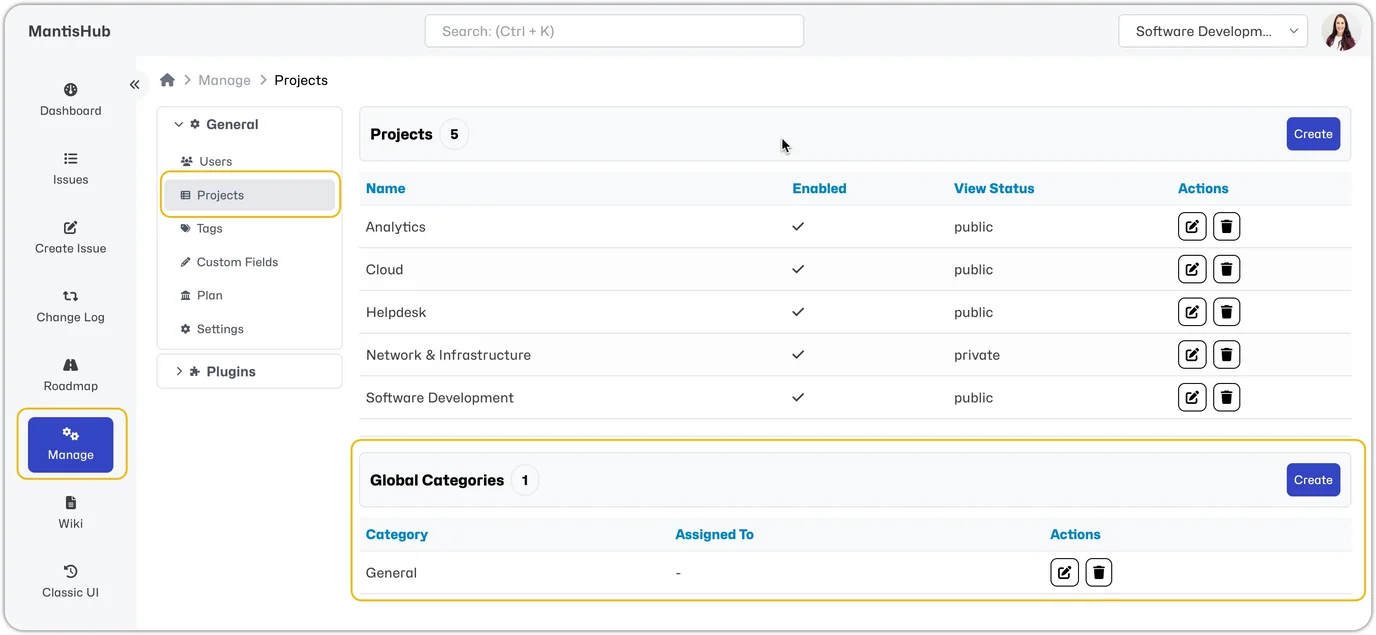
Default Global Category
You'll have a pre-defined global category called 'General.' The 'General' category is your default category when moving issues between projects in the even that the original category doesn't exist in the target project. It is also the default category when reporting issues via email.
We strongly recommend that you do NOT delete the 'General' category. If you attempt to delete it, you will receive an error since a default global category is needed.
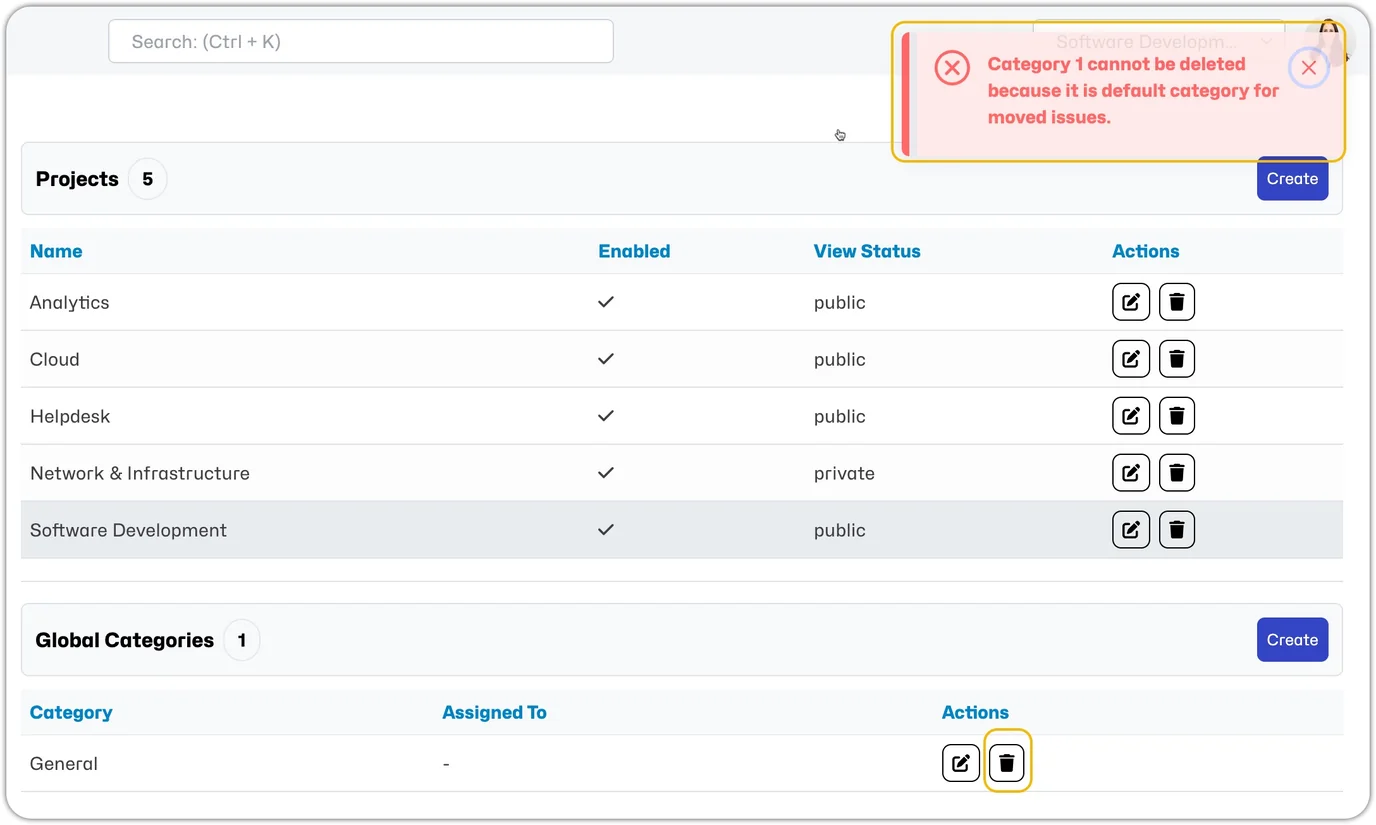
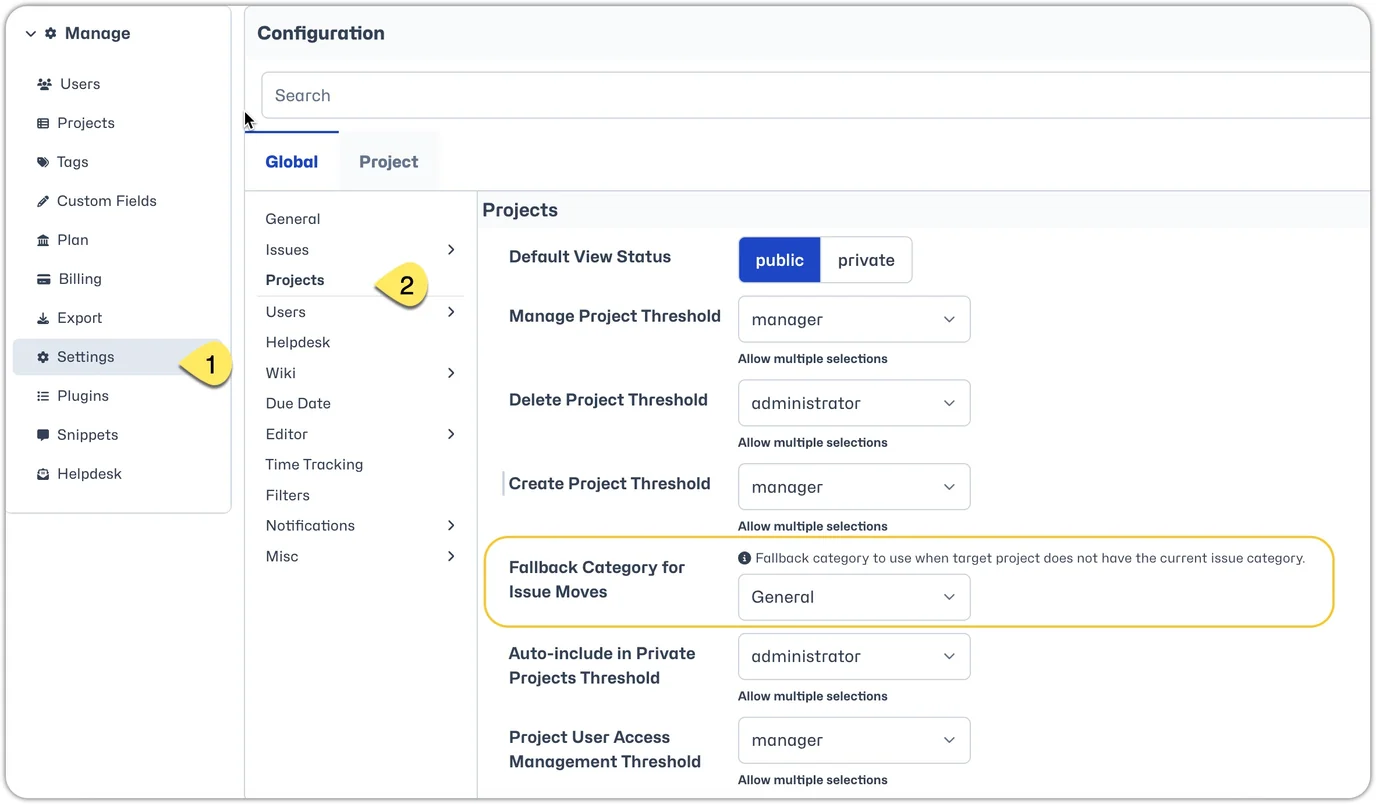
If you really need to delete the 'General' category, you will have to nominate a new default global category. To manage this configuration, head to Manage - Settings - Projects and adjust the "Fallback Category for Issue Moves".
Project Categories
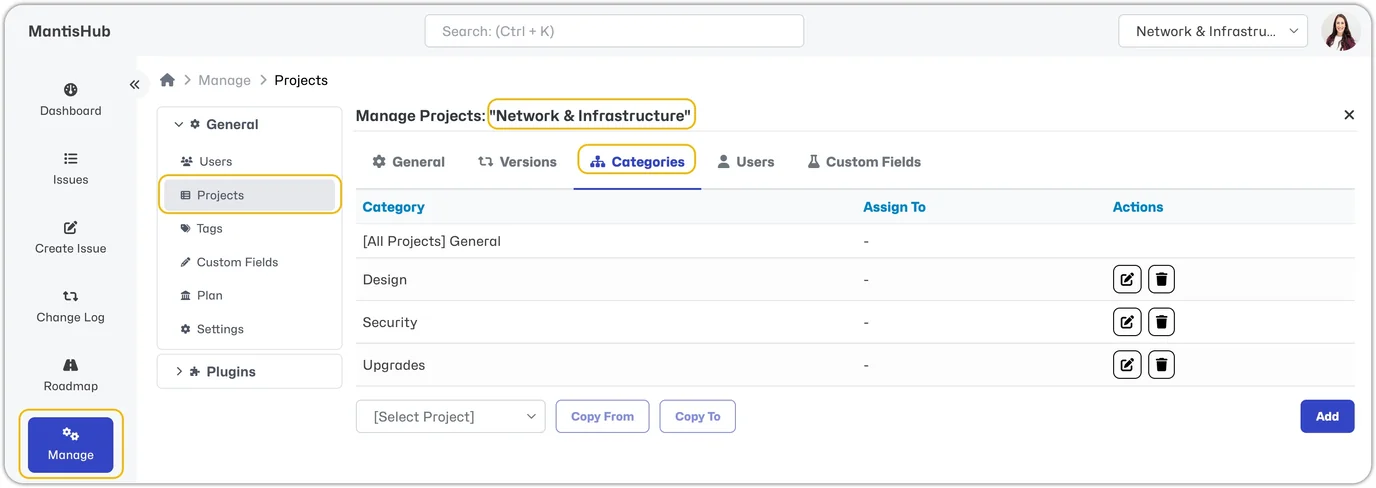
You can add, edit, disable, or delete project categories under 'Manage' - 'General' - 'Projects' - select the project from the list and go to Categories. You can also copy categories to or from other projects.
Auto-Assign Based on Category
Additionally, you can choose to automatically assign new issues to a specific user based on the Category. When creating or editing a project category or global category select a user from the 'Assigned To' drop-down list. This list will encompass users with the appropriate access level to handle issues. The default is 'Developer' or higher access levels. Then select 'Update' or 'Create.'
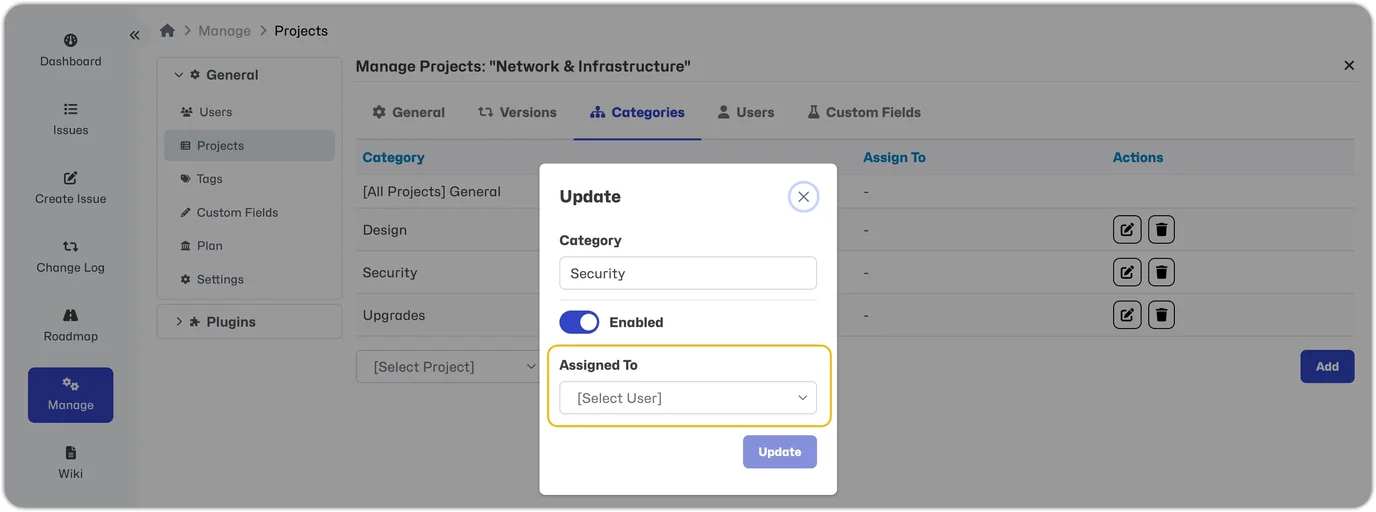
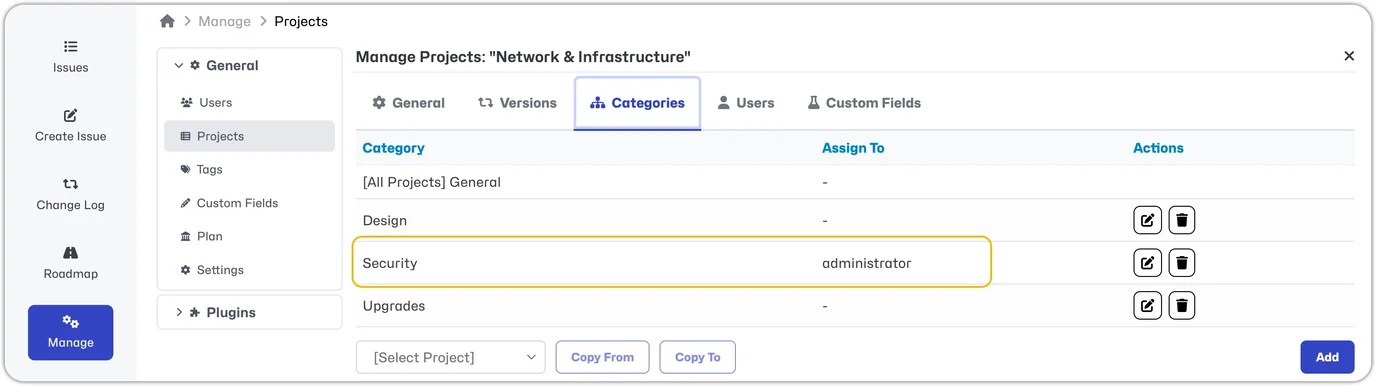
New issues will automatically be assigned to the listed user. That user is considered the 'category owner' for email notifications.
Disabling or Deleting Categories
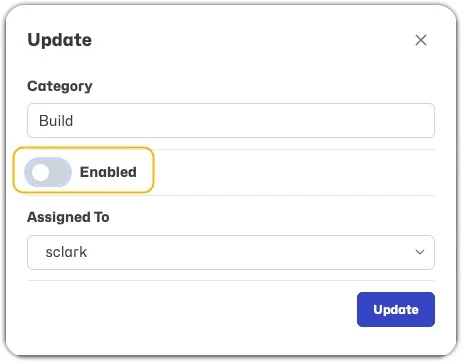
The recommended way of retiring a Category is to disable it. The disabling process is reversible. Go to edit the global category or project category, unselect 'Enabled,' and then 'Update.' Existing issues can continue to have a disabled category, but new issues cannot be assigned a disabled category.

You can delete a Category to remove it permanently. Prior to deleting a Category, you must ensure no issues are related to it. On the Issues page, filter by the Category you want to delete, be sure to include all statuses, and then group edit the issues from the category being removed to a new category. Then, you can move forward with deleting the Category.