Project Configuration
Project Configuration - Classic UI article
Create a Project
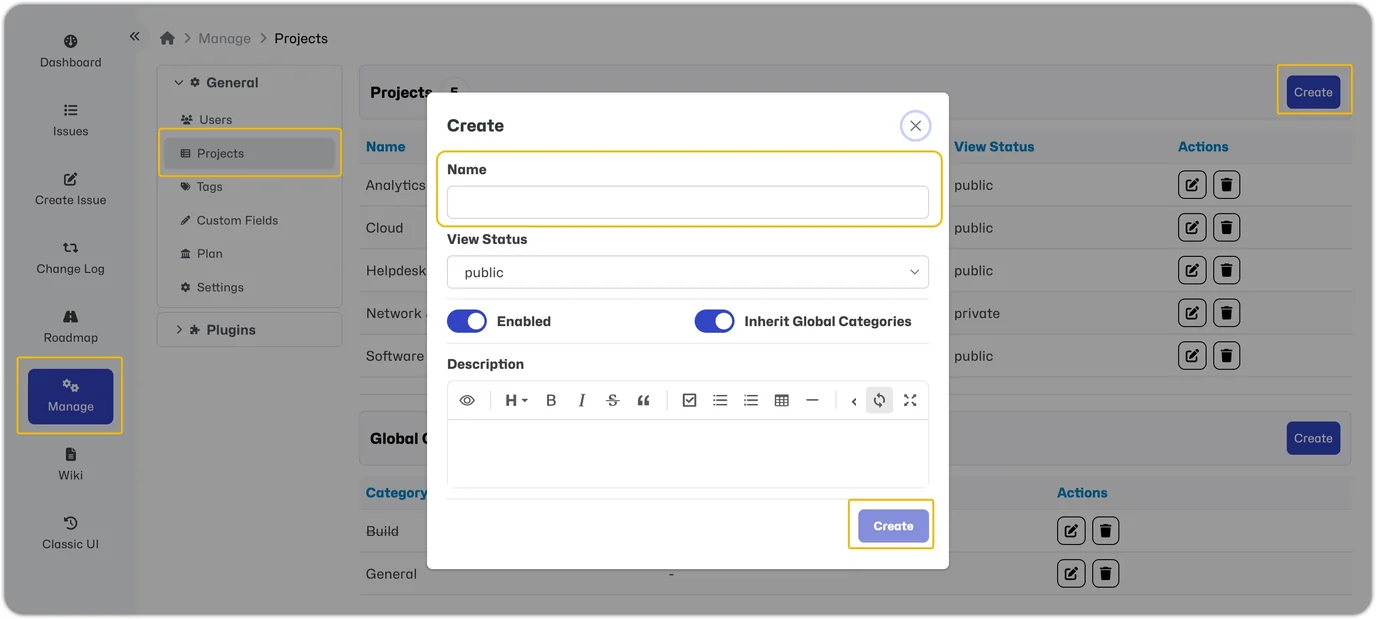
To start using your MantisHub, you must first create a project. You will see a pre-created project named 'My Project'. If you want to add more projects, select Manage - Projects and then Create.
When creating a project, the Name is the only Mandatory field. By default, users with an access level of MANAGER or above can add or update project fields.
Project Selector
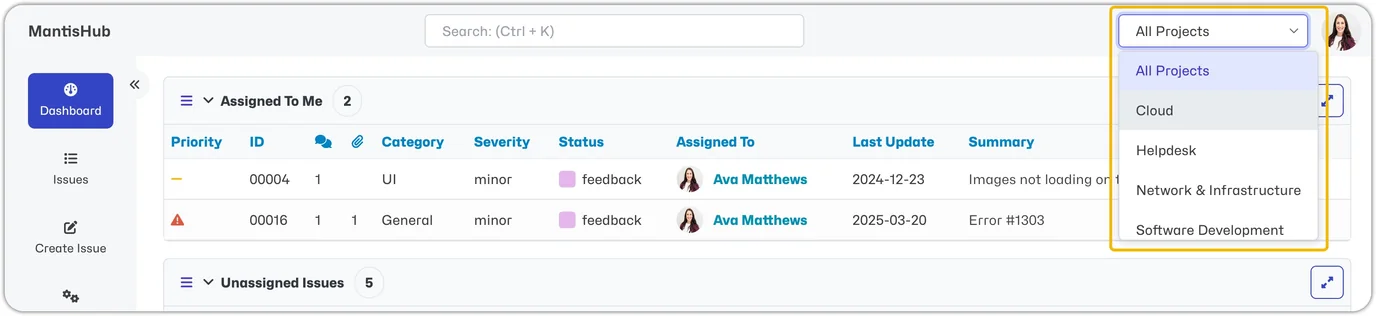
Once you have more than one project available, the Project Selector will appear in the top right-hand corner of your screen. The project selector can be set to display information for 'All Projects' or for a specific project listed in the drop-down. It is important to note that your views and settings may be affected by which project you have selected.
Configure a Project
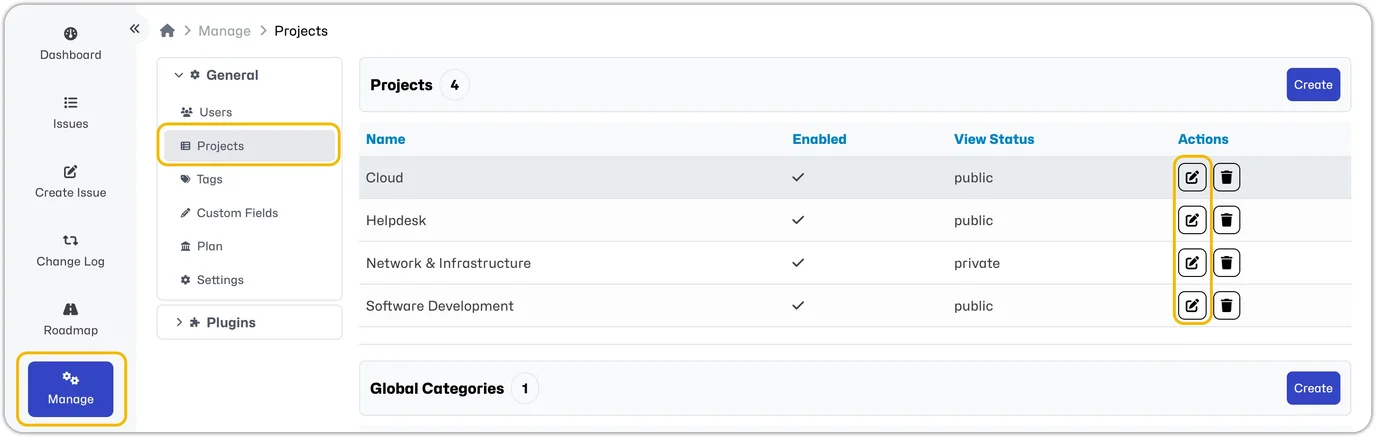
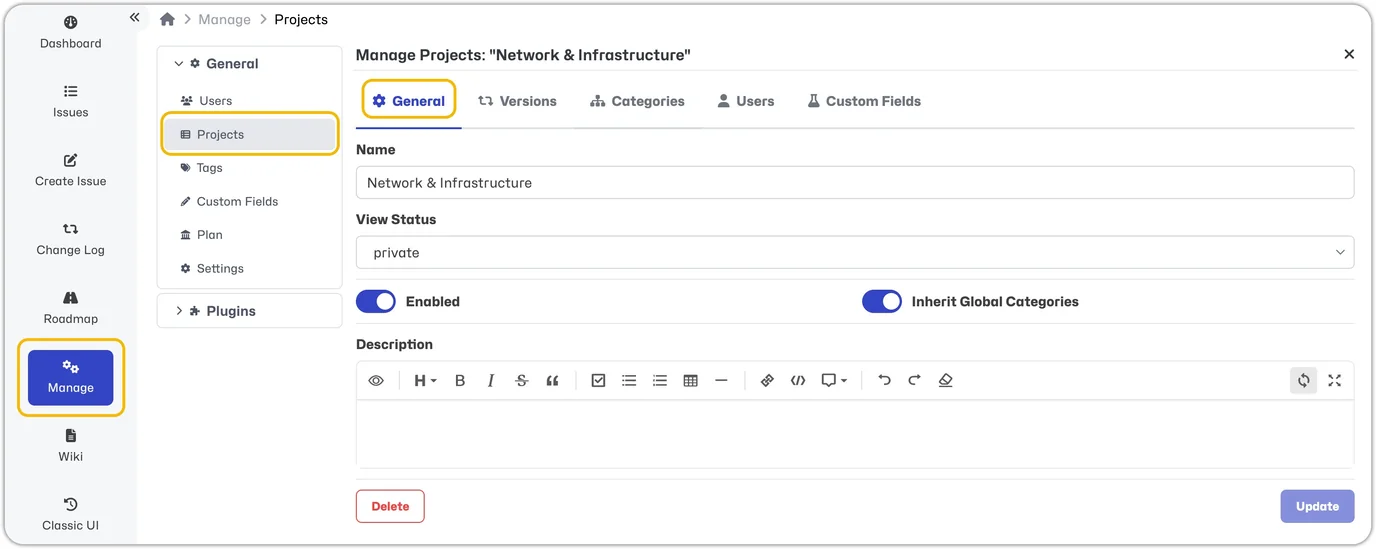
If you want to edit or configure a project, go to Manage - Projects and select the project you wish to edit.
There are several fields you can update:
Name: The project name.
View Status: The project's privacy setting. By default, new projects are public. See Public vs Private Projects below for more details.
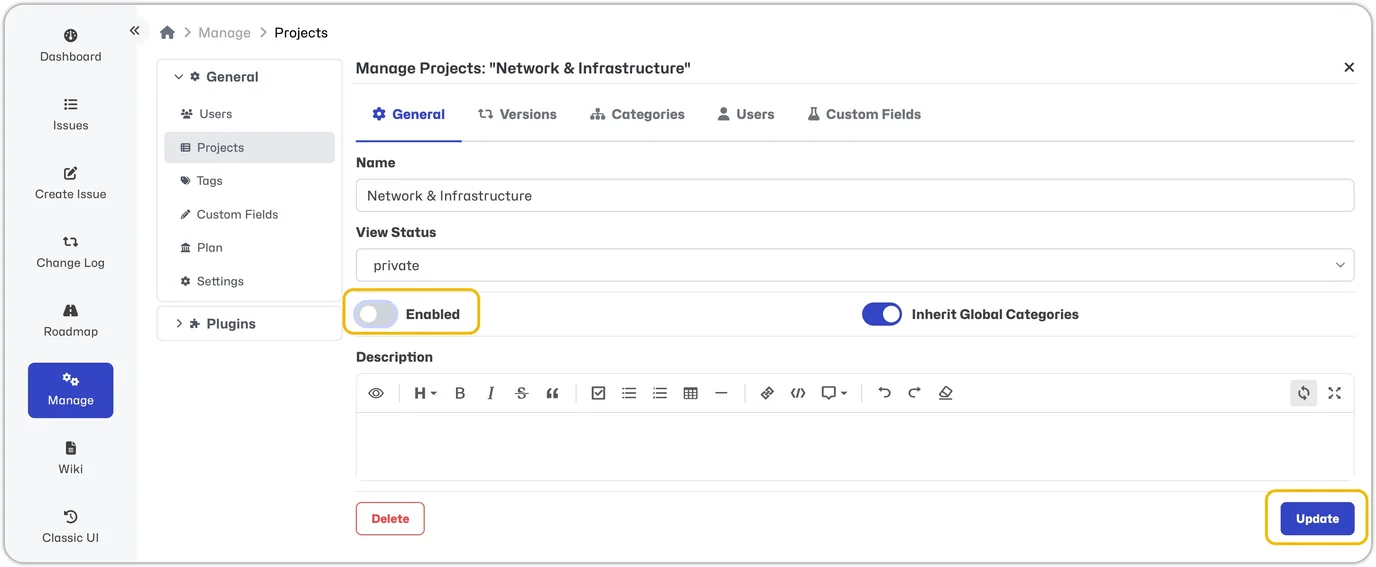
Enabled: By default, the project is enabled. This must be 'on' for the project to be available. Disabling a project is recommended over deleting it.
Inherit Global Categories: By default, all projects will inherit global categories, but you can manually turn this off.
Description: A brief description of the project.
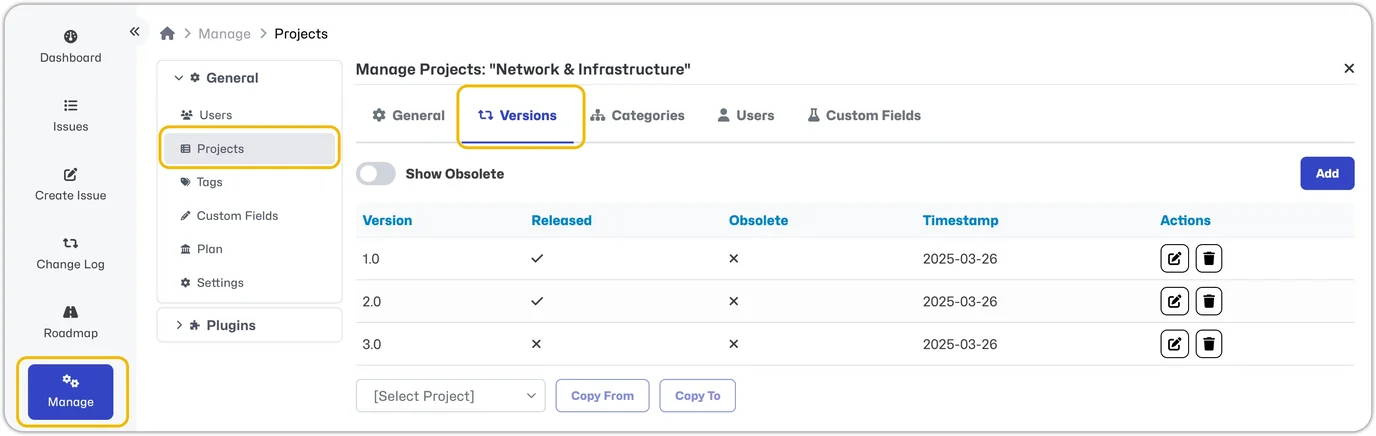
- Versions: Add or modify versions in your project. Project versions are used for all version-related fields in issues, including Product Version, Target Version & Fixed In Version. Version fields will not appear when creating or editing an issue unless you have created Versions within your project. See Versions in MantisHub for more details.
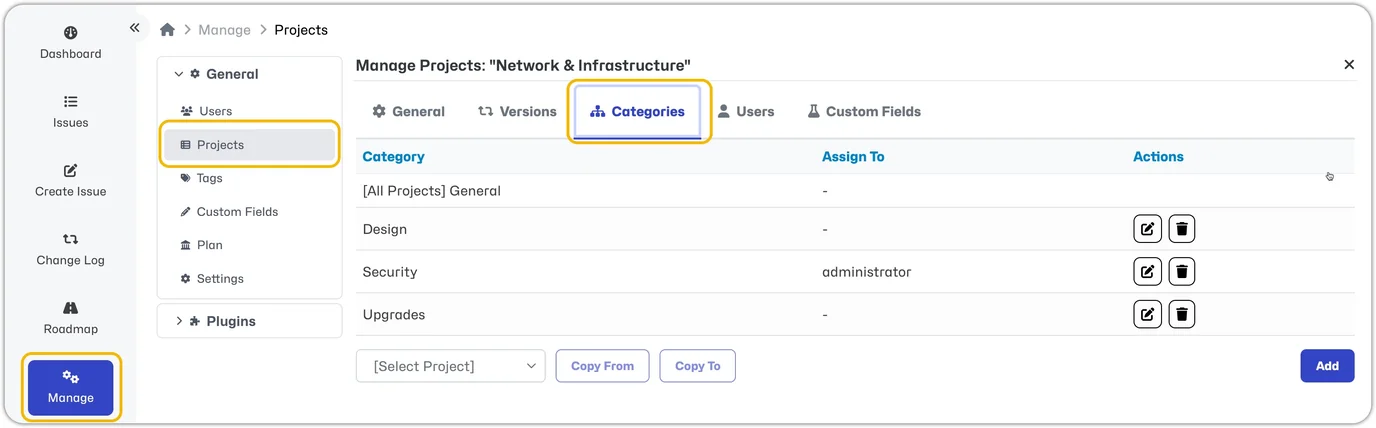
- Categories: Add or modify project categories. Project-specific categories are used to subdivide the issues reported in your project (i.e., UI, database, backend, etc.). See Managing Categories for more details.
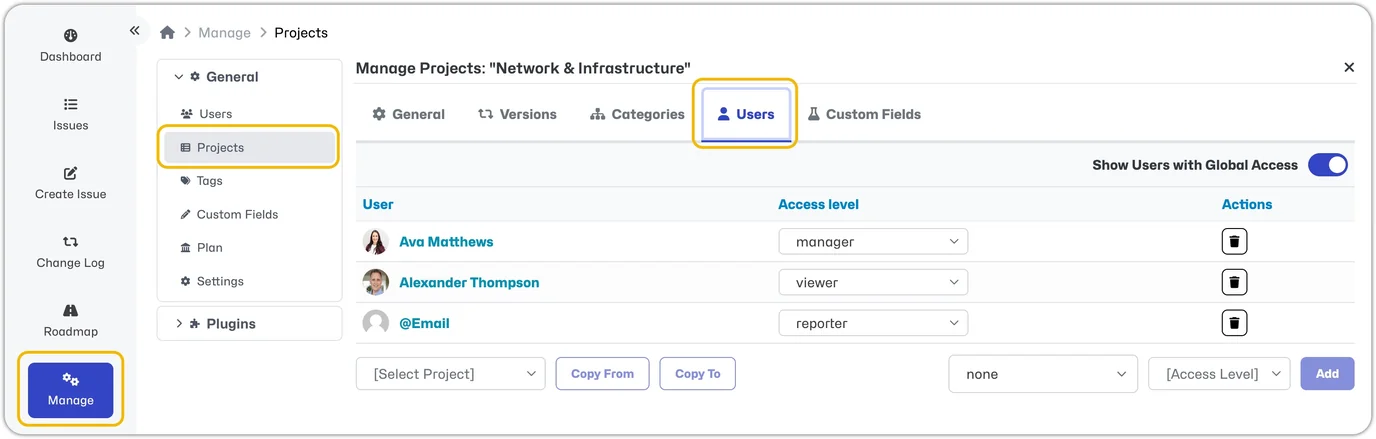
- Users: Add or modify users who can access the project and their access level.
- By default, a private project will only include administrators and manually added users. The access level assigned at the project level can differ from the user's global access level. For example, a user with a global DEVELOPER access level could be a REPORTER or MANAGER in this specific private project. See Creating User Accounts for more details.
- By default, a public project will include all users and their global access level. You do not need to add/modify users for public projects. However, you can define a user's project-level access that will override the global access level if you want.
- Custom Fields: Add or modify which existing custom fields are linked to this project. You can add or modify the custom fields visible in this project individually or by selecting multiple custom fields to link. You can also copy the custom fields to or from an existing project. See Custom Fields for more details.
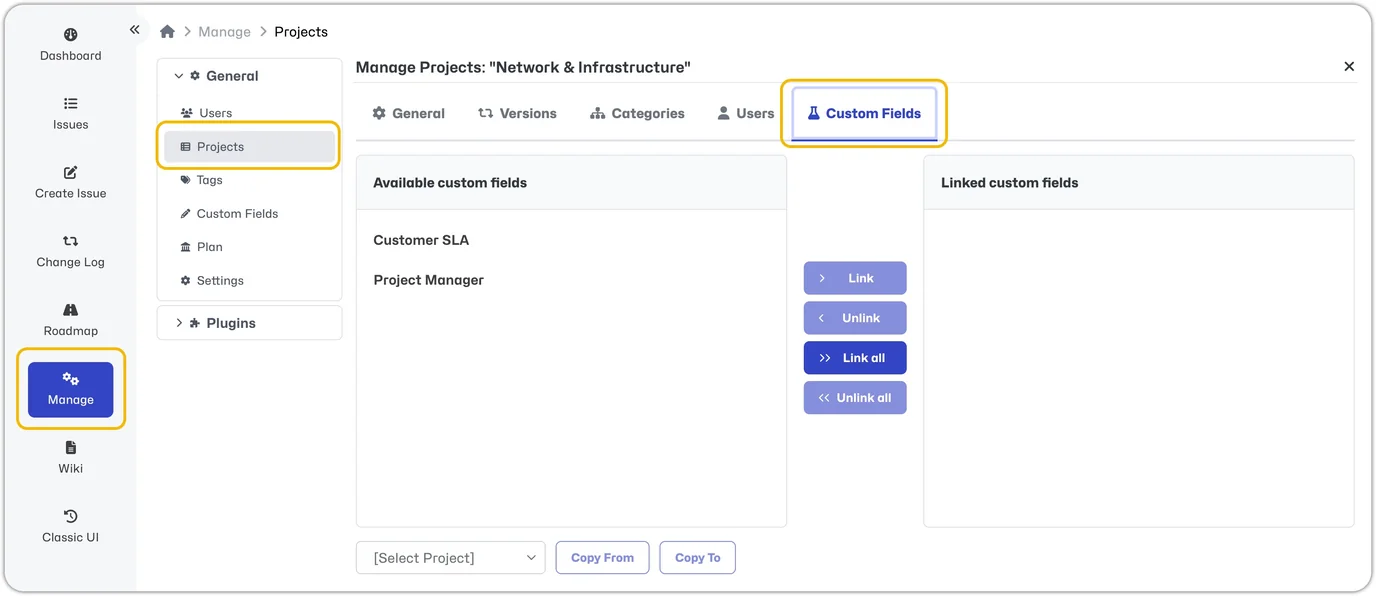
Public vs Private Projects
Public projects are accessible to every user in your MantisHub. Users can access the project according to their global access level unless you add them explicitly to the project with a different access level.
Private projects are only accessible to Administrators and users explicitly added to the project. As with public projects, this can be different to their global level and is specific to the project.
Disable or Delete a Project
The recommended way of archiving a project is to disable it. Disabling is reversible, and projects can be disabled and re-enabled as needed. When a project is disabled, it will be hidden from the list of projects in the Project Selector drop-down (top right-hand corner). Issues related to disabled/archived projects won't show on the Issues page. Projects can be archived and unarchived as necessary.
To disable a project, go to Manage - Projects, select the project you want to edit, toggle 'Enabled' to 'off,' and then 'Update.'
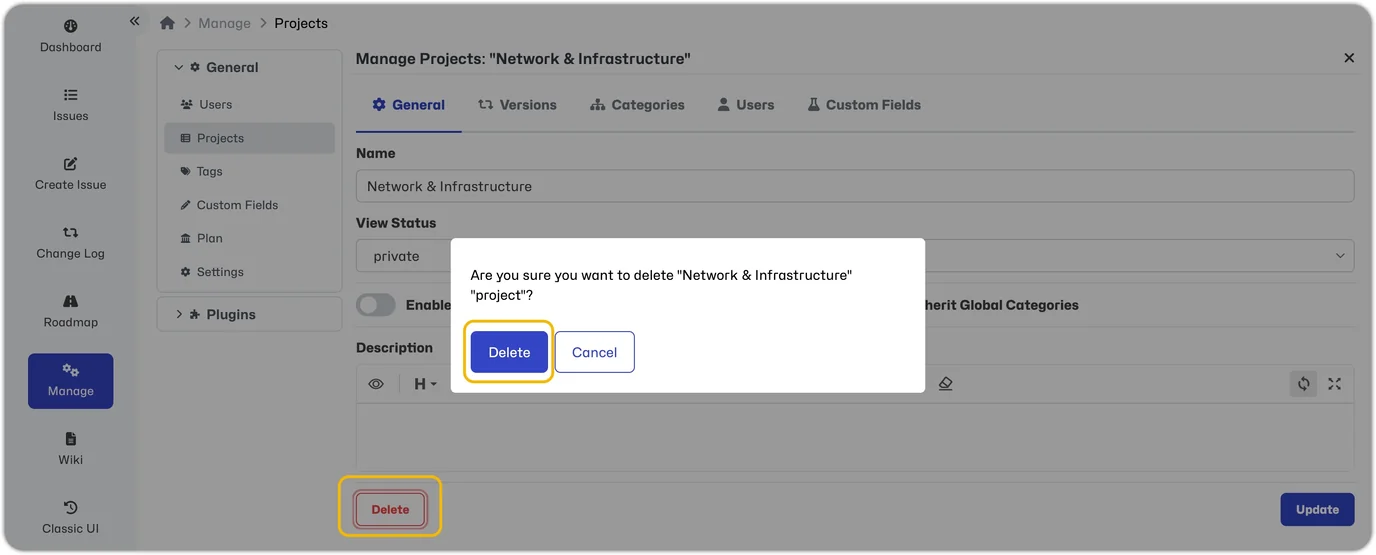
We do not recommend deleting projects because there is no way to reverse this. The project and all issues in the project will be permanently deleted.
To delete a project, go to Manage - Projects, select the project you want to delete and select the trash can icon, or open the project and select the Delete button. A warning will appear; select Delete again to confirm.
Settings & Configurations
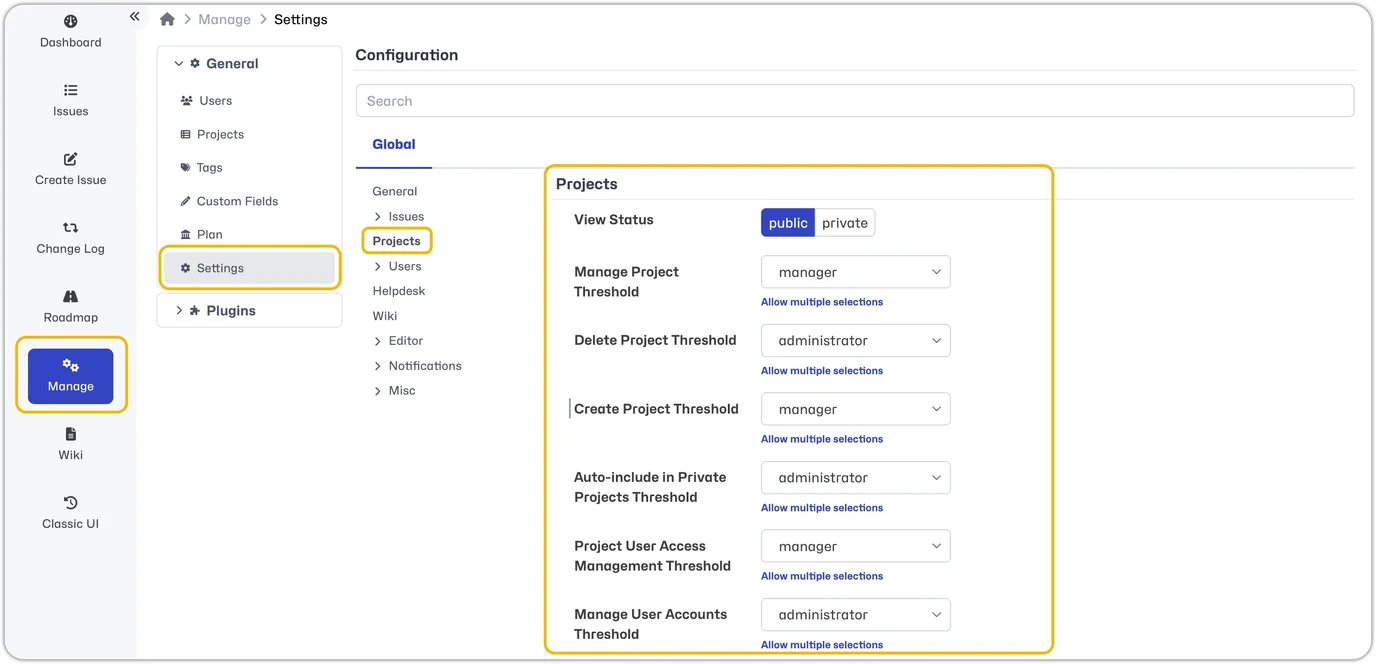
To modify the settings applicable to Projects go to Manage - Settings - Projects. Many of the defaults listed above can be modified.
Default View Status: The default setting for creating projects is public. You can change this setting so that projects are created as private by default.Manage Project Threshold: Users at this access level or higher can manage a project. The default threshold is Manager.Delete Projects Threshold: Users at this access level or higher can delete a project. The default threshold is Administrator.Create Projects Threshold: Users at this access level or higher can create a project. The default threshold is Manager.Auto-Include in Private Projects Threshold: Users at this access level or higher are automatically added as users with their global access level in private projects. The default threshold is Administrator.Project User Access Management Threshold:Manage User Accounts Threshold: