
Updating Multiple Issues at Once With Group Actions
Updating Multiple Issues at Once With Group Actions - Classic UI Article
If you want to perform an action for multiple issues at once, you can use bulk edit via your 'Issues' page.
Go to 'Issues' page and apply appropriate filters. You can only use group actions / bulk edit when in a specific project. This functionality will not work in 'All Projects' to ensure that project configurations such as user access, custom fields, etc. are taken into account.
You can select issues individually to apply actions to, or you can choose to select all issues.
*
*Note that 'Select all' only selects issues on the current page. If you have multiple pages of issues you will have to repeat the action for subsequent pages
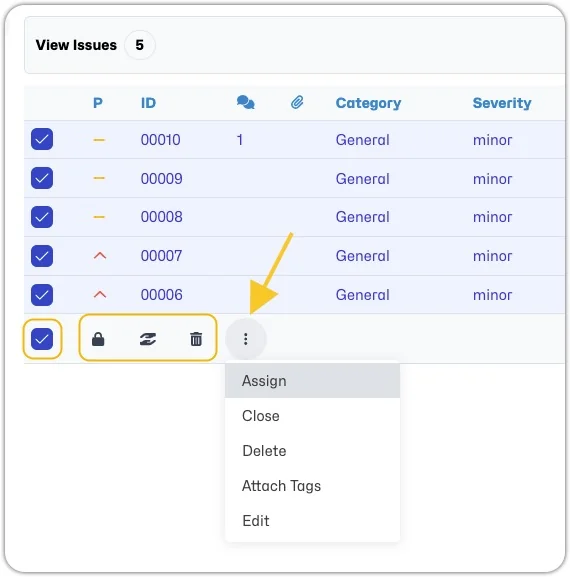
- Once you have chosen the issues you would like to apply an action to, select the icon or click on the drop-down menu and select the desired group action. There are several actions you can choose from, including:
- Close
- Assign
- Delete
- Add Tags
- Edit, which includes the ability to edit the Priority, Severity, Category, View State or Version.
After selecting desired action you will be asked to confirm the issues you wish to apply the changes to as well as confirm the action.