
Setting Up Your Avatar Image
If you are still using the classic user interface, please see the Classic UI Article.
MantisHub offers users two ways to define a profile image or avatar for your account. Either via a locally uploaded image or via the Gravatar integration. The chosen image will be used throughout the system alongside your username/real name.
You can set up Gravatar and a locally uploaded image in your account. However, the uploaded "My Account" image will take precedence and be displayed instead of the Gravatar image. Do not add a local image if you prefer to use your Gravatar image.
Option 1: Local Avatar
This option is exclusive to MantisHub and allows users to upload an image directly within the MantisHub service. Images must be no larger than 1MB and in JPEG or PNG formats.
"Avatars" is installed by default, so simply navigate to "My Account" found in the dropdown menu next to your default avatar icon in the top right corner. To uninstall, see Plugins for details.

Click on the large default avatar icon and browse your files to choose the image to upload. Once uploaded, select "Update" and the new image will appear next to your username in the top right corner.
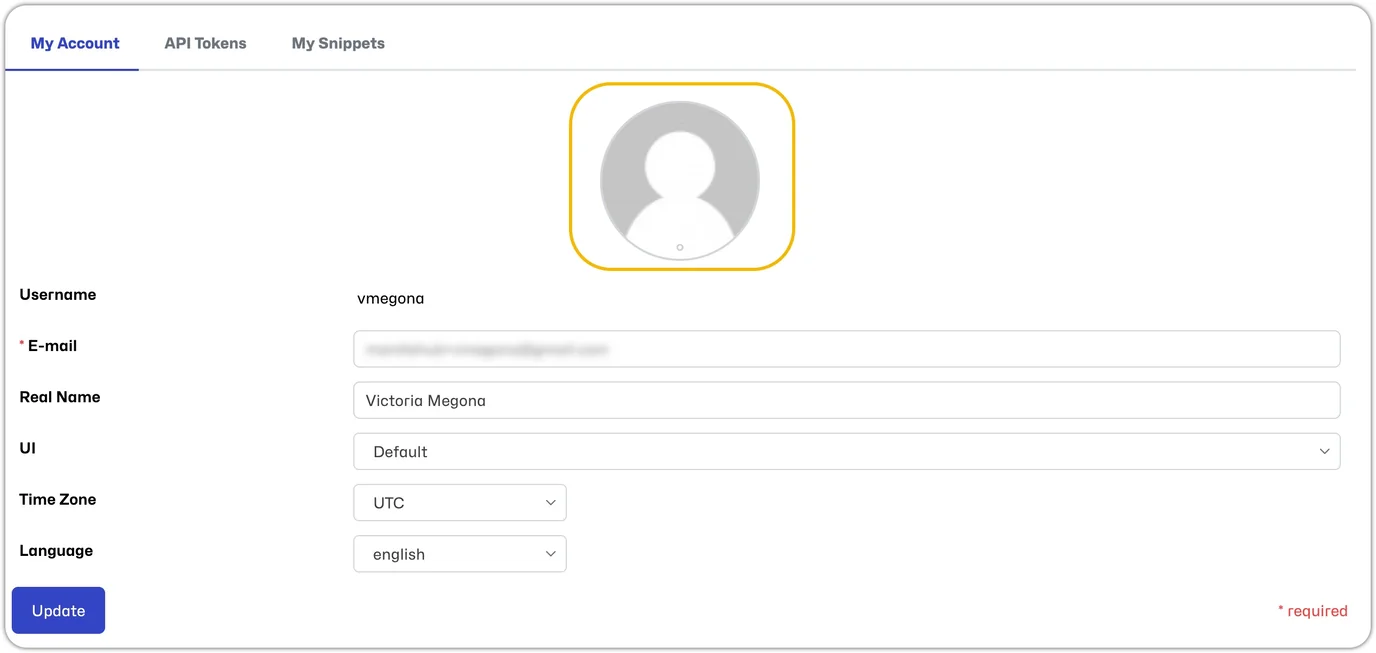
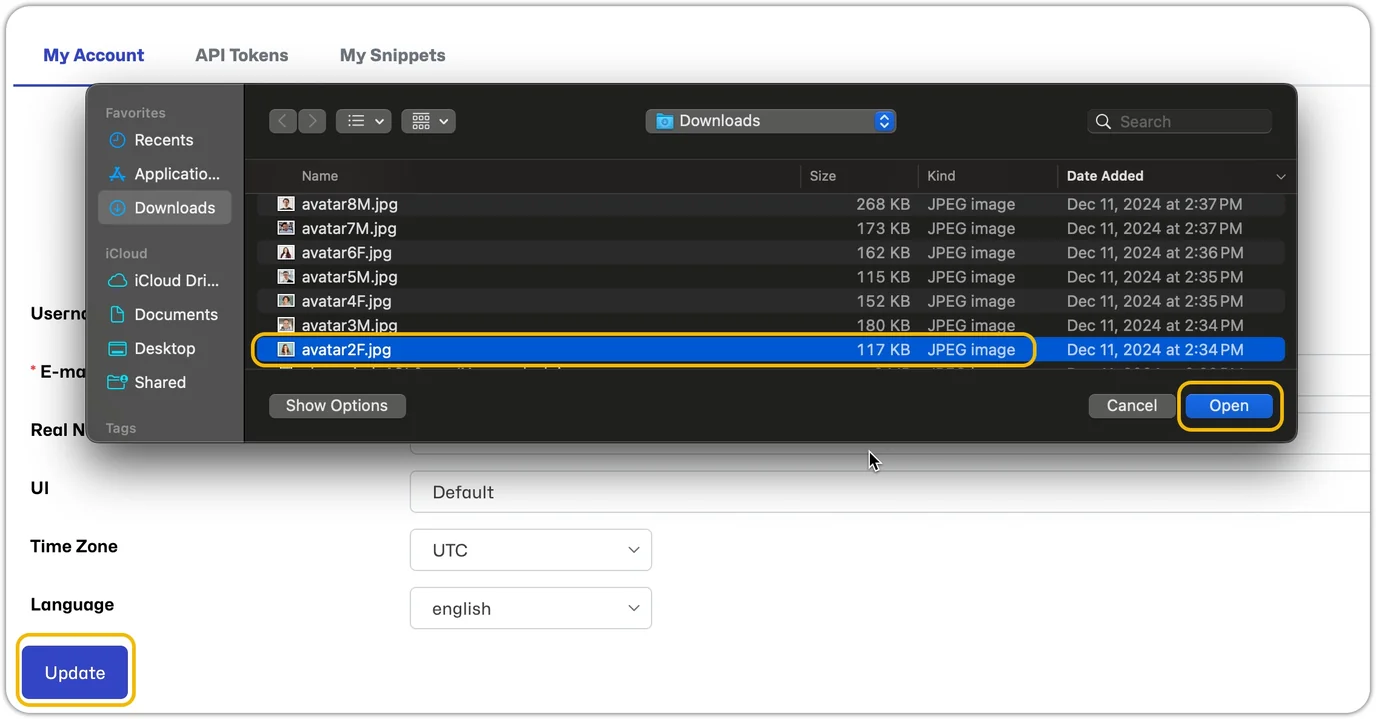
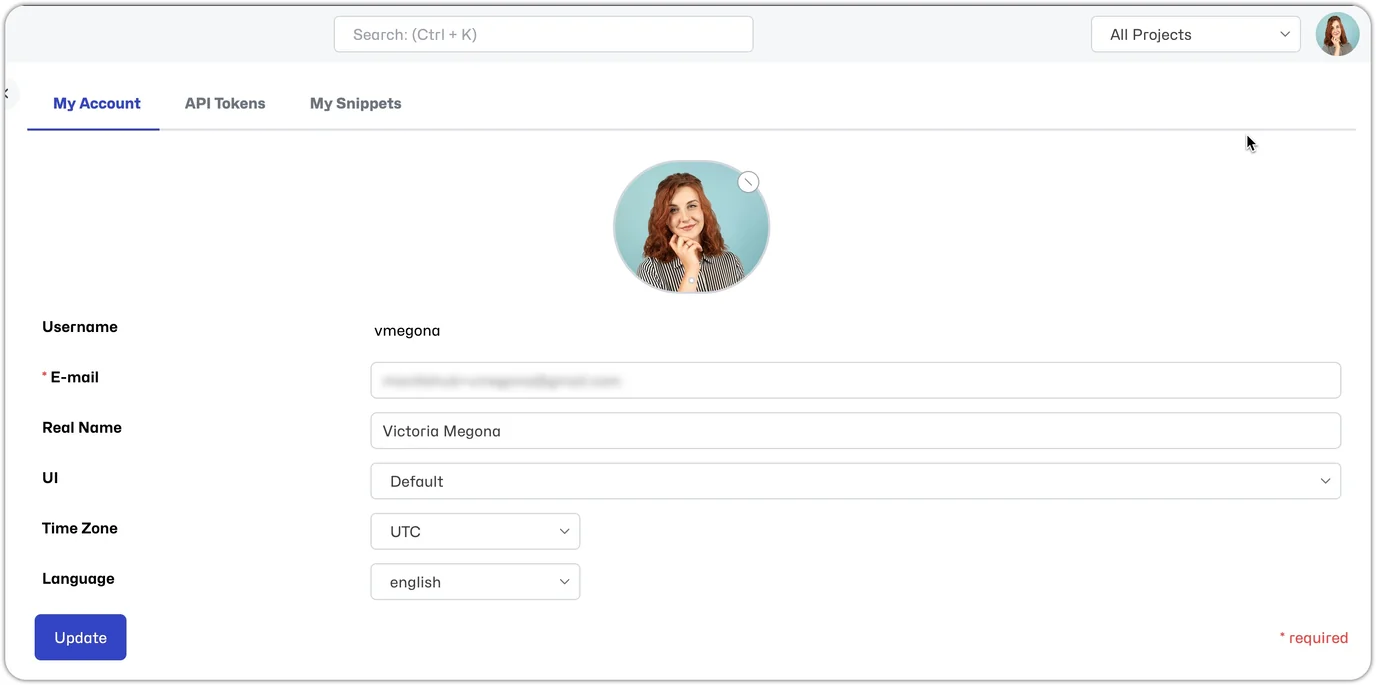
You can click the avatar image again to upload a new image.
Option 2: Gravatar
If you already use or would like to use the Gravatar service, MantisHub will automatically retrieve user avatars linked to your registered email address with a Gravatar profile. This process uses a one-way hash of your email address. To set up this option, ensure you are registered on Gravatar with the same email address you use on MantisHub. You can begin the sign-up process via this link.
Once registered, as long as your MantisHub and Gravatar emails match, your image will automatically begin appearing in MantisHub.