
Installing Plugins
The MantisBT eco-system has a variety of plugins that are targeted to enable scenarios that extend the core functionality provided out of the box. In MantisHub, our philosophy is to be picky in selecting which plugins to support to deliver the quality service that our customers expect.
Following are some criteria that we use in selecting which plugins to use:
Simplicity - Some of the plugins are optimizing for solutions where the product has to work behind the firewall. This causes a bunch of complexity in setup and the amount of plugin code that needs to be maintained. For example, email reporting in MantisHub works out of the box, while with plugins for MantisBT it is a much more involved process.
Support and Reliability - not all plugins are well maintained or reliable. They vary a lot in quality. This is a big factor in MantisHub deciding to support a plugin.
Demand - We track customer requests for features or plugins and we prioritize scenarios where there is a decent customer demand. Otherwise, our resources will be consumed with one-off requests and plugins with very low adoption.
Approach - Make sure that the approach that a plugin takes to address the feature is consistent with what we believe is the right direction.
Are you missing a particular plugin or feature? Even though we won't be offering one-off installs, we can take requests into consideration when planning what areas to tackle next or what plugins to evaluate and support.
Supported Plugins
The plugins that we currently support are:
Helpdesk (Email Reporting) - This is a MantisHub exclusive plugin to allow email reporting for unregistered users for customer support functionality, it also provides superior functionality to the popular MantisBT plugin.
Slack - provides the ability to send notifications to Slack. This is an exclusive MantisHub plugin which is much more powerful than the limited MantisBT Slack plugin.
Import CSV - provides the ability to import issues from CSV files. This is very useful for customers who want to migrate their issues from Excel or some simple bug tracker that they used previously.
Import Users CSV - This allows you to import multiple users at once via CSV. This is a MantisHub exclusive plugin and is not available as yet in MantisBT.
EventLog - provides a way to capture logging from your MantisHub. Used to capture triggering of emails and adding recipients to such emails. This way administrators can understand why certain users are notified and others are not about specific changes.
Core Plugins - We support the core plugins like MantisGraph and Formatting, but we have disabled XmlImportExport plugin since it doesn't work well.
Snippets - Define snippets of text that can be easily pasted into text fields
AuthHub for Single Sign-on - This is a MantisHub exclusive plugins that enables single sign-on using identity providers like Azure AD, Google, Github and Bitbucket via Open ID connect.
Graphs - a plugin for graphical representation of Mantis Statistics.
Source Control - Source control integration using an abstract API to support any source control software.
Source GitHub Integration - Adds GitHub integration to the Source Integration framework.
Source Bitbucket Integration - Adds Bitbucket integration to the Source Integration framework.
Source GitLab Integration - Adds GitLab integration to the Source Integration framework.
Trim Attachments - A MantisHub exclusive plugin that allows administrators to see issues with attachments that are consuming most of the space and providing the ability to easily trim them.
Live Links - A MantisHub exclusive plugin that detects links to remote entities in services like MantisBT, Github Issues, Github gists, and model them as external relationships with inline state information.
Announcements - allows privileged users to configure a banner to appear to Mantis users
Installing and configuring plugins
To install a supported plugin, go to Manage - Plugins - Plugin List
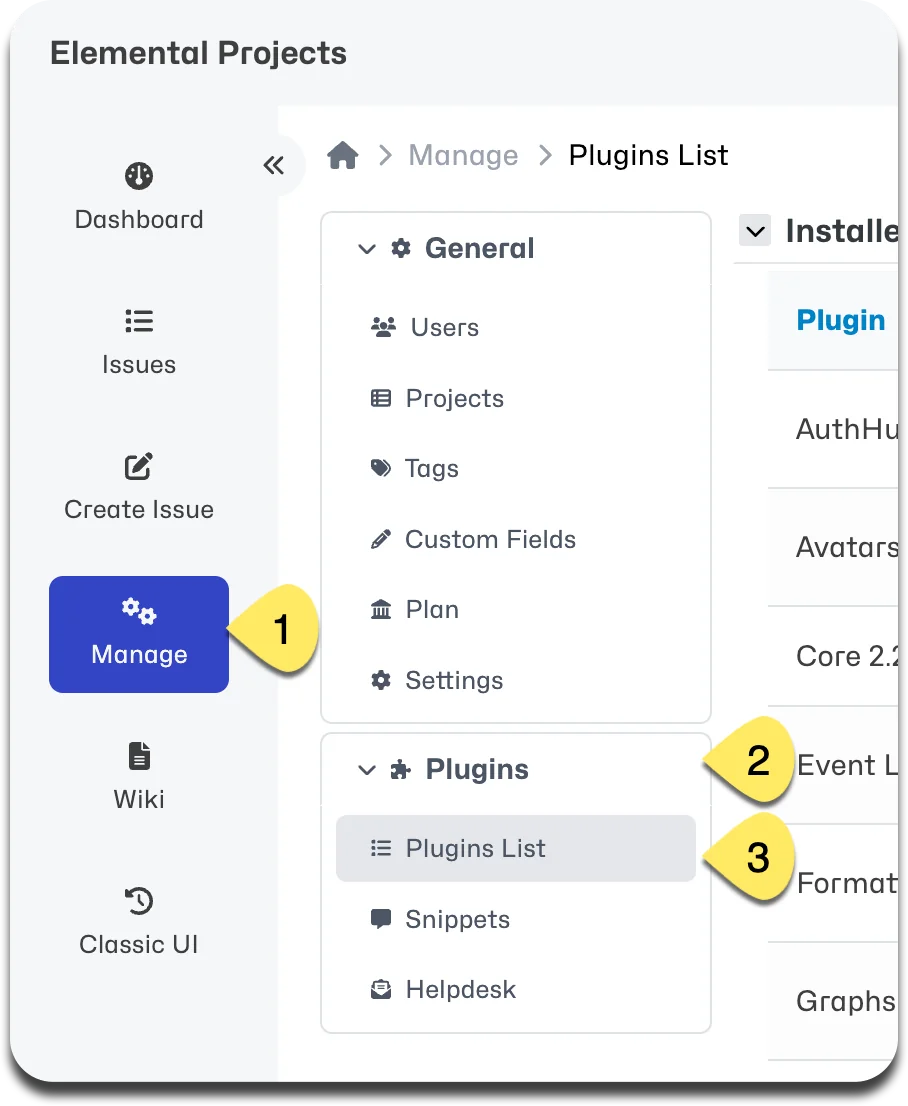
Scroll down to the plugin you wish to install and click the "Install" button.
The plugin will now appear in the "Installed Plugins" list. If you no longer need it, just click the delete icon displayed next to the plugin.
If the plugin requires further configuration, you will find a new section in the system settings. Head to Manage - General - Settings and click or scroll down to the relevant section.
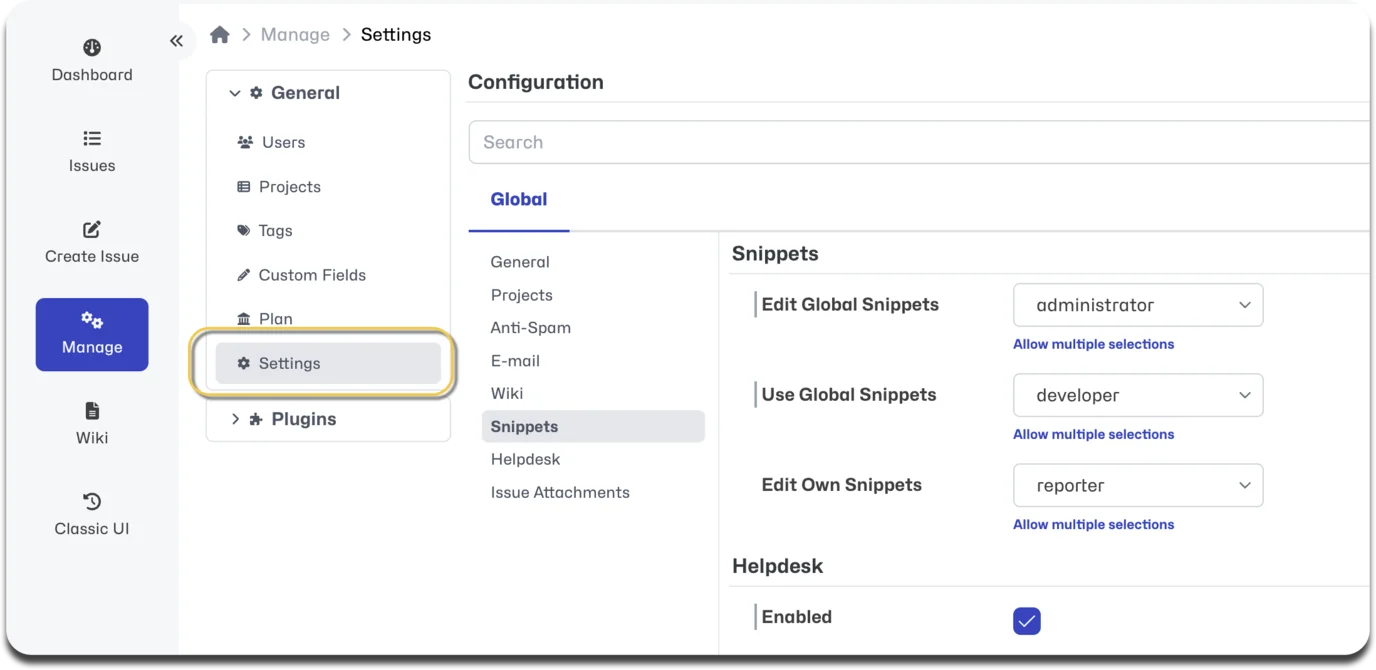
NOTE: Some Plugins do not yet have configuration implemented in the Modern UI and will need to be configured in the Classic UI.