Versions in MantisHub
Versions in MantisHub - Classic UI article
If you're using MantisHub to manage your software projects, you likely understand the importance of versions (also known as releases).
Typically, software project updates are organized into multiple versions, which you can configure in your project settings. You can name these versions however you like, but they are often given numerical designations, such as 1.0, 1.1, 1.2, or are based on release dates, like 20250101, 20250315, etc. Once you create a version, it becomes available for all version-related fields. However, these fields will not appear in your issues unless you have first created a version in your project. For instance, the 'Product Version' field will not appear in your issues until a version has been created.
Version Fields
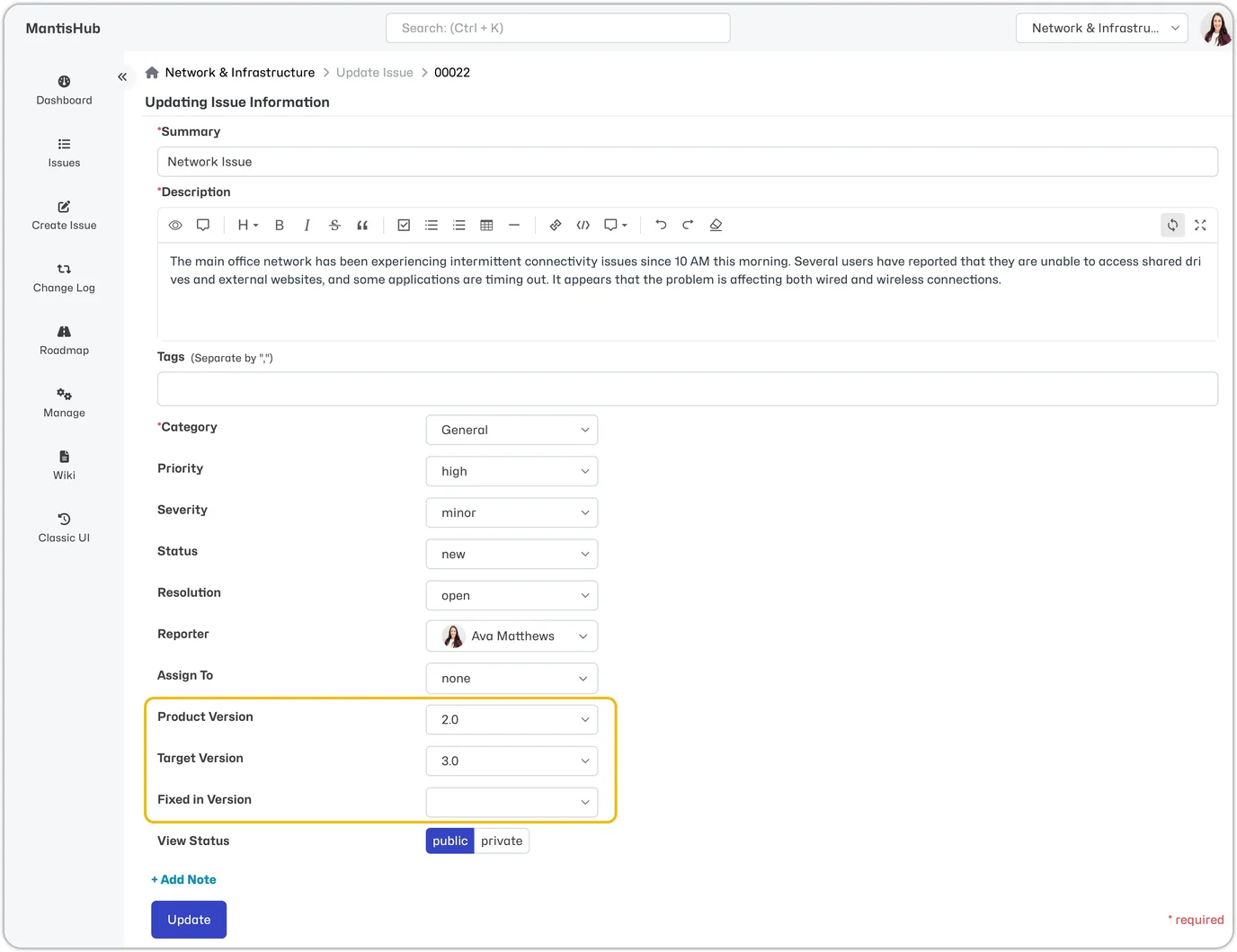
When reporting or updating an issue, the following version fields may be applicable:
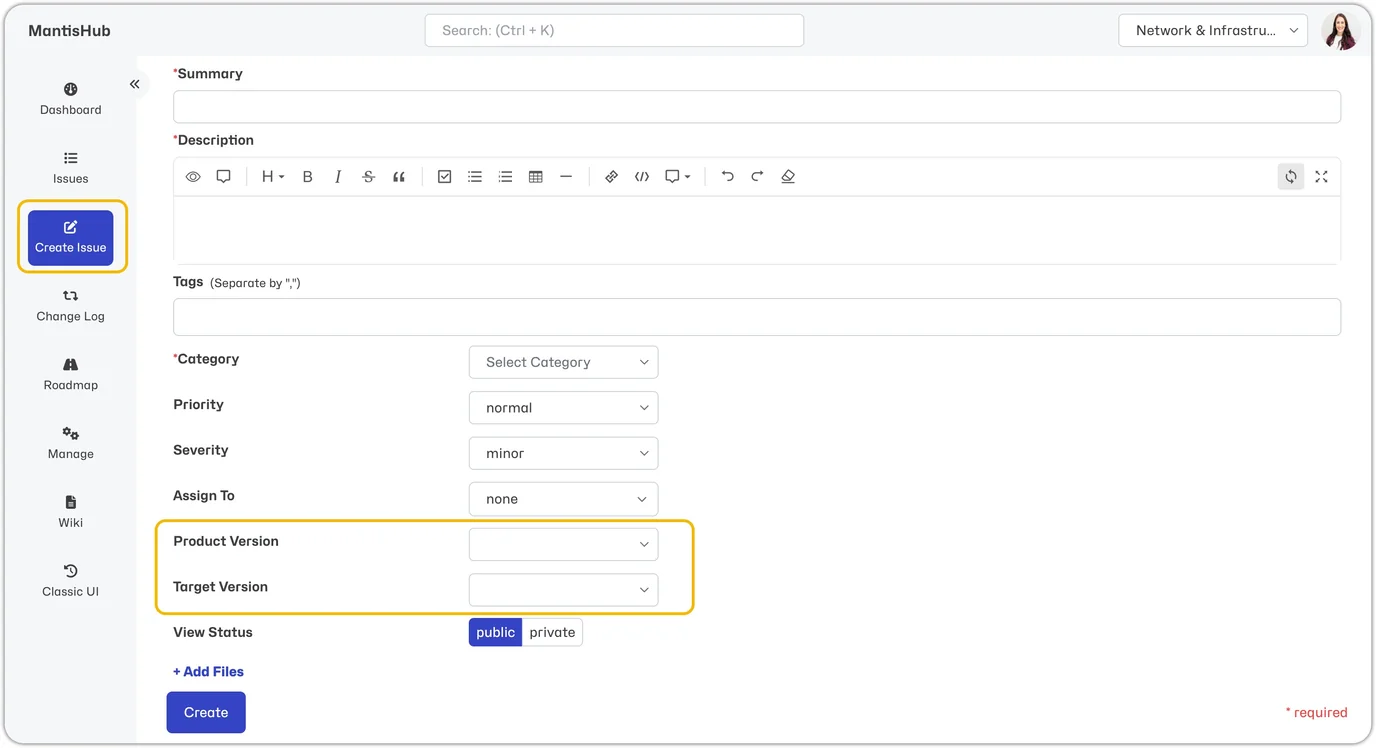
'Product Version' - This indicates the Version in which the issue was discovered by the reporter or the Version that introduced the bug.
'Target Version' - This indicates the Version in which you aim to have this issue fixed or implemented. It automatically populates the project Roadmap.
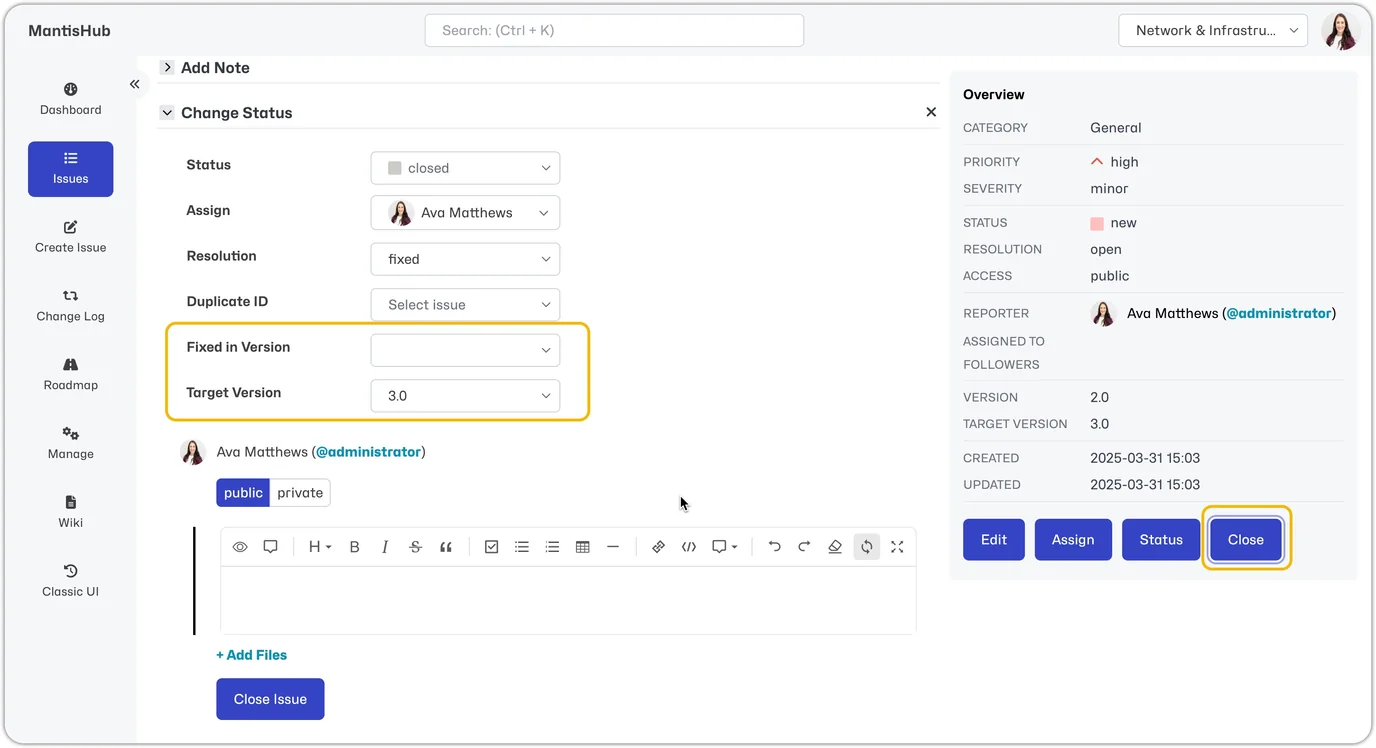
'Fixed-in Version' - This shows the Version in which your developers resolved or released the issue. It automatically populates the project Changelog.
Configure Versions
To create, edit, or delete a Version, go to Manage - Projects. Then select the project and go to the Versions section.
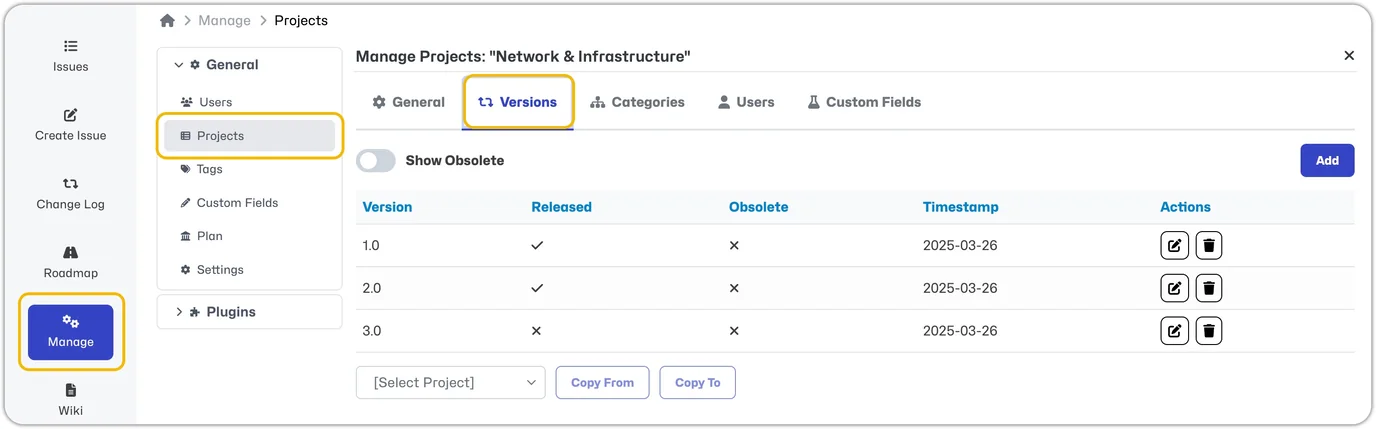
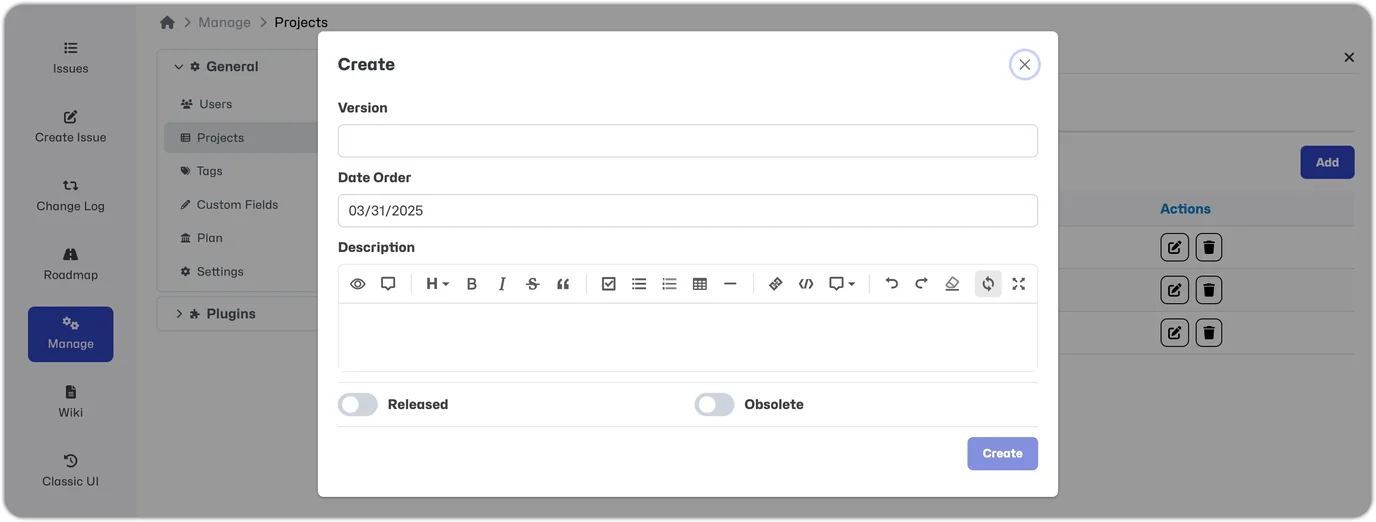
Select a Version you want to edit or select 'Add' to create a new Version, and enter the following details:
- Version: Version name. (Required)
- Date Order: This is the planned or actual release date of the Version. By default, the current date is populated. The list of Versions in the version-related fields will be sorted from the most recent to the least recent. (Required)
- Description: Include further description if needed.
- Released: This indicates the Version has been released. If a Version is released, you can no longer set it as a Target Version for issues.
- Obsolete: This indicates the Version is obsolete, meaning you can no longer use it in your version-related fields for any issues. Obsolete versions will not be included in the Changelog.
Unless a Version is created in error, the preferred method to remove a Version is to mark it as obsolete rather than delete it. To delete a version, use the trash can icon.
Using Versions
Once you have created versions, you will see the available version-related fields.
- When creating an issue, you will see the Product Version & Target Version (unreleased versions only).
- When editing an issue, you will see the Product Version & Target Version (unreleased versions only) & Fixed in Version.
- When closing an issue, you will see the Target Version (unreleased versions only) and Fixed in Version.