Troubleshooting Helpdesk Problems
For those using the Classic interface, please see the - Classic UI Article
MantisHub's Helpdesk for responding to customer emails is very simple to set up. However, if you encounter problems with email submission, here are a few things you can do.
Check your setup
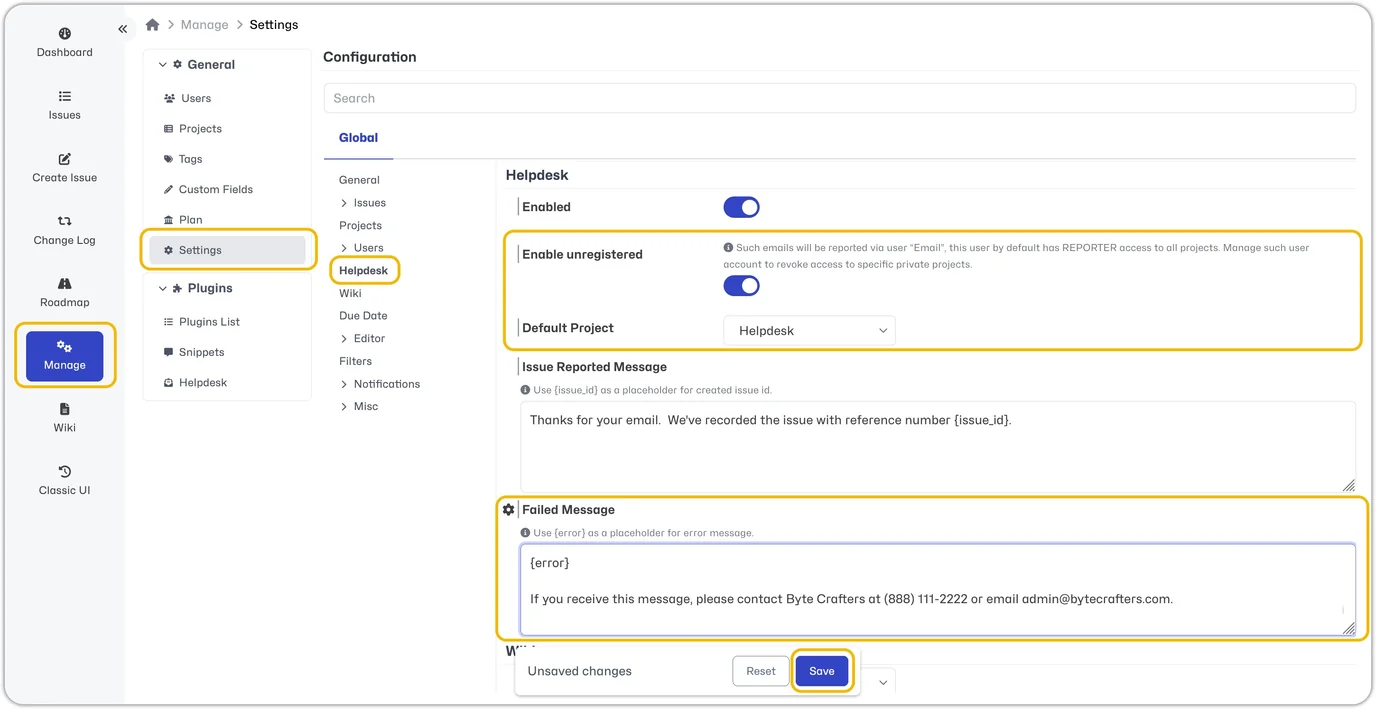
Within your Helpdesk settings, make sure that you have Enable Unregistered turned on to allow non-MantisHub users to submit tickets via email. You also need to define a Default Project. Without these settings, emails from unregistered users will fail.
Configure your Failed Message
It's important to configure the Failed Message section in your Helpdesk settings. This failure message should provide an alternative contact method for your customers to inform you if they encounter an error. Additionally, make sure to include the {error} placeholder in your message. This placeholder will display any system error messages resulting from failures in issue submission. These error messages may include the following:
| Error Message | What to check |
|---|---|
| Access Denied. | Permissions for Email user or Reporter access level. |
| A necessary field "" was empty. | Custom fields are not required on reporting issues. |
| Message rejected: No selected or default project. | Helpdesk settings: Select default project. |
Message rejected: No matching account for fallback Email account. | Helpdesk Settings: Enable for unregistered users. |
Email user access
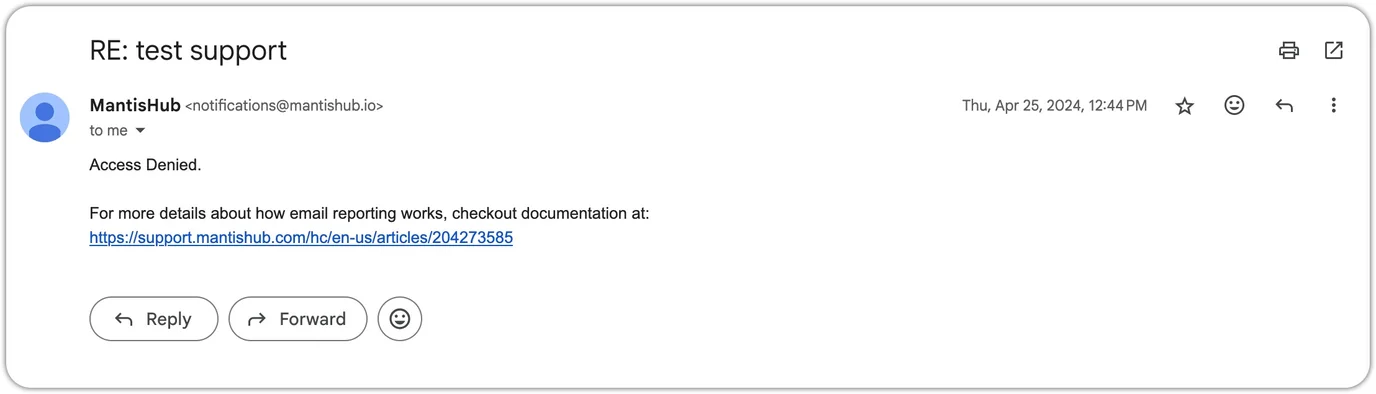
If you receive an Access Denied error message on submission, you should check the access level of the Email user account as well as the Reporter access level in general.
- Verify the
Emailuser account hasReporteraccess to any private projects used for Helpdesk. - Verify the
Reporteraccess level can "report issues" in the project workflow threshold. - Verify the
Reporteraccess level has access to transition to the status set for new issues
If you are concerned about granting all users with Reporter access level the above permissions, consider upgrading the 'Email' user from Reporter to Updater access level and granting permissions at that level.
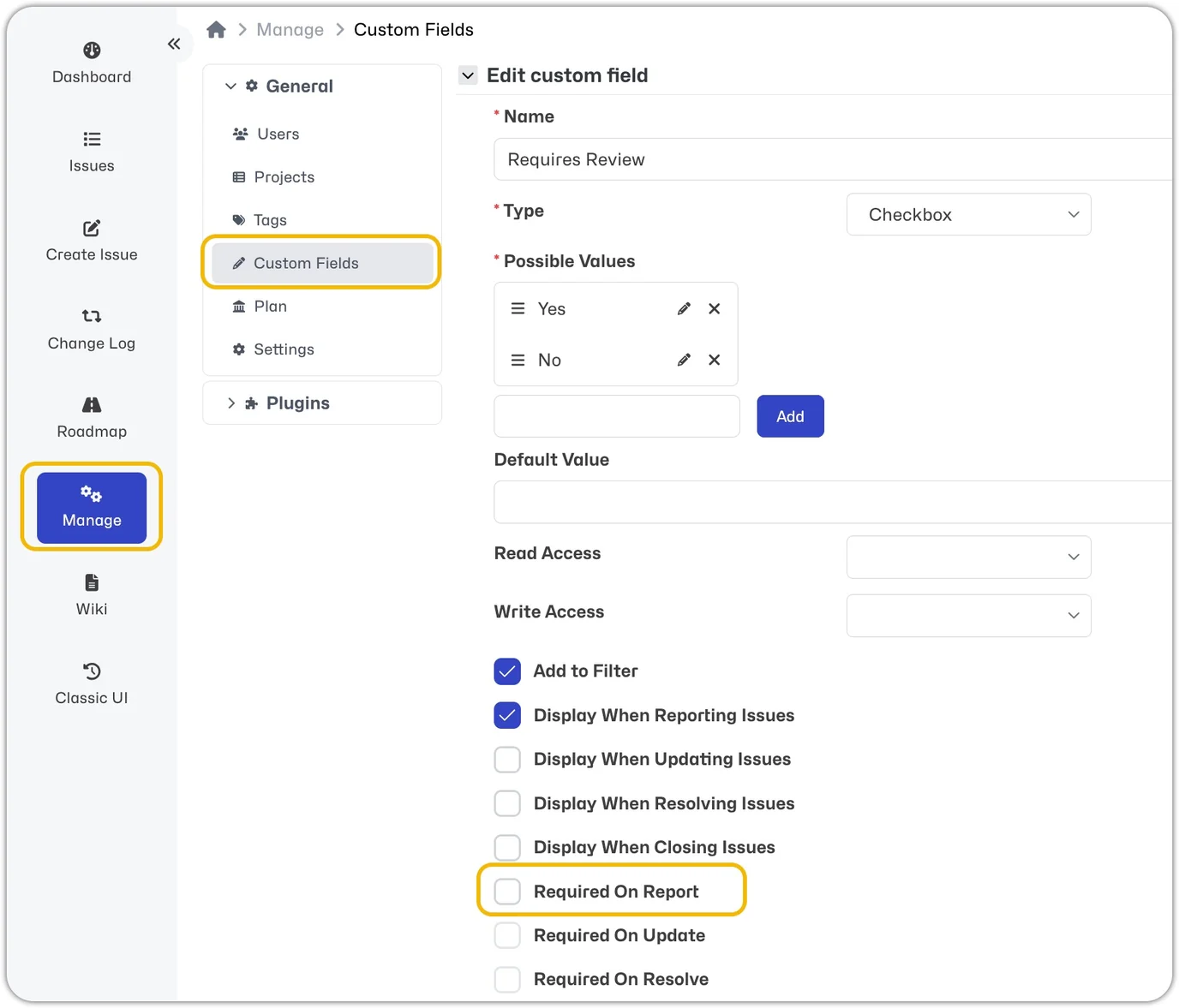
Custom Fields "Required on Report" Failure
When setting up custom fields for projects, you have the option to make them "Required on Report." Email submissions will fail if this is selected because the required custom field cannot be populated. You must remove this setting for custom fields linked to projects where a Helpdesk ticket can be submitted.
General Category
Helpdesk will use the global All Projects - General category for all incoming Helpdesk issues. If the General category is deleted, your incoming email tickets will be rejected. To correct this, follow the process to change the default category.
Disabled Users
By default, email addresses associated with disabled users are prevented from submitting Helpdesk issues. Because these accounts are disabled, we do not allow them to bypass system access by submitting issues as unregistered users. However, you can change the settings to unblock these accounts if needed. Check out the Helpdesk Settings article for details.
Event Log, Email Forwarding, Spam, & Helpdesk Messages
Outgoing Emails
If you are concerned that a customer isn't receiving email responses, you can confirm the emails are being sent by reviewing the email Event Log.
- If the Event Log shows the email was sent, contact the customer to check their spam/junk folders and have them whitelist emails from mantishub.io and mantishub.com.
- If the Event Log shows the email was not sent, the log will show the reason.
Incoming Emails
If you are concerned that emails from your customers aren't populating into your MantisHub, please email our support team with specific examples.
- Email Forwarding: If you are forwarding emails to your MantisHub, try bypassing your forwarding rule by emailing directly to your MantisHub email address to ensure it's not an issue with your forwarding rule.
- Anti-spam Protection: All emails go through a spam filter before populating in your MantisHub. If an email is caught by anti-spam, you won't receive it.
- A common issue that results in incoming emails being caught by our spam filter is DMARC failure. If a sender's DMARC policy is set to "quarantine" or "reject," failing emails will be quarantined or rejected, respectively. If the policy is set to "none," the email will show as DMARC failed but won't be quarantined. Customers can correct the issue by ensuring their DMARC policy is set to "none" with their DNS provider.
If you are receiving spam and want to reduce it, you have several options.
- Restrict sender addresses: If you don't need unregistered users to submit issues via email, then restrict submission to users who have MantisHub accounts. Update your Helpdesk settings, and turn OFF the setting "Enable Unregistered".
- Inbox Project: Create a project that acts as a landing place for issues submitted via email. The issues can be triaged and then moved to the appropriate project. This reduces the number of users receiving spam. Support: Reach out to support and provide examples of spam emails.
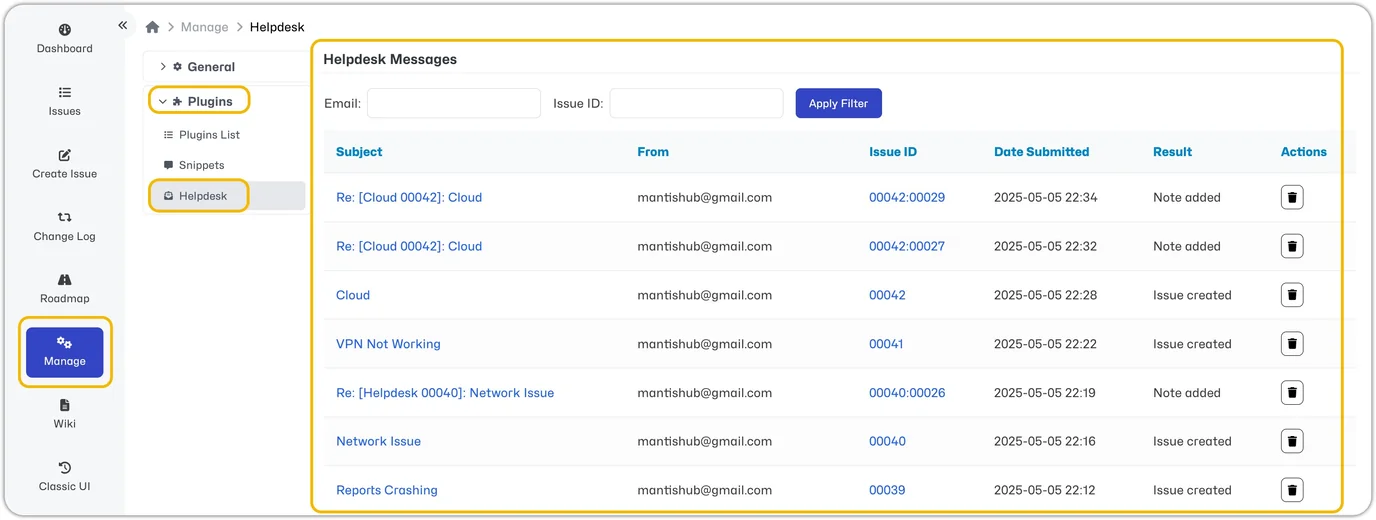
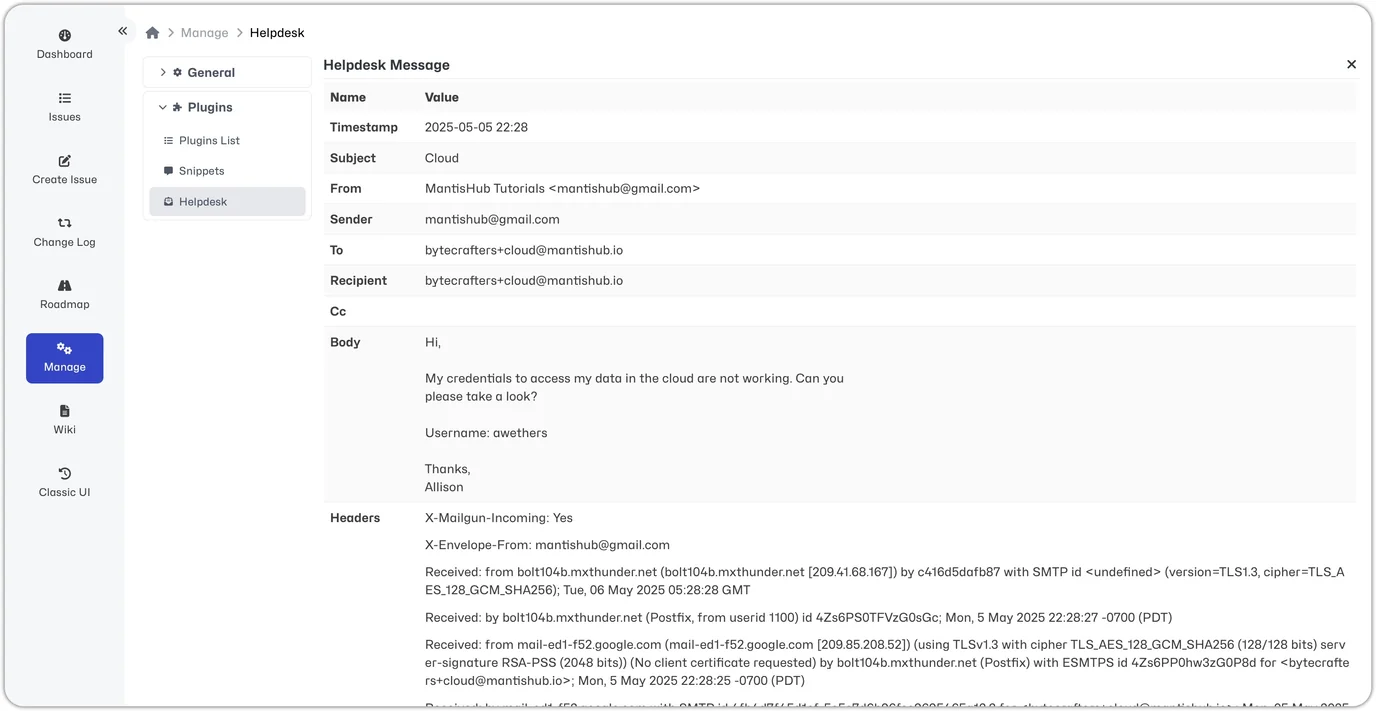
Lastly, if you are concerned that incoming emails are being cut off you can check Helpdesk Messages. Go to Manage - Plugins - Helpdesk to view all emailed tickets. You can select the ticket to view the details including the body and headers.