
MantisHub and TestLodge Integration
To integrate your MantisHub issue tracker with TestLodge online test case management tool you will need to:
- Create a new user 'TestLodge' in your MantisHub and generate an API token for it.
- Link to your TestLodge account
- Create a TestLodge project and link to your MantisHub project
- Set your project behavior
- Create and run test cases
Steps for each of these are listed below. You may also want to check out this TestLodge video tutorial on the Mantis integration.
1. Create a User and API Token
We suggest you create a new user account named 'TestLodge' for the API token generation and TestLodge integration. Give it REPORTER access to the appropriate projects. This way issues reported from TestLodge will be easy to differentiate as they will have the 'TestLodge' user listed as the reporter.
Create an API token as per the steps in this article and note down the generated token.
2. Link to your TestLodge account
Log into your TestLodge account and go to "Settings" - "Issue Tracker Integrations".
Select Mantis for Tracker, than provide the full https URL of your MantisHub (e.g. https://bytecrafters.mantishub.io).
Enter your API token generated in step 1.
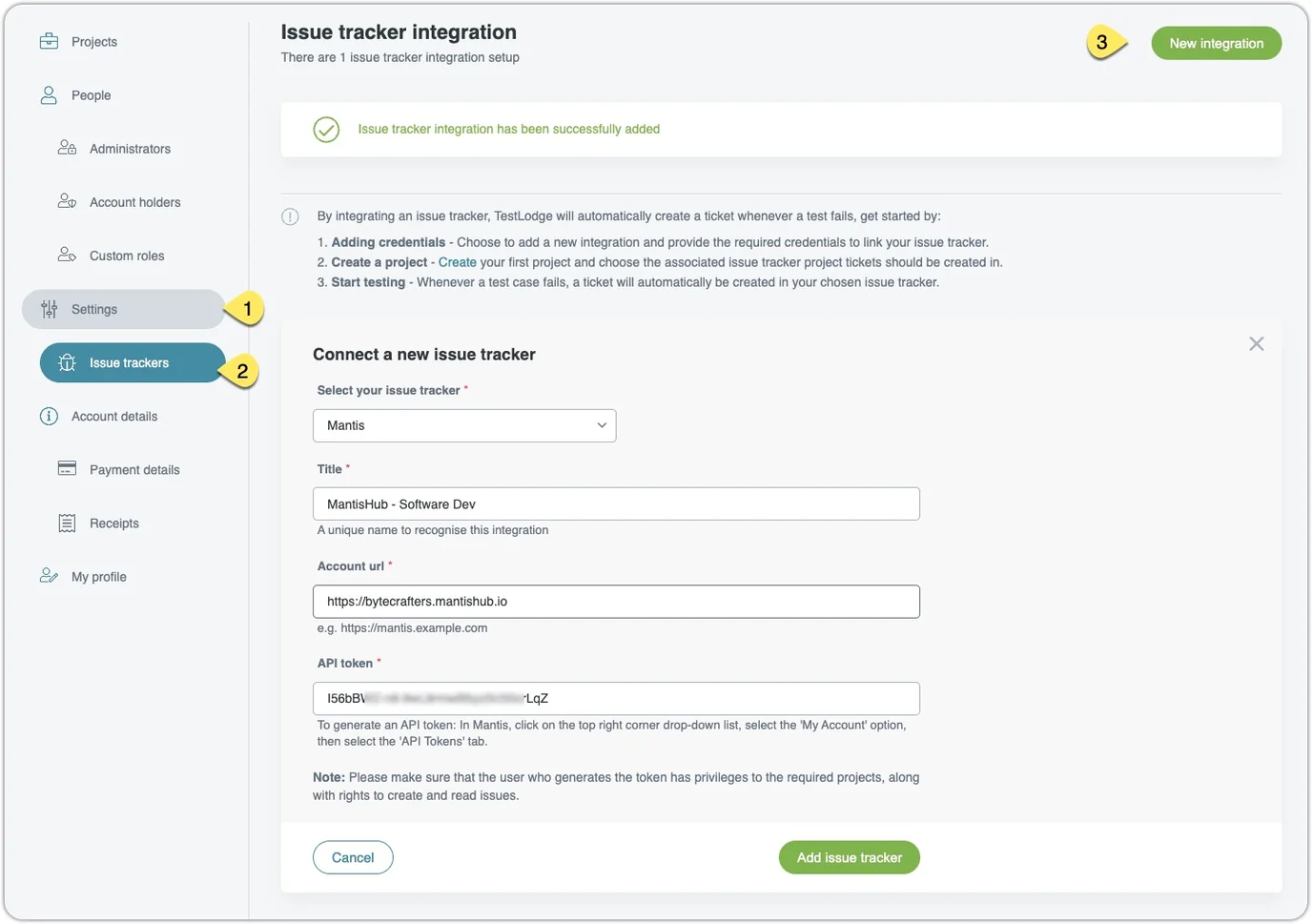
3. Create a TestLodge project linked to your MantisHub project
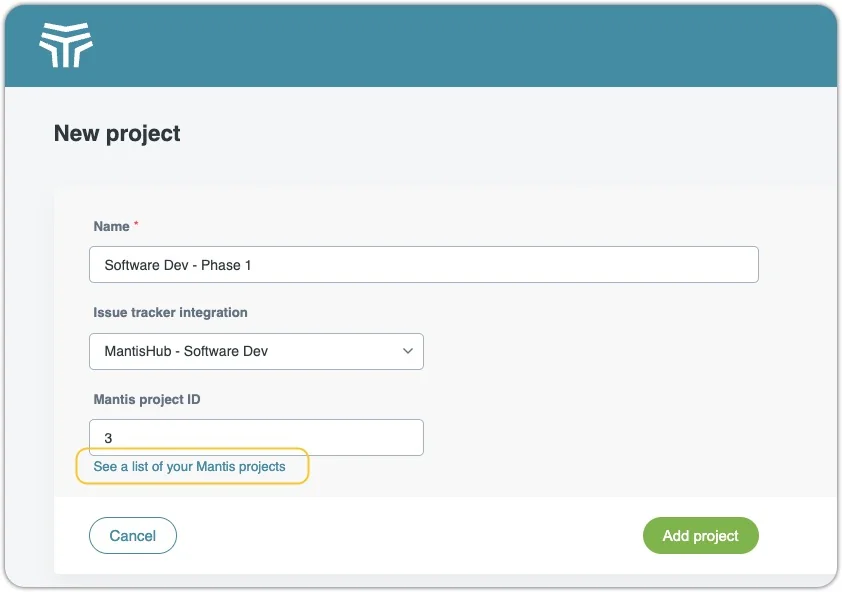
While creating a project in TestLodge, link it to your a MantisHub Project by specifying the MantisHub project ID in the "Mantis project ID" field. If you don’t know the project ID, click on the link 'See a list of Mantis projects' below the field, this will retrieve a list of available projects via the Issue Tracker integration.
4. Set project behavior
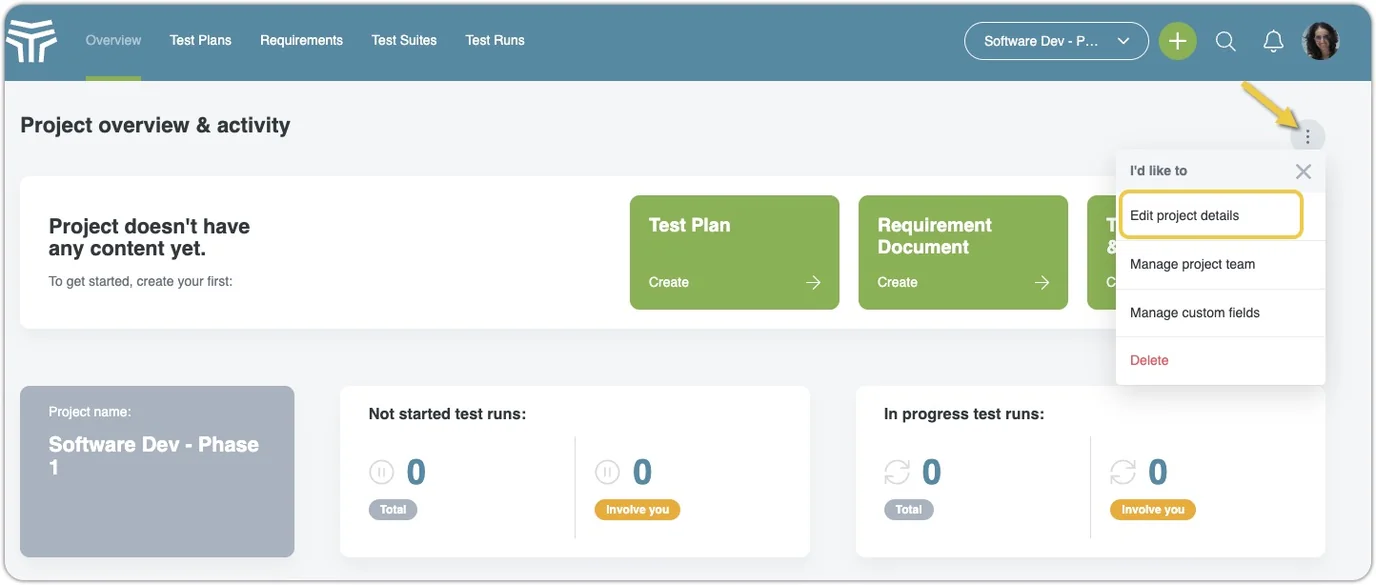
Open up your newly created project and click on the Ellipse and select "Edit project details"
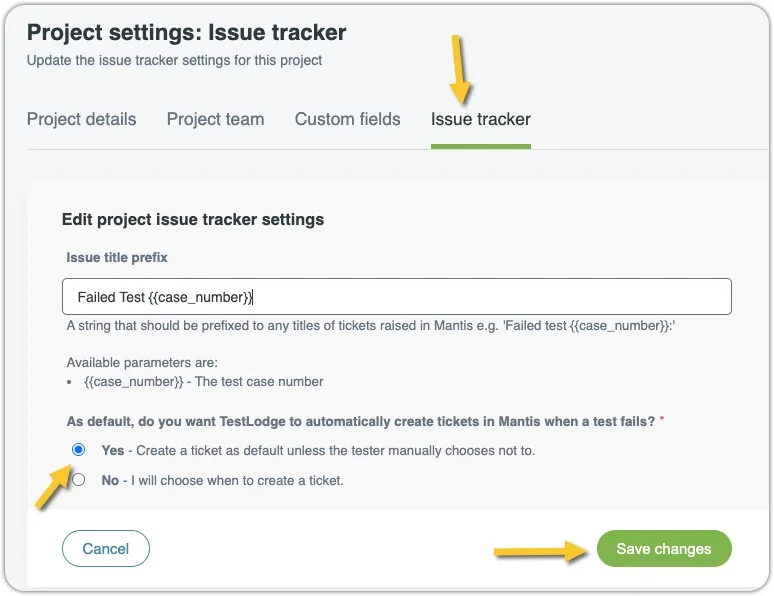
Click on the "Issue tracker" tab and select whether or not you wish to auto create issue within your MantisHub project when a test fails. This is will be either a Yes or No setting.
5. Create and run Test Plans
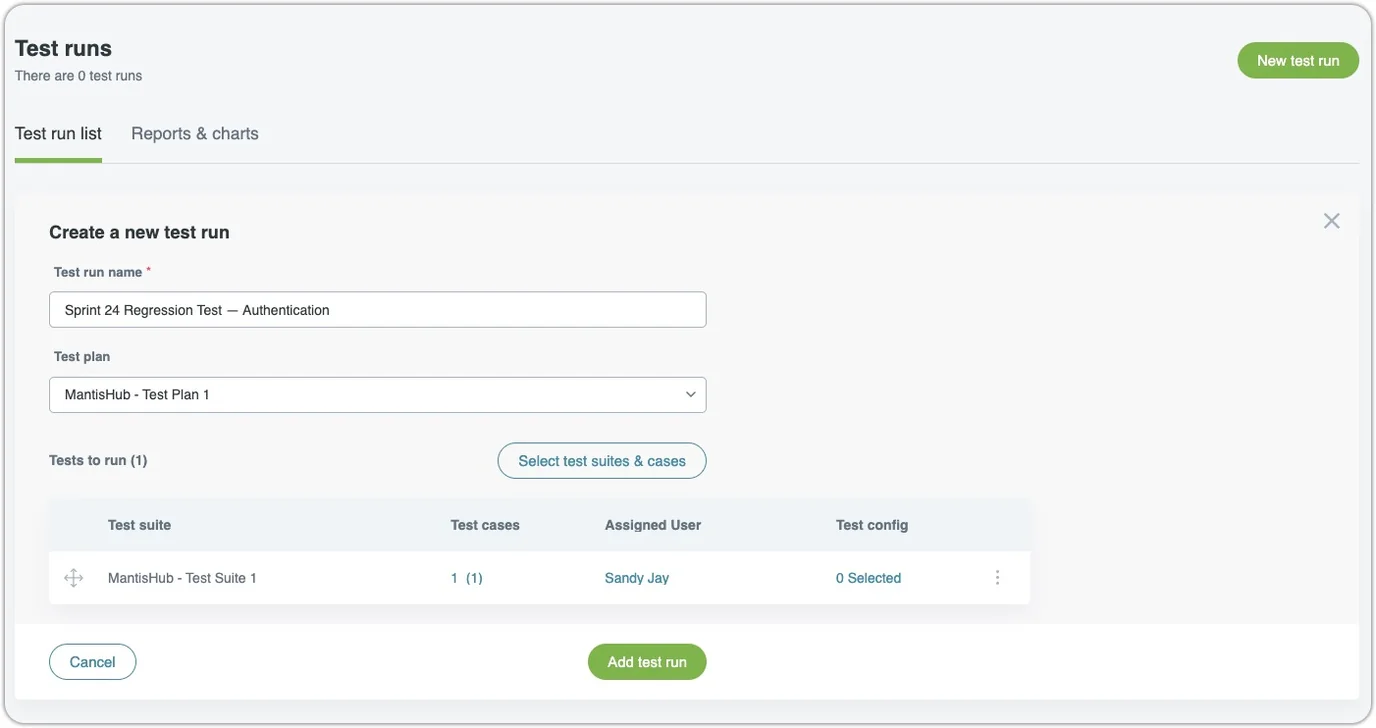
The next step is to create a Test suite and Test Case for the Test suite. Once this is set, you can create a Test Run by clicking on the Test Run tab.
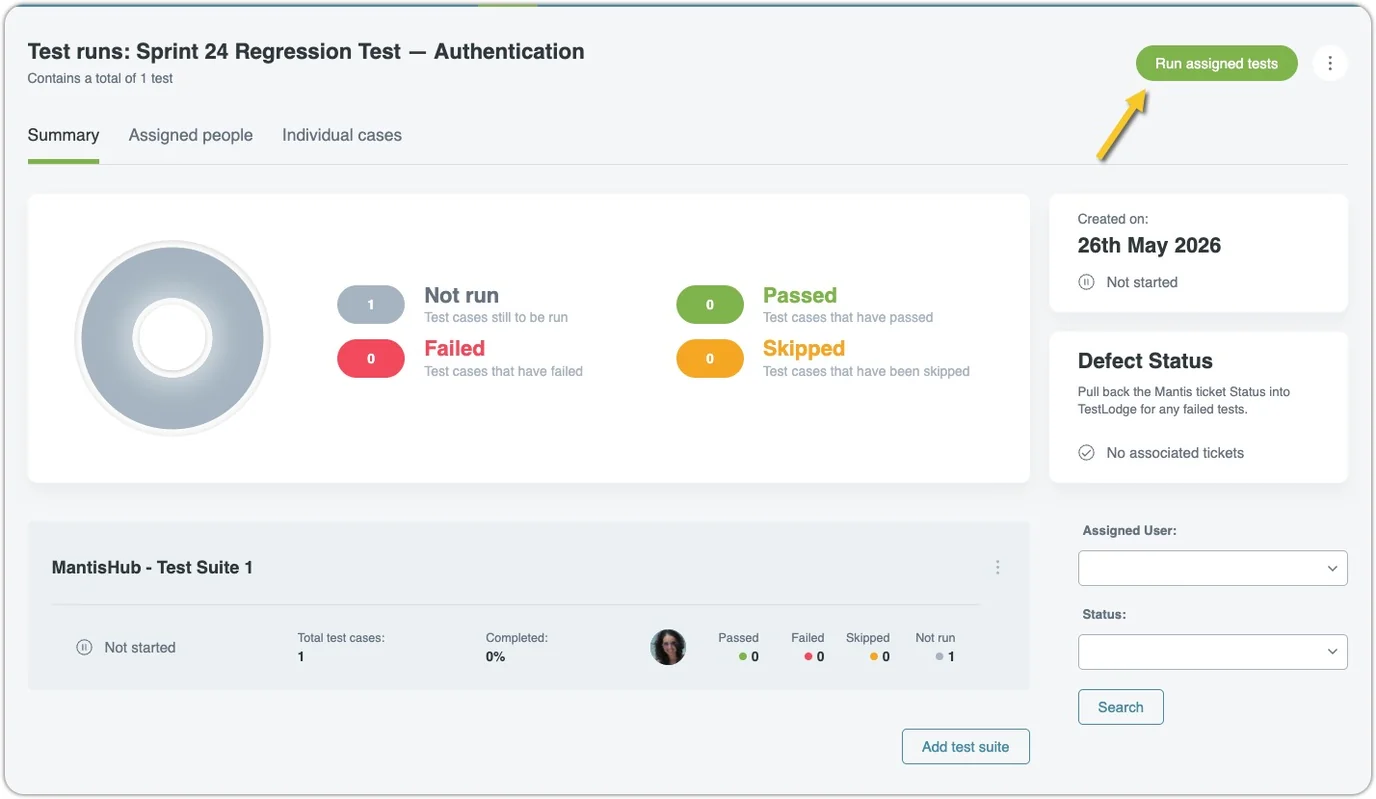
Once you start testing, you click ‘Run assigned tests’ and fill in the details of your test results.
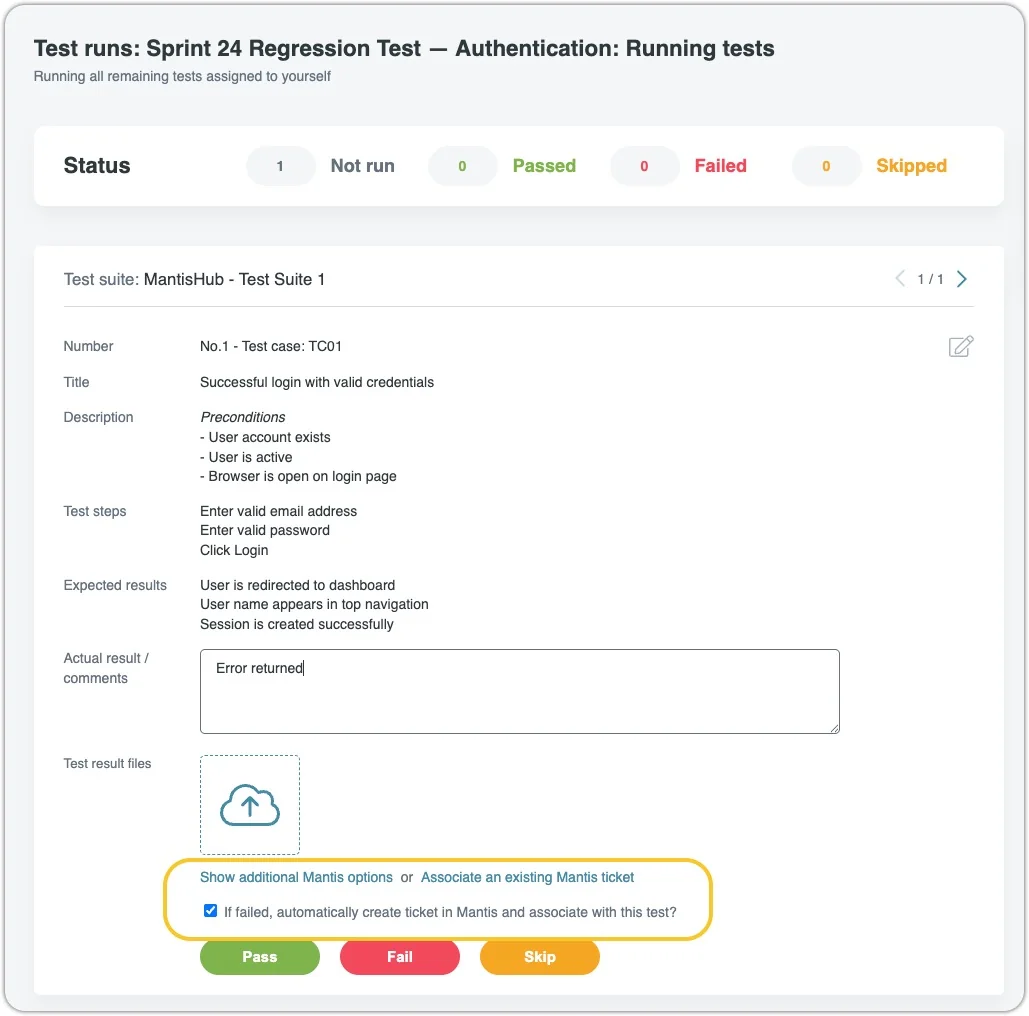
You will see links 'Show additional Mantis options' and 'Assosciate an existing Mantis ticket' at the bottom of the page. The latter allows you to provide a MantisHub Issue ID to associate with the Test Run results.
The 'Show additional Mantis options' link will open up the following fields:
- Category – list of categories retrieved from MantisHub
- Severity – list of Severity values retrieved from MantisHub.
- Assign to user – list of users retrieved from MantisHub, you can select one for which created issue will be assigned.
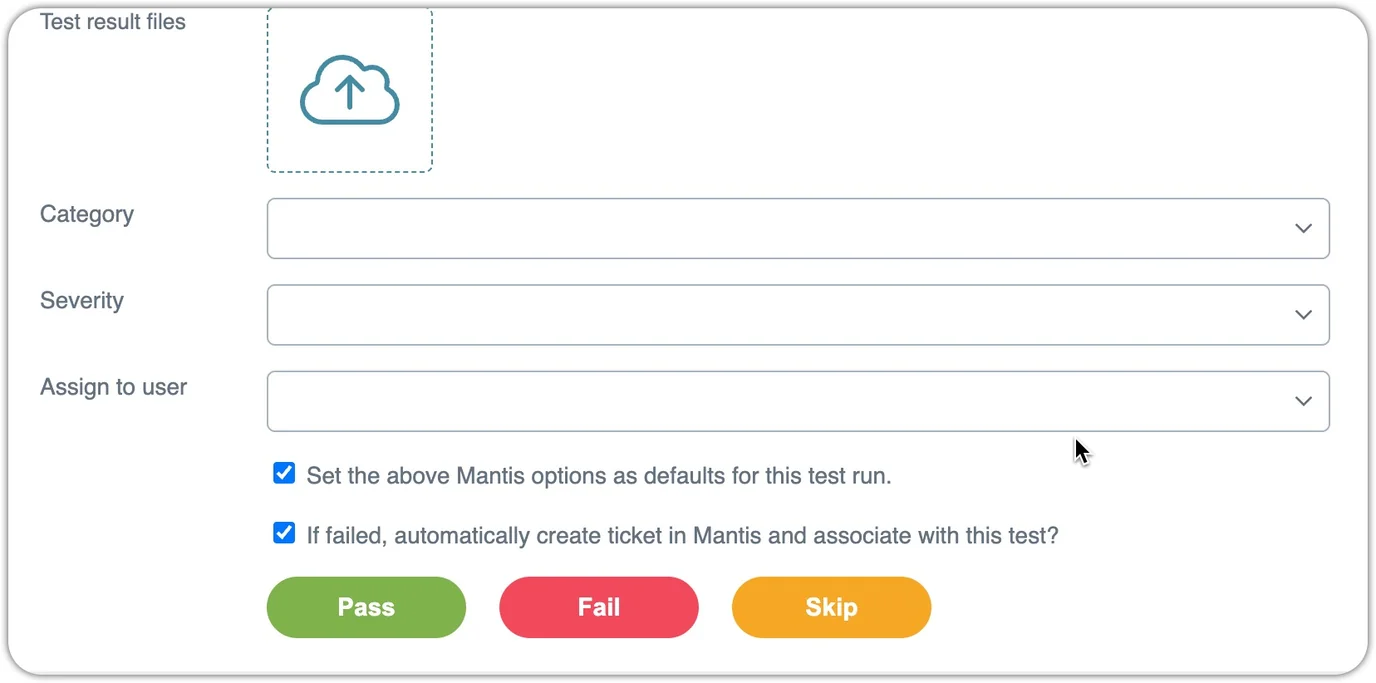
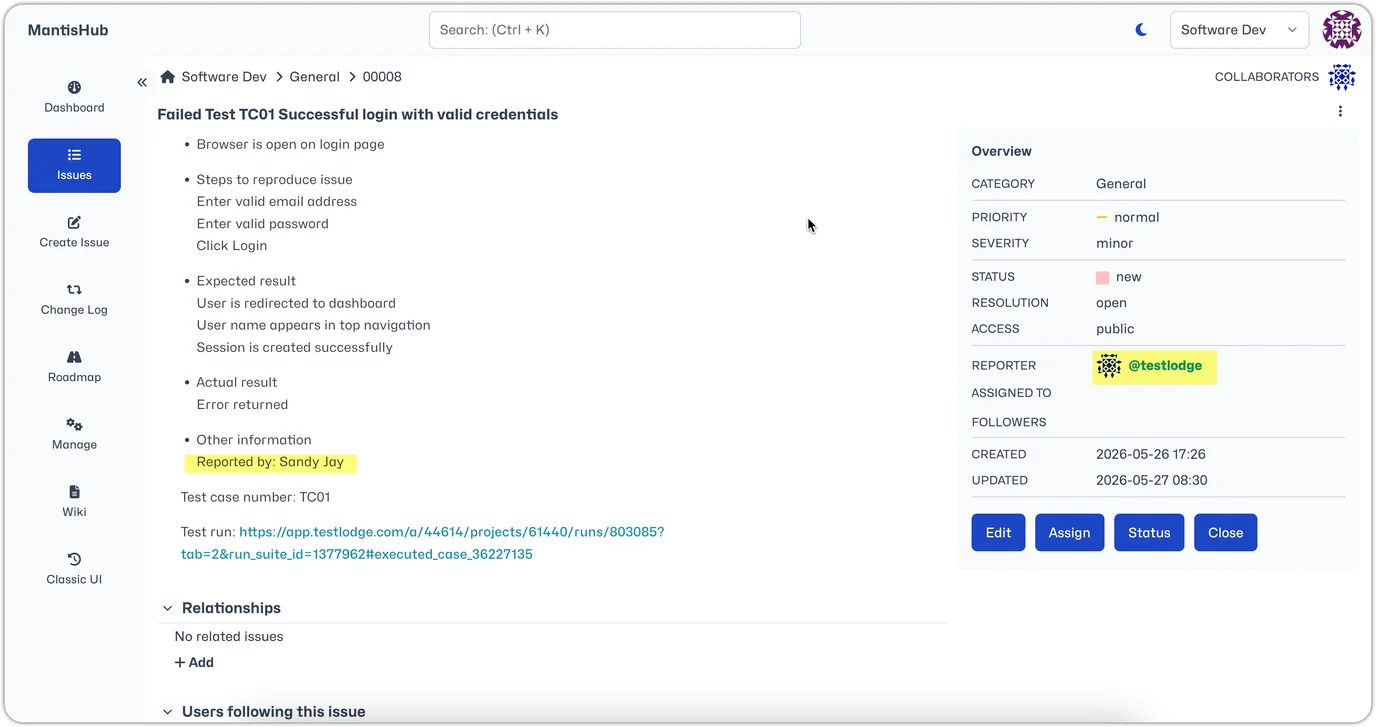
Once you click on "Fail", an issue will automatically be created in your MantisHub project.
If you have any issues with the integration you can submit a request with TestLodge help or reach out to our support team.