
Issue Actions
Issue Actions - Classic UI article
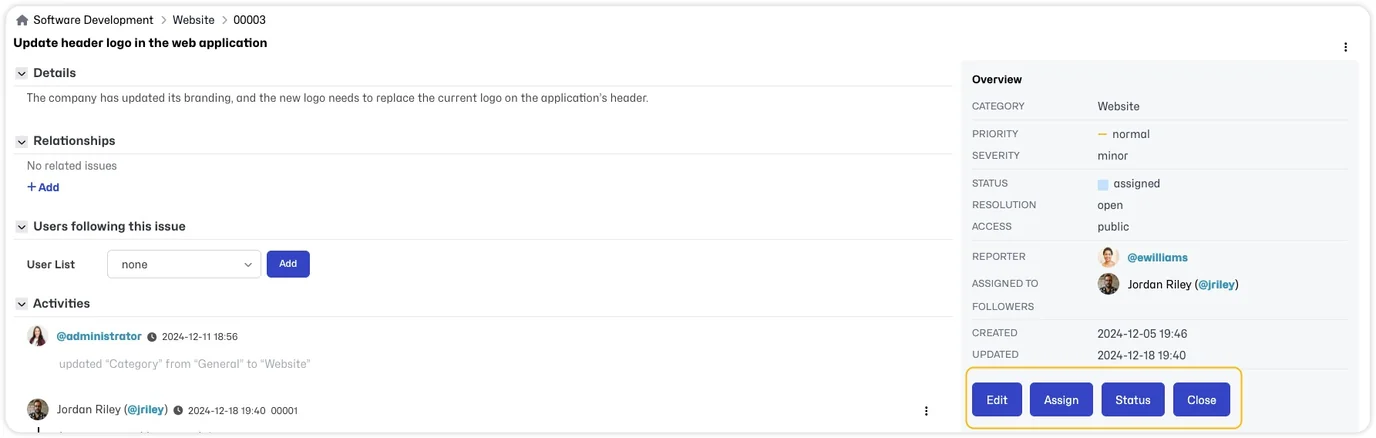
There are a number of issue actions you can perform from within the issue. When you have opened an issue in the 'Issues' view you will see several buttons available in the 'Overview' section including:
- Edit
- Assign
- Status
- Close
In addition the ellipsis menu will provide more issue actions including:
- Pin
- Clone
- Follow
- Delete
- Move
- Classic View
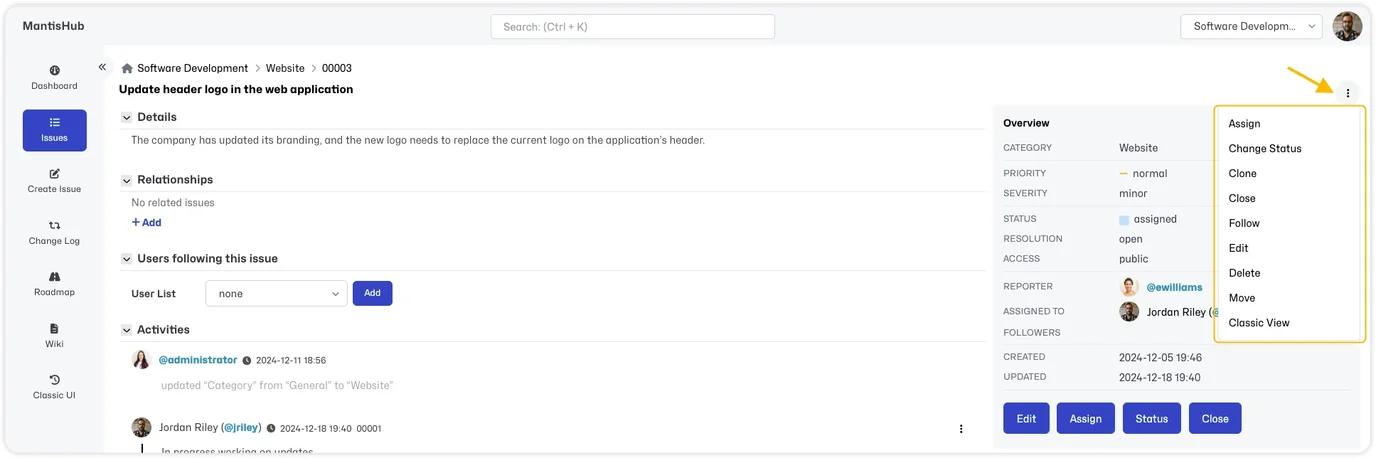
Note that these actions may or may not appear depending on the user's access.
Edit
The 'Edit' action enables editing of the issue fields such as category, priority, severity, custom fields, etc. If you need to update the same field across multiple issues, then you should look into group actions.
Assign
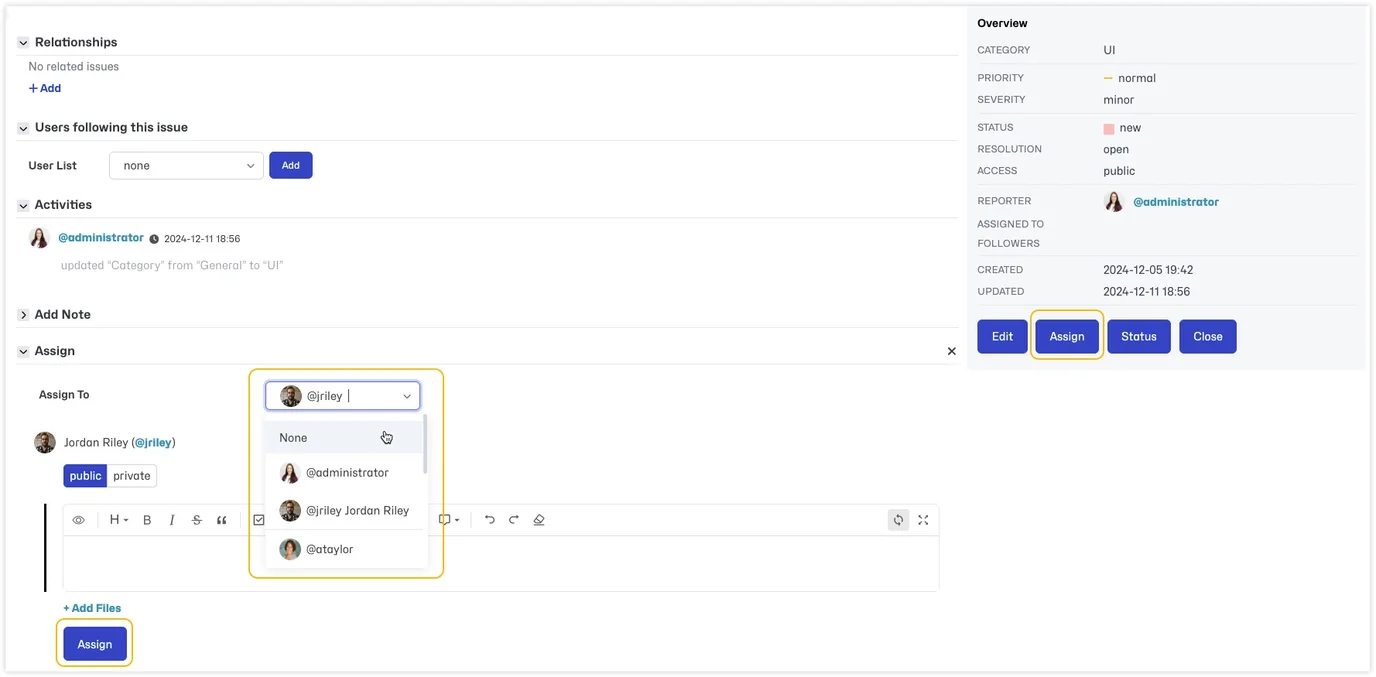
The 'Assign' action allows you to assign the issue to a user from the drop down list. When you select 'Assign', it will default the assignment to you. However, you can assign it to someone else, as well as add a public or private note. Only users that have permission to 'handle' or be assigned issues for that particular project will appear in this drop down list. This will typically be users with access levels of developer, manager, or administrator. Review Assigning Issues for more details.
Status
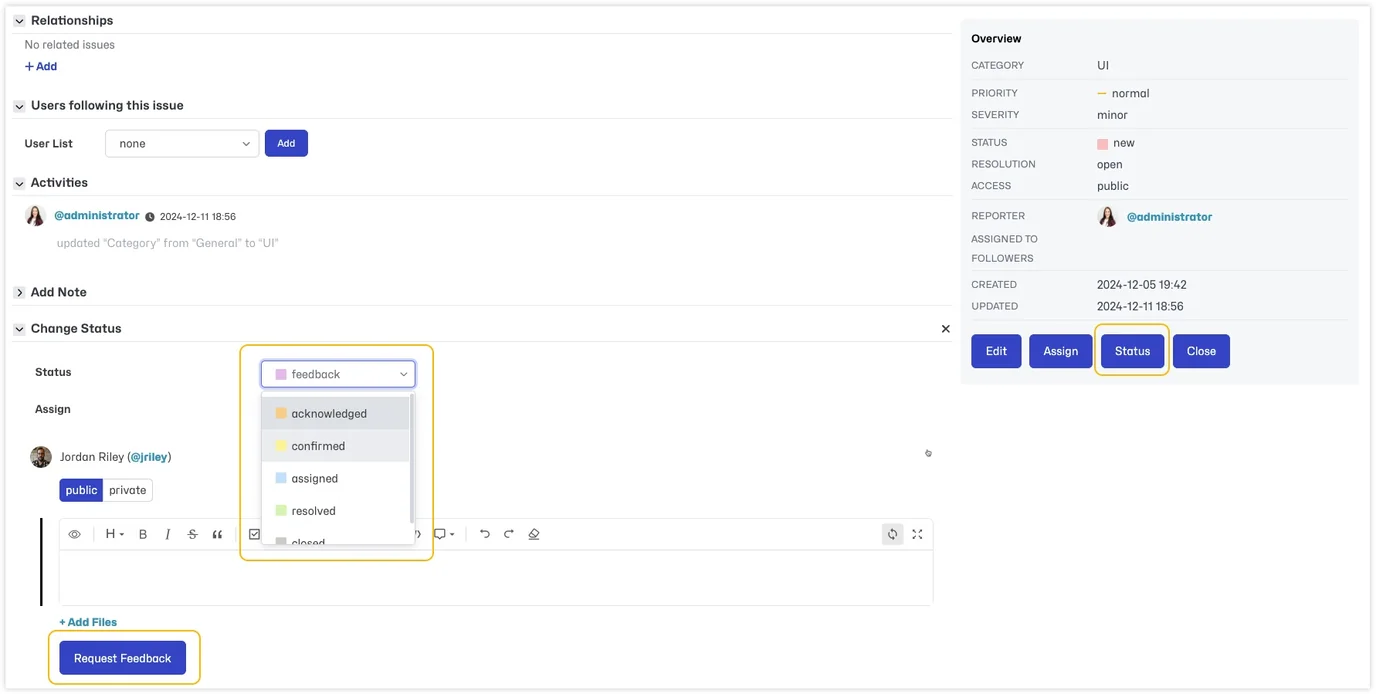
The 'Status' action allows you to change the status of an issue from the drop down list. It will only display statuses that the user is allowed to transition to. By default all status transitions are allowed and users with developer access level and higher can change an issue status. However, if you are seeing that some statuses are not displayed, this could be because you have made some changes to the workflow transitions or workflow thresholds and a specific transition is not allowed or the user may not have access to change to that particular status.
When you select 'Status', a 'Change Status' section will open where you can also assign, add a public or private note, as well as enter due date or time tracking if this functionality is enabled. Additionally, based on your configuration some custom fields may be available.
Close/Reopen
The 'Close' action acts the same as the 'Status' action but the status will default to 'Closed'. There is no difference if you select 'Status' and then 'Closed' from the 'Change Status' dropdown list.
If an issue is already in a resolved or closed status, then you will also see the Reopen action which will perform a status change to the 'Feedback' status by default, or the status that you have configured as the status in which to place re-opened issues in your workflow transitions.
Pin
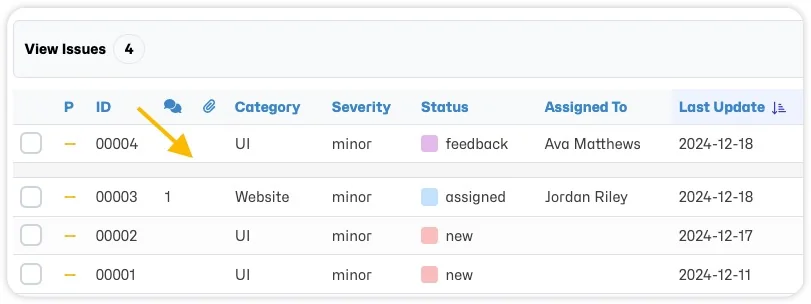
The 'Pin' action, pins the issue to the top of your issue list. Once at least one issue is pinned a gray demarcation line will appear on the issue list. All 'pinned' issues will appear above this line separated from all other issues. Sort functionality will separately sort the pinned vs. un-pinned issues. To Unpin an issue, click the 'Unpin' button.
Note that if you Pin an issue, it will be pinned for all users and not just for you.
Clone
The 'Clone' action will create a duplicate of the issue within the same project. When you select 'Clone' you will be brought to the 'Create Issue' page but all the fields will be pre-filled. You also have the option to copy across all issue notes and/or attachments as well as include a relationship to the cloned issue.
Follow
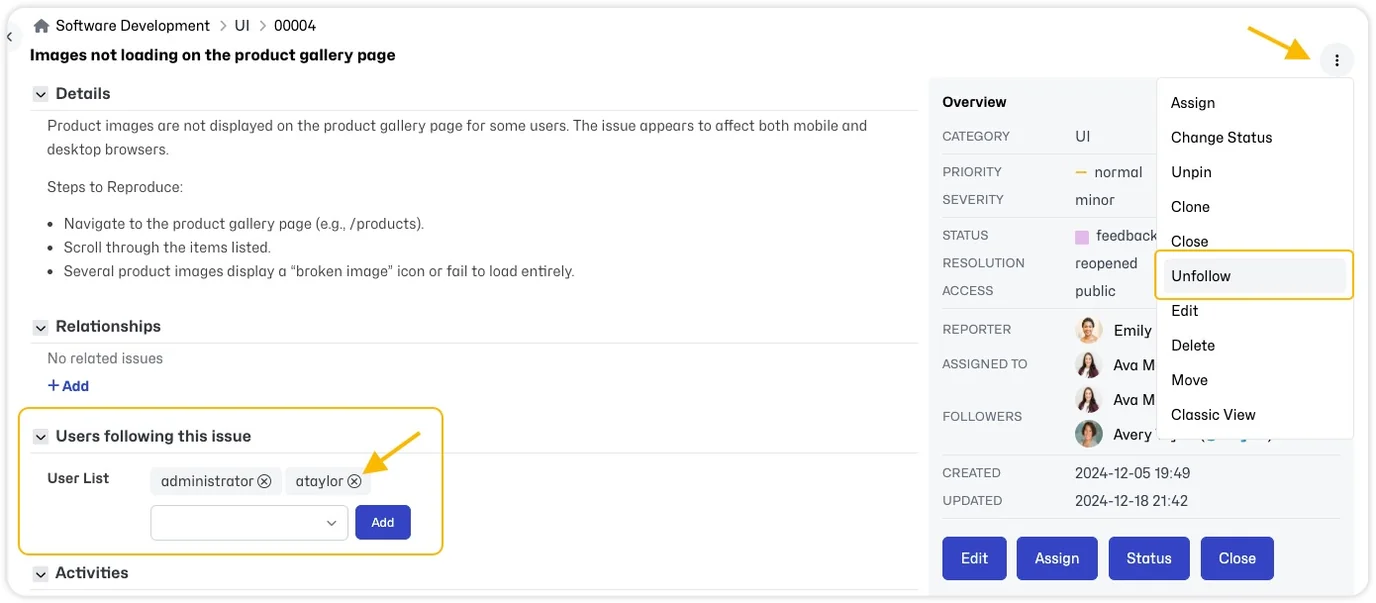
The 'Follow' action allows the user to subscribe to change notifications for the issue. The Follower will be displayed in the "Users following this issue" section. A user can select 'Unfollow' or by clicking the 'x' next to their username to remove themselves from this list.
Follow Configurations:
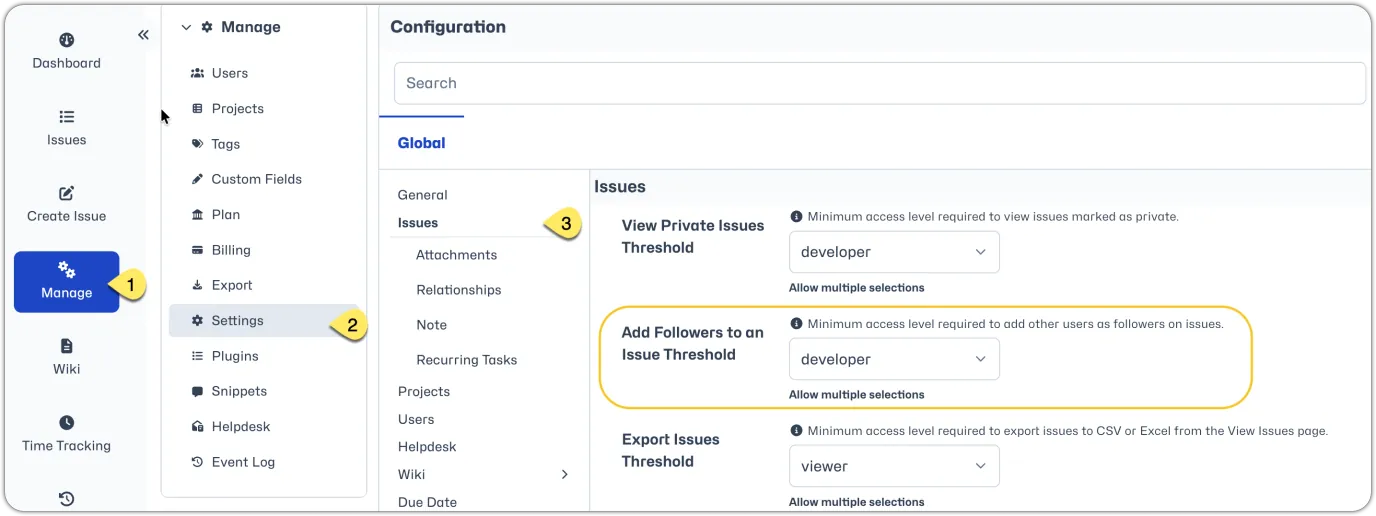
To modify what access levels can add a follower to an issue, go to 'Manage' - 'Settings'. Under 'Issues' you will see the setting 'Add Followers to an Issue Threshold'. This defines the lowest access level permitted to add a follower. The default is developer access or higher.
You can also modify what access levels can follow an issue or view the list of users following an issue by updating the workflow thresholds. See our Workflow Thresholds article for details.
Delete
The 'Delete' action will delete the issue. This cannot be undone. You will be asked for confirmation before deleting an issue. There is NO WAY TO RESTORE a deleted issue, so please be sure before deleting an issue.
Move
The 'Move' action will relocate the issue to a another project. When you select 'Move', you will see a 'Target Project' drop down list with the projects you can choose to move the issue to. The projects listed here will depend on your access level. Where the same category exists in the target project, it will be assigned that category. If not, then it will use the default category which is usually the '[All Projects] General' category. All issue details will be moved across including attachments, notes and history.
Classic View
The 'Classic View' action, opens the same issue in the classic UI.