
Helpdesk Set-up & Workflow Tips
If you are still using the Classic UI, please see the Classic UI Article for further help.
In addition to configuring the MantisHub Helpdesk plugin, there are several other features you'll want to set up to effectively use Helpdesk for your ticketing needs.
Setting up the Helpdesk project
We recommend you create a new, private project as the repository for all your Helpdesk tickets. It is important to leave "Inherit Global Categories" turned on when creating your project because all emailed issues will utilize the default category General. You'll also need to specifically add your support team (with DEVELOPER access) and ensure the Email user (with REPORTER access) is added to this project. Once the project is created, set this as the default project via your Helpdesk settings. If you encounter any problems, check out the Troubleshooting Helpdesk Problems article.
Setting up Snippets Integration
To enhance your ability to create reusable support responses, signatures, notes, and more, install Snippets. You can create as many snippets as necessary, but we recommend using global snippets that the entire team can use. By default, only Administrators can create global snippets but you can modify permissions in the Snippet settings.
Setting up Chat Integration
You can link to your Slack or Teams chat service by installing the plugin and setting up your webhook URLs. Then set your Helpdesk project to your project support channel.
Setting up project filters
Make use of your Filters. The "Issues" page will generally be your go-to when dealing with your Helpdesk tickets. There are pre-made filters to help get you started:
- Assigned to Me: Displays issues assigned to you.
- Reported by Me: Displays issues you reported.
- Followed by Me: Displays issues that you are following
- Unassigned Issues: Displays issues that are currently assigned to no one.
- Active Issues: Displays all issues not in
Closedstatus. - All Issues: Displays issues in any status.
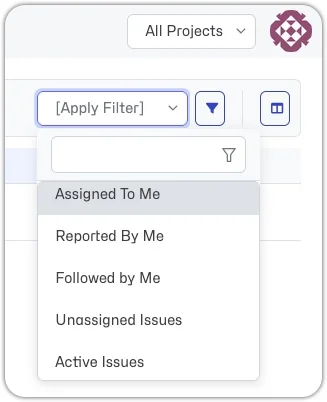
Note: Closed issues are filtered out by default on the Issues page.
You can also create, save, and share your own filters. Examples include:
- Waiting on Customer Response: Save a new filter with all issues in the
Feedbackstatus to show which tickets await a customer response. - Waiting on Team: Save a new filter with all issues NOT in a
Feedback,Resolved, orClosedstatus to view which tickets your team still needs to action. - Waiting on Me: Save a new filter for all issues NOT in a
Feedback,Resolved, orClosedstatus AND assigned to 'Myself' to see what issues you need to take action on.
Helpdesk Workflow Tips
Define your workflow
Utilize the lifecycle stages: New, Assigned, Feedback, and Closed. You can choose to auto-assign issues by category or manually triage and assign issues to a team member
- All new tickets arrive in the
Newstatus. - If you require more information from the customer, you can add a note/submit as
Feedback. By default, the issue will also be assigned to you.
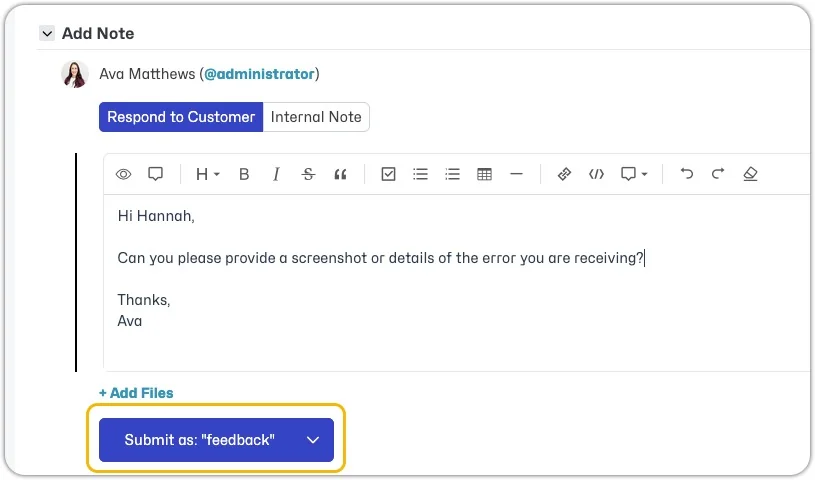
- When the customer responds, the ticket automatically changes from
FeedbacktoAssignedstatus. - Once resolved, move to
Closed.
Update issues efficiently
- When you open an emailed issue, you can add a note/submit as
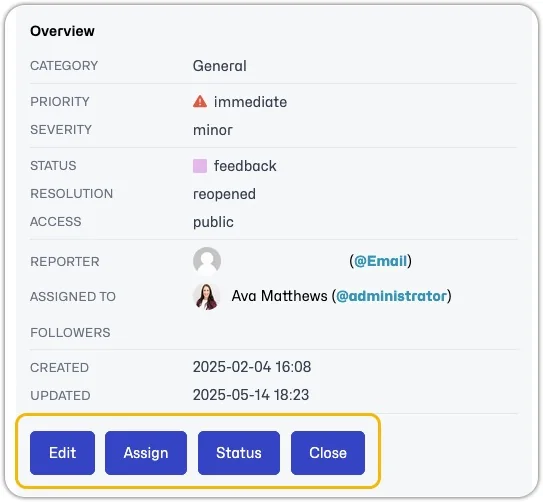
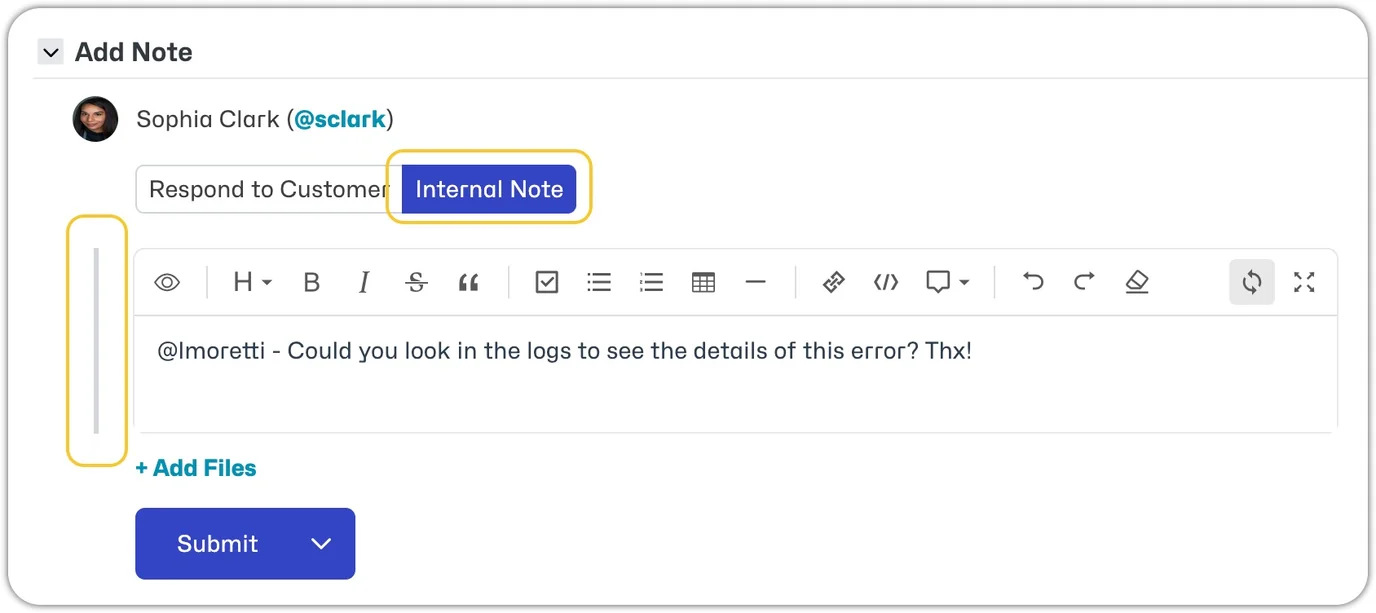
FeedbackOR create an internal note that will not be sent to the customer. - You can also
Editthe issue details Assignto a team member with a note- Modify the
Statusalong with changing/adding assignment with a note, or Closethe issue with a resolution and a note.
If you add text to the note and then change actions, i.e., instead of changing the assignment, you decide to close the issue, the text will remain in the note section. That said, you are not required to add a note to complete any of these changes.
Differentiate notes
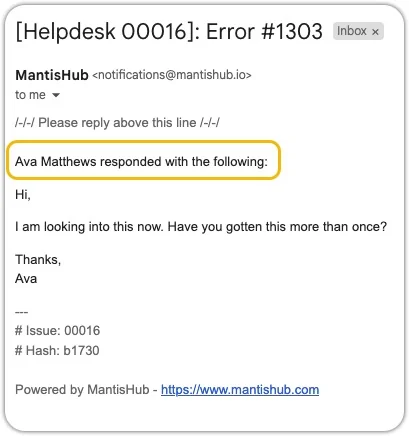
- Public notes are used to provide information to both your internal team and the customer. Public notes will be sent to the reporter(s) via email notification.
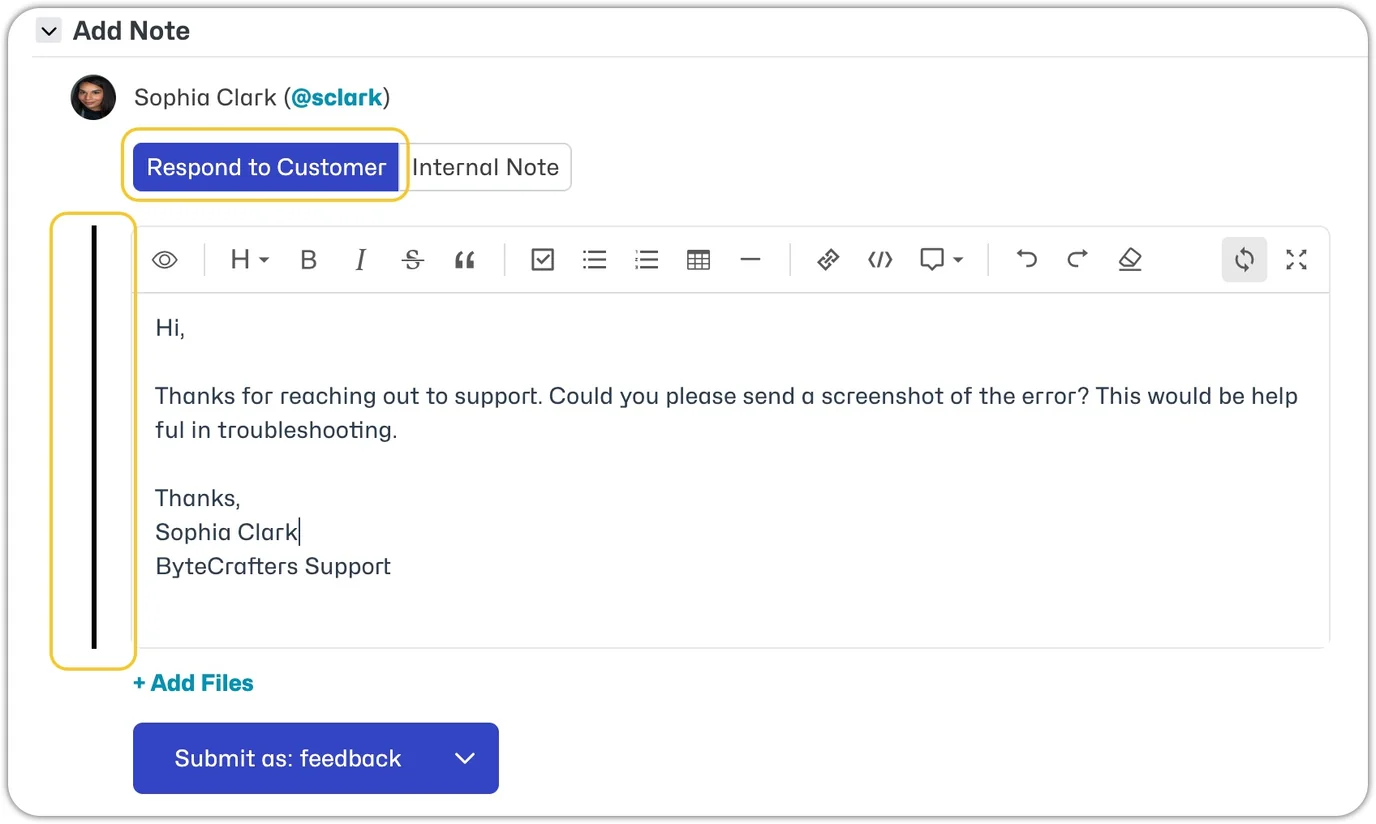
- Private notes are used to provide information to your internal team only. A private note will only be visible to internal users with developer access level and above. Make sure notes intended for your internal team are marked private.
Link issues to internal tickets or pages
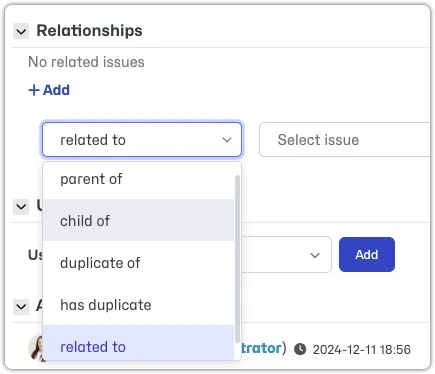
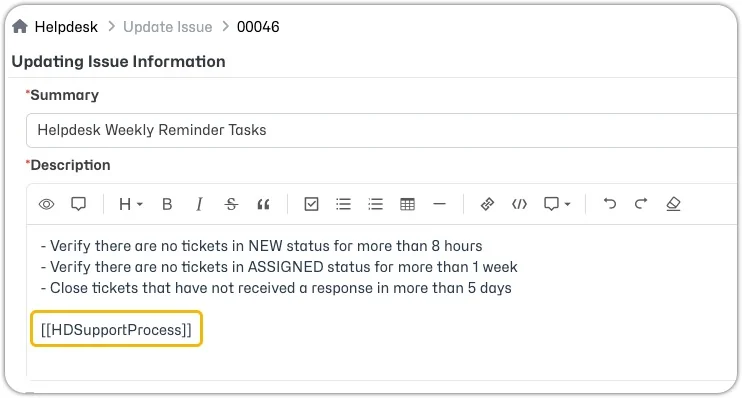
Relate customer issues with internal tickets or your internal wiki pages for your team to reference internal processes or known/common support issues.
When are customer notifications sent
- When a public note is added.
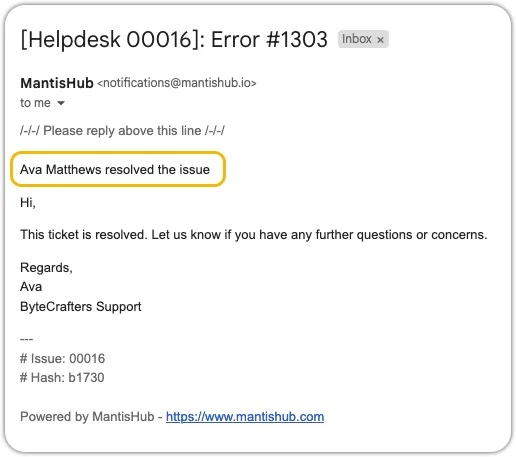
- When an issue is moved from an open (
New,Feedback,Acknowledged,Confirmed, orAssigned) to a resolved (ClosedorResolved) status.
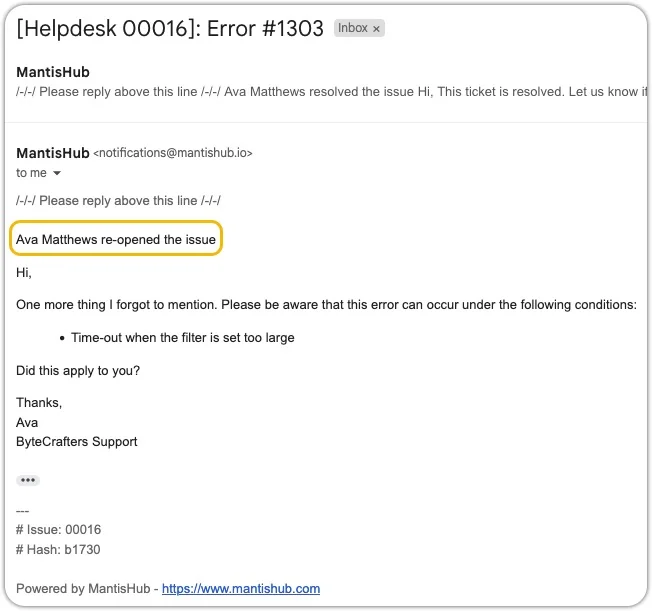
- When an issue is moved from a resolved (
ClosedorResolved) to an open (New,Feedback,Acknowledged,Confirmed, orAssigned) status.
Other changes, like assignments and private notes, do not trigger notifications.