User Preferences
There are a number of system settings you can customize within MantisHub. These can be set at both a global system level and at a personal user level. A user's personal preference will always override a system preference. These settings include:
Changing Language
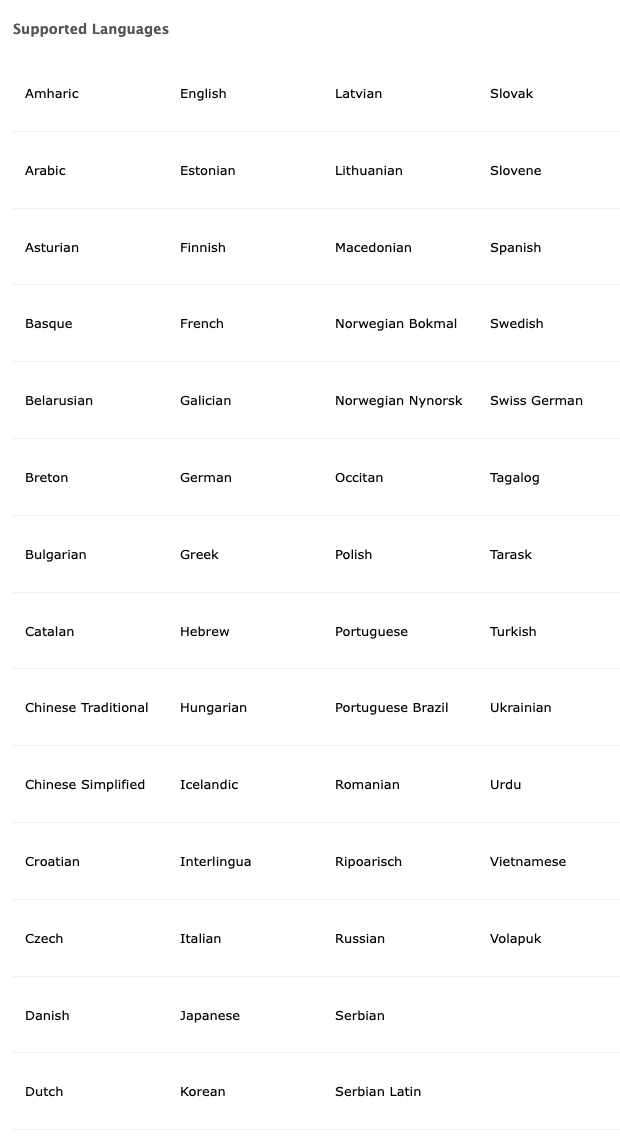
MantisHub is used across the world and can be viewed in over 60 languages. It is possible to set the language globally at the system level. Users can also set their own account language preference.
User Language Setting
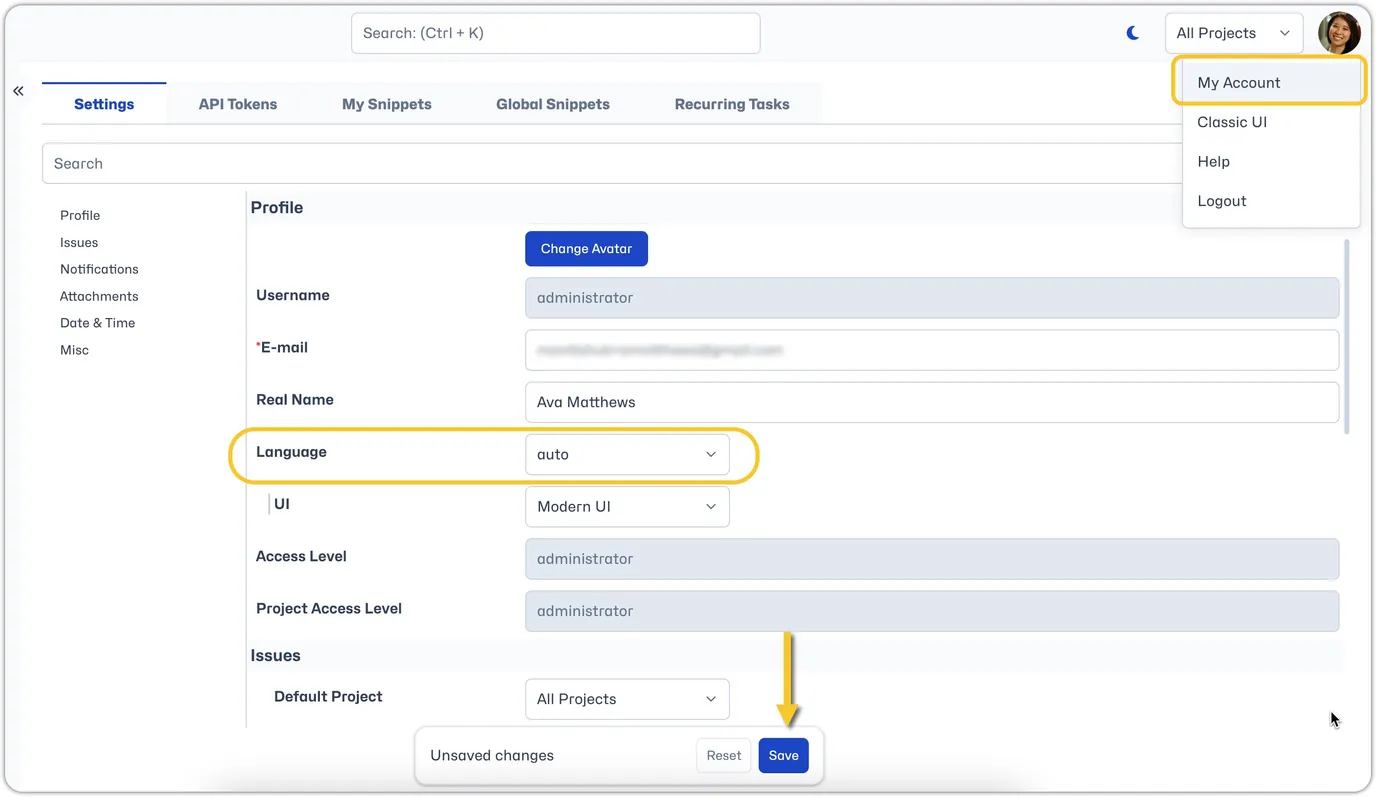
To change your language preference, simply go to 'My Account' via the dropdown box in the top right corner of your screen. Under your profile, you will see the language field. Simply select your prefered language from the dropdown box and click 'Save'.
System Language Setting
You can customize the default language for the system by emailing our support team who will update it for you. Any new users will have their MantisHub displayed in your nominated language. Existing users will still need to manually change their language preference as described above.
Changing Timezone
MantisHub internally uses UTC timezone to store all time stamps. However, when displaying such time stamps it maps them to the timezone of the logged in user. The default timezone for users is set to UTC as well so you may wish to have this changed to your local time if your users are all in one place.
System Timezone Setting
To setup a default system timezone simply email our support team with your preference and they will apply the change.
You can find a list of the timezones here. Drill into the region and you will get all the possible timezone values.
The system change will set the default timezone for all new users. If existing users need to change their timezone, this will need to be done manually.
User Timezone Setting
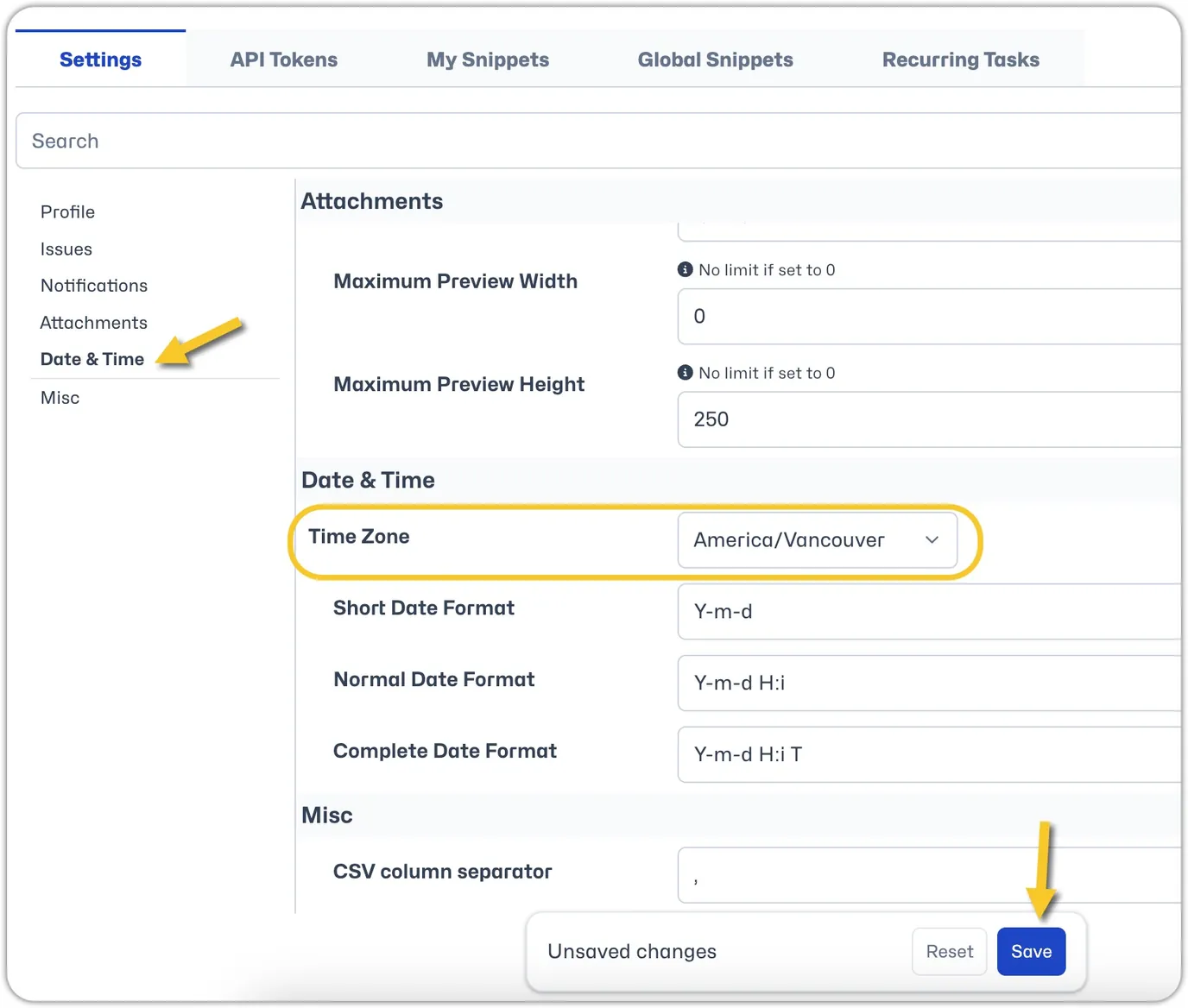
A user can change their own individual timezone themselves by going to 'My Account' from the user drop down box in the top right hand corner.

Under 'Date & Time' select the desire timezone from the dropdown box. Click 'Save'.
When a user travels to a new timezone, MantisHub will detect this and trigger a pop up.
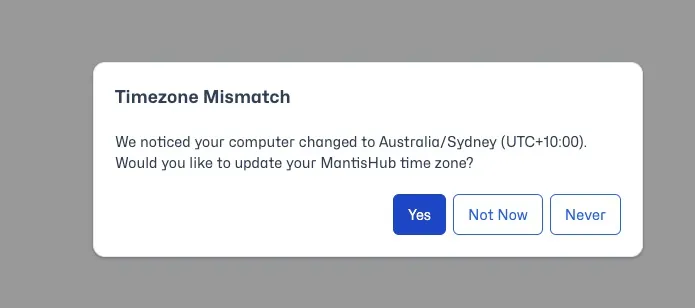
The user can select Yes to automatically update their timezone, Not Now to leave the timezone unchanged, and Never to turn off the automated prompt.
Managing Column Views for View/Export Issues
System Column Settings
Administrators can customize the default view of columns displayed on the 'Issues' page for all users.
Currently, changes to global system column system settings needs to be done within the Classic UI Article.
To set these columns, switch to Classic UI and head to Manage - Manage Configuration and click Manage Columns.
Make sure you have your project selector set correctly to reflect where these settings will apply, e.g., "All Projects" or just a specific project. The settings for "All Projects" are used as the default when a project doesn't have explicit settings for displayed columns.
Select which columns to show from the options listed in the 'All Available Columns' box. This controls what is visible and in which order.
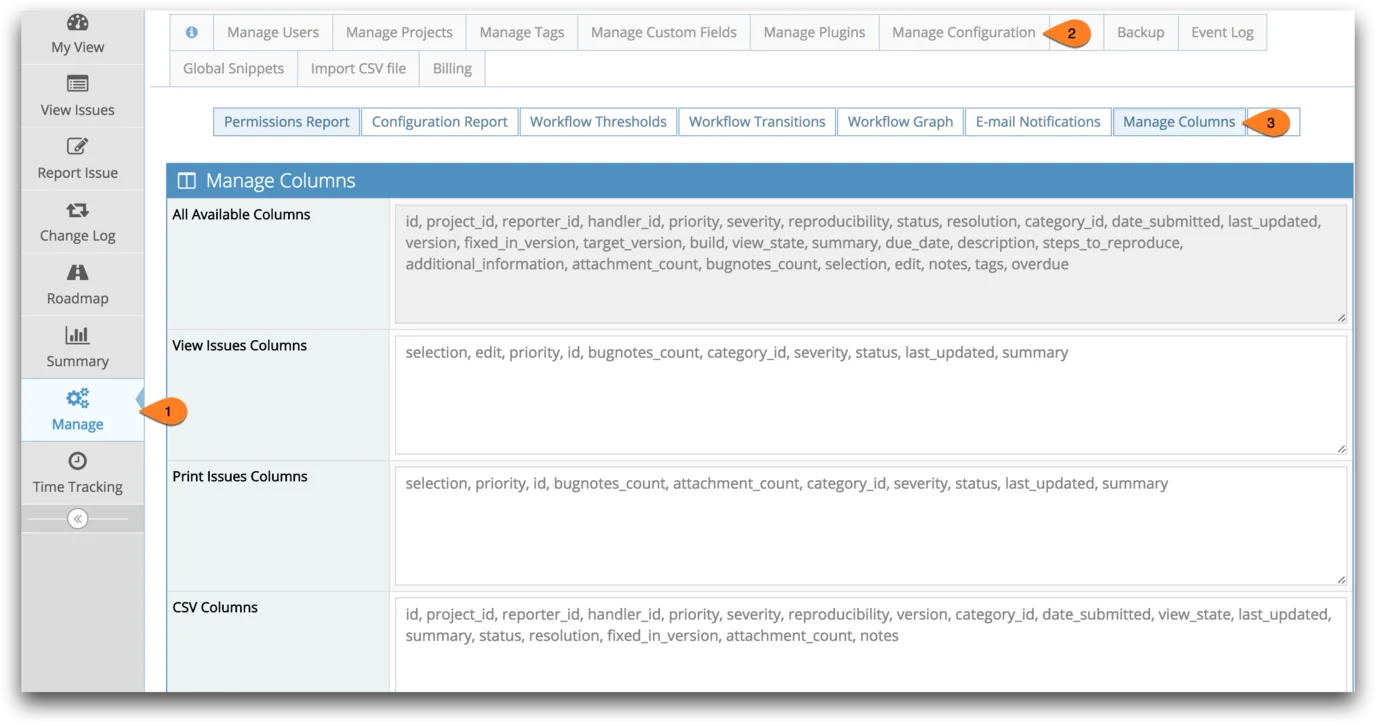
Custom fields are also added the the available columns list. If a custom field is named "foo", the field name will show as "custom_foo". Always reference the supported column names from the 'All Available Columns' text box.
You should treat field names as case sensitive.
User Column settings
Issues Page - Column Configuration
Users can set their Column configuration for issue lists displayed on the Issues page. Follow the steps below. Or check out our video tutorial here.
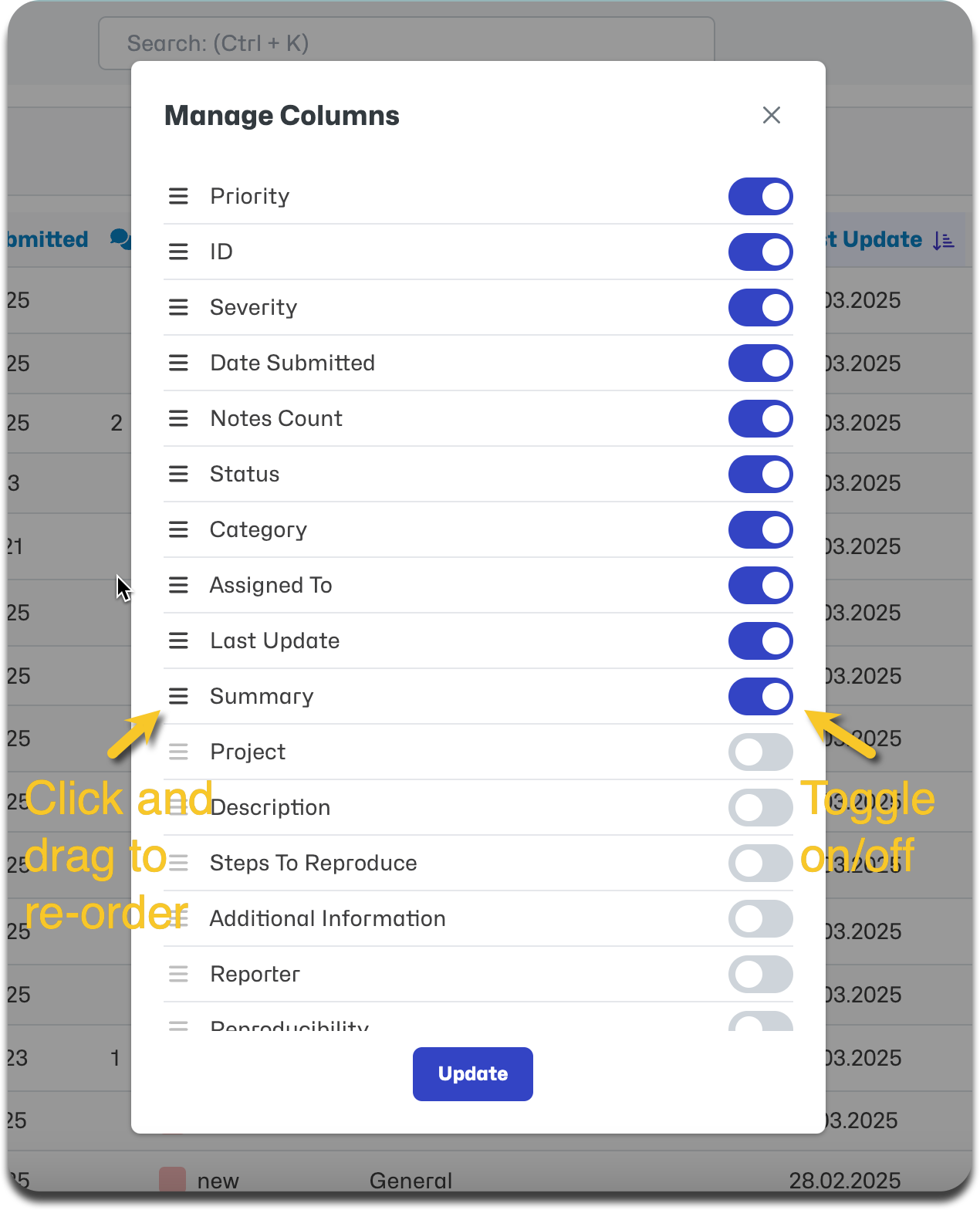
Simply click on the columns configuration icon in the 'View Issues' table header.

Within the Manage Columns pop up configuration, simply toggle on/off the fields you wish to display. You can also re-order columns by clicking and holding on the hamburger icon, then dragging the field to the desired position.
Export Column Selection
To select columns to be included in your issue exports, you would select these at the time of exporting your issues.
See our documentation on exporting issues for details.
Issue Note Order
It is possible to customize the order in which issue notes are displayed. The order can be set to 'Ascending' meaning the earliest notes will be displayed first or 'Descending' meaning the most recent notes will be displayed first.
System Note Order Setting
Administrators can amend this setting at a global system level, go to Manage - Settings - Issues - Notes and select Ascending or Descending as desired. Click save once the setting is changed.
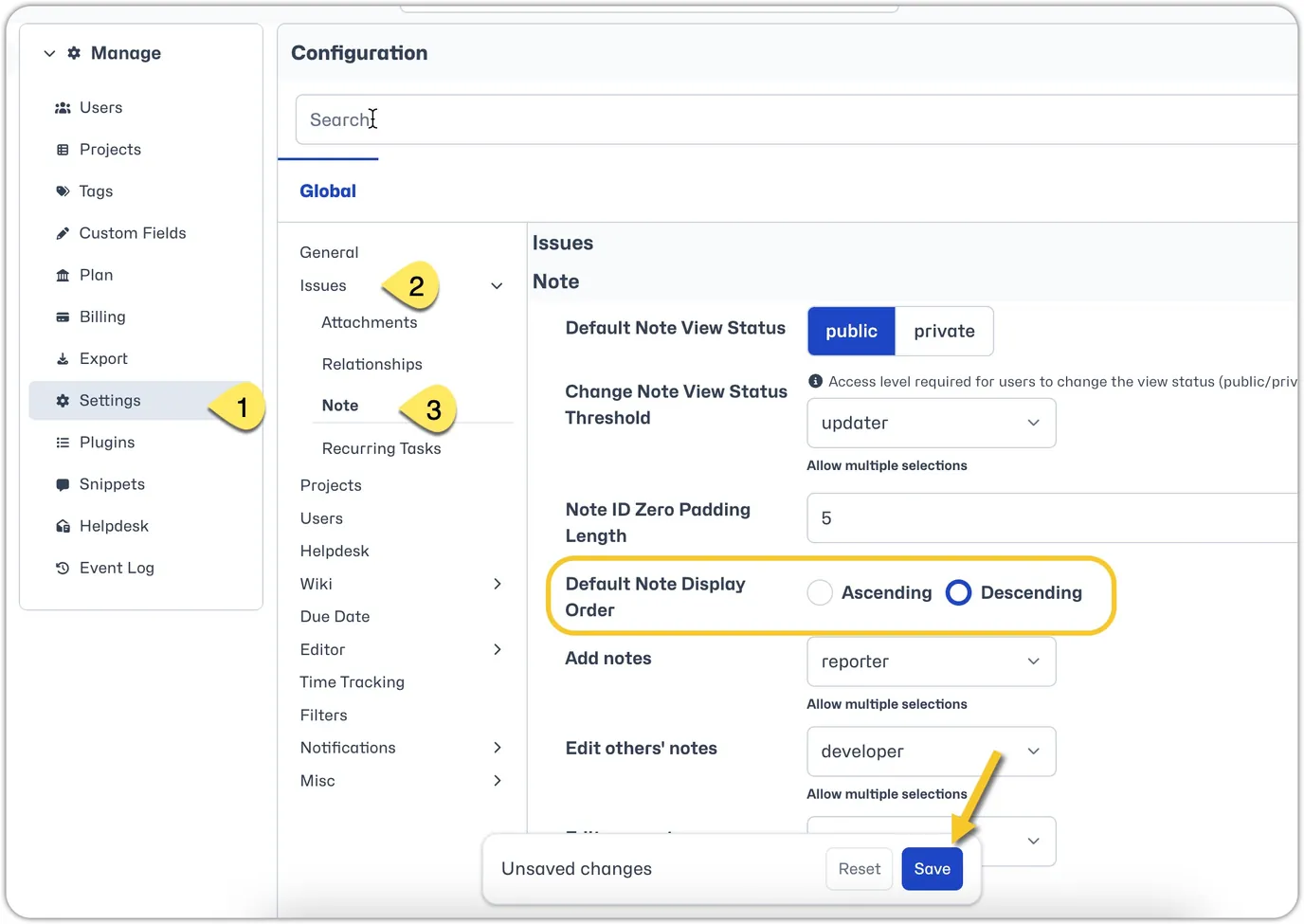
User Note Order Setting
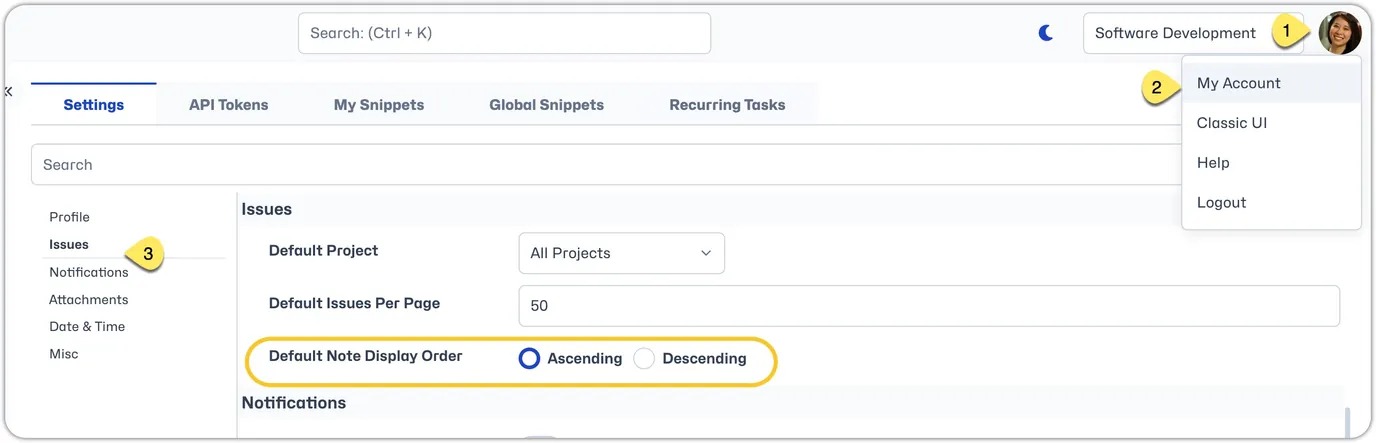
Users can set their personal preference by heading to 'My Account'. Under 'Issues', set the 'Default Note Display Order' and Save.