
Linking Issues Via Issue Relationships
Linking Issues via Issue Relationships - Classic UI article
Issue relationships link two issues together while defining a relationship that links them together. For example, duplicate issues (duplicate), multiple issues from the same customer (related), tasks associated with each other (related), or tasks dependent on each other (parent or child).
You will see the 'Relationships' section when creating or viewing an issue. Enter the issue ID using auto-complete to relate to and select a relationship.
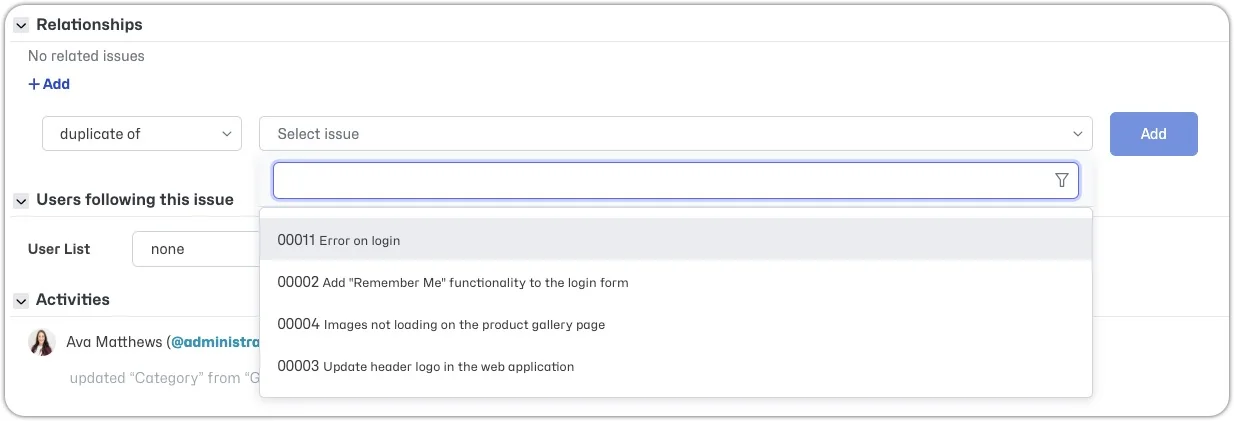
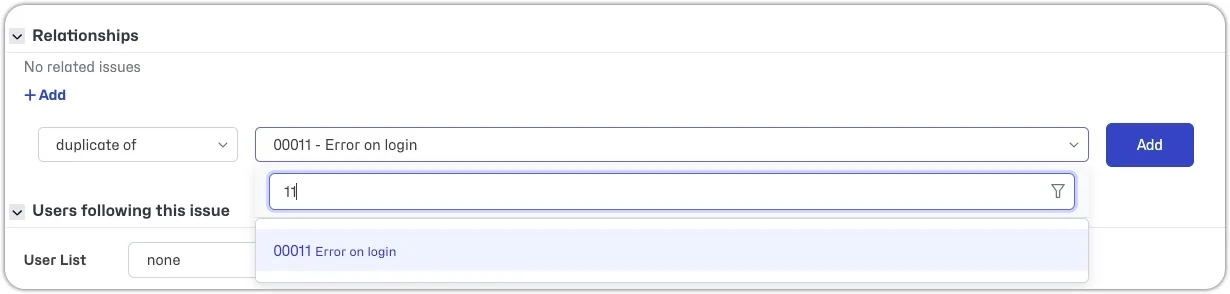
When you have relationships set, the issues are linked and listed with their relationship details and issue status, making it easy to navigate from one issue to the other.

Relationship Types
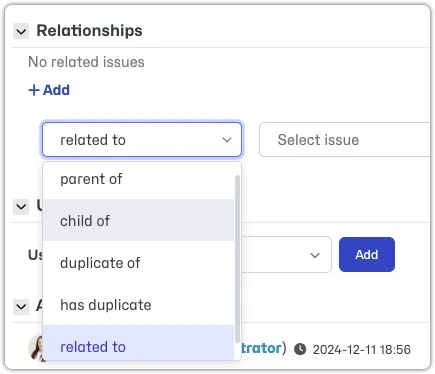
Relationships can be:
- parent of: A parent issue requires that any children issues are resolved before it can be resolved.
- child of: Must be resolved before a parent issue can be resolved.
- duplicate of
- has duplicate
- related to
Other ways to set a Relationship
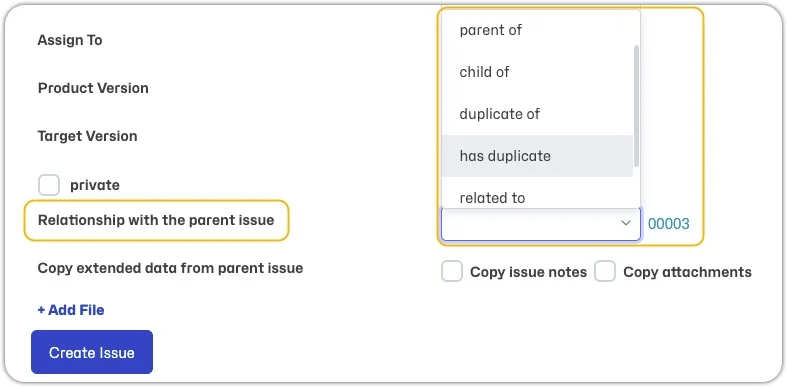
When cloning an issue, you can set a relationship to the cloned issue on creation. This is useful in scenarios like cloning an issue for a related project or cloning a helpdesk issue to create a product bug.
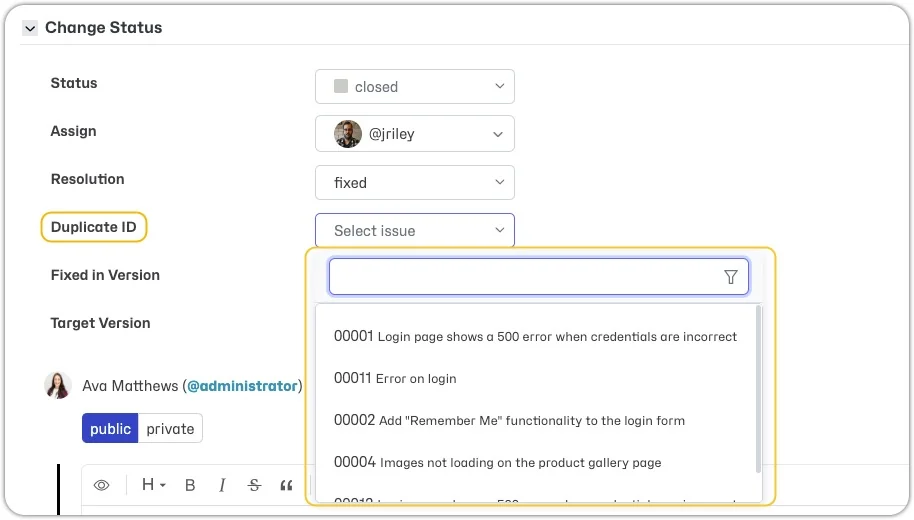
On resolving an issue, you can mark it as a duplicate of another issue, automatically creating a relationship between the two issues.
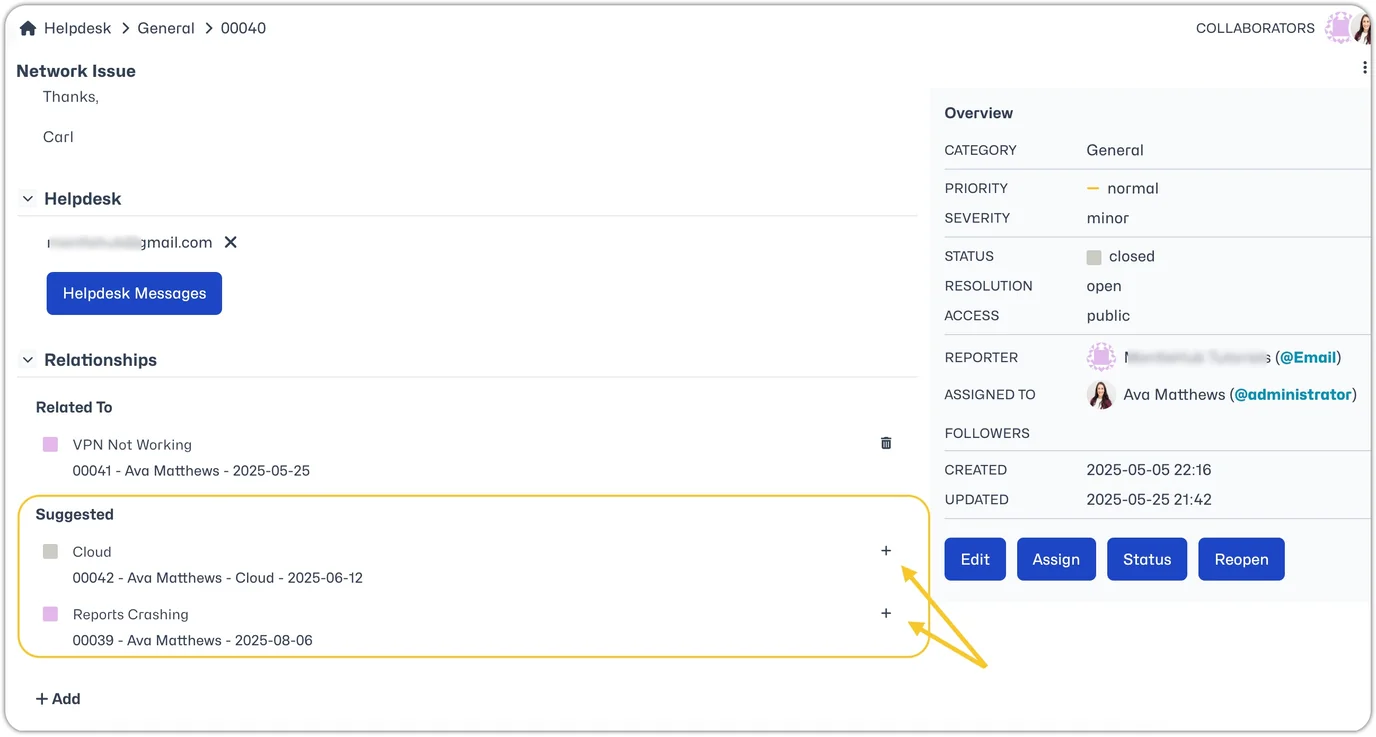
Using Suggested Relationships. Under the Relationships section of the Issue details, Helpdesk issues will show a Suggested section which is generated based on previous tickets submitted by the user. If a displayed issue is relevant, you can add a relationship by simply clicking the + icon next to the listed issue.
Email Notifications
You can configure email notifications to trigger when adding relationships.
Visibility
Relationships are only visible to users who have access to both issues.