
Snippets
If you are still using the classic interface, please head to the Classic UI Article
To save you typing the same thing into issue description, notes or summary over and over again, check out Snippets. It allows you to populate your issues with pre-made responses and save your poor fingers.
There are 2 types of snippets:-
- My Snippets - these are personal snippets that are only available in a user's individual account.
- Global Snippets - these are snippets that are shared across the system and are able to be used by many users.
Snippets are available to be inserted into issue Summary, Description or notes. They can also be used in any wiki pages
Installing Snippets
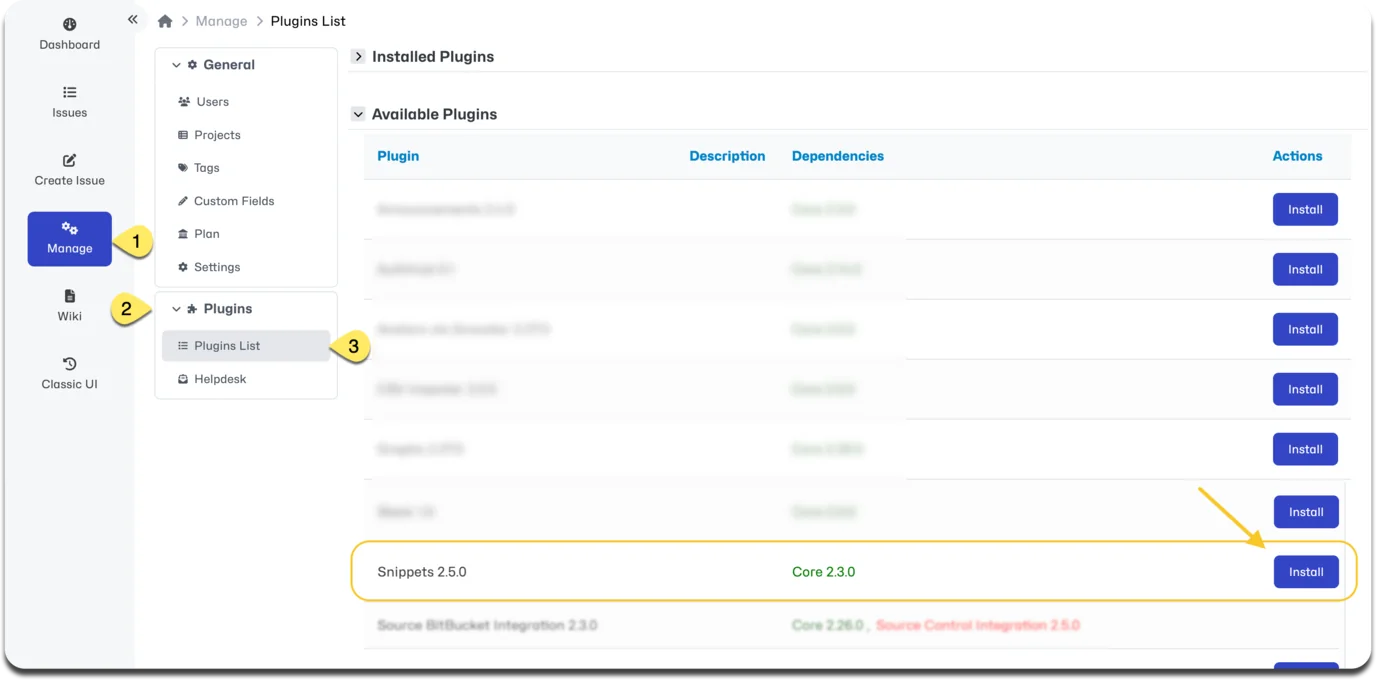
To install Snippets go to 'Manage' - 'Plugins'. You'll see Snippets listed in the Available Plugins. Click Install. It will now show up under the Installed Plugins.
Configuring Snippets Permissions
To configure Snippets go to 'Manage' - 'Settings' and click on 'Snippets' under 'Editor'.
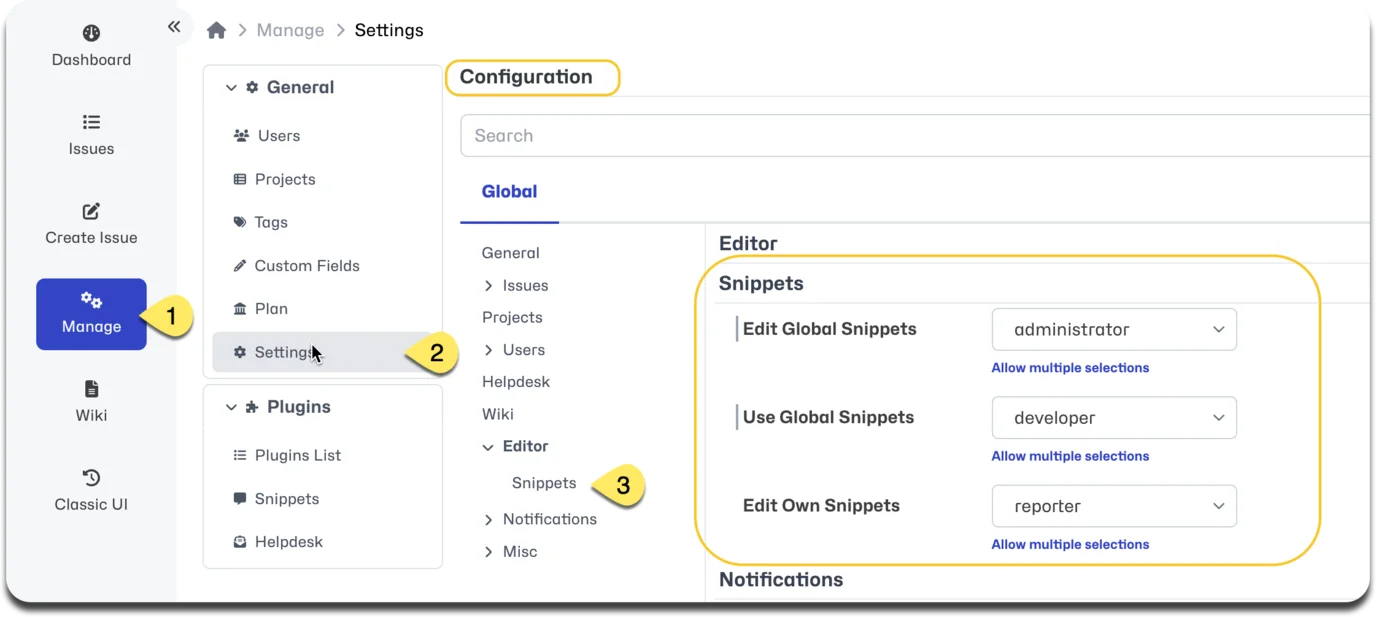
Here you can set the permission thresholds to define what access levels are able to:
- Edit Global snippets
- Use Global snippets
- Edit/Create their own personal snippets
Creating and Editing Snippets
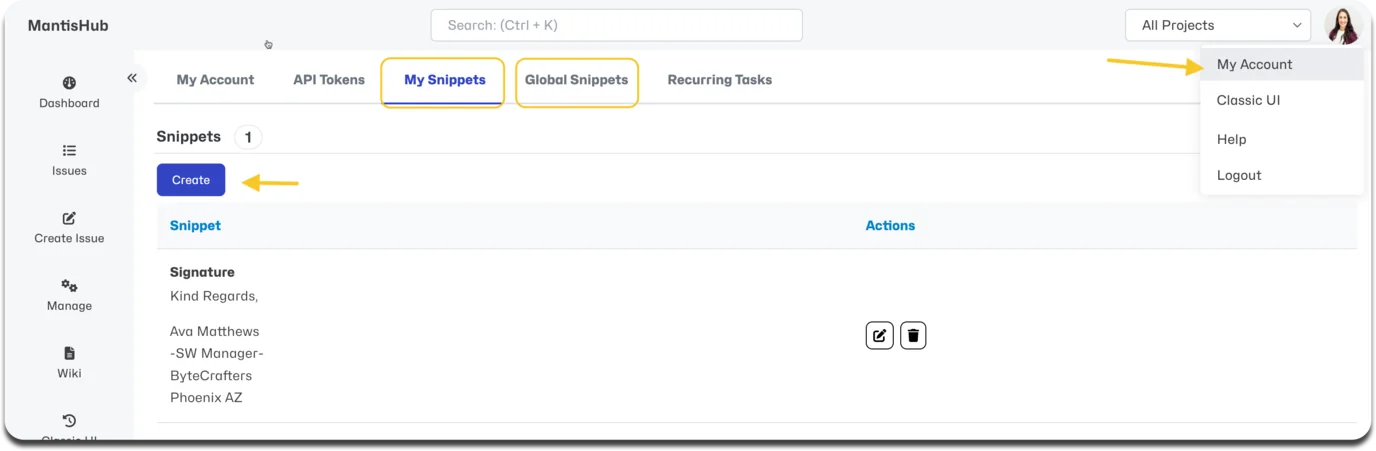
To create, edit or delete either 'My Snippets' or 'Global snippets', go to 'My Account' via the dropdown menu under your user Avatar in the top right corner
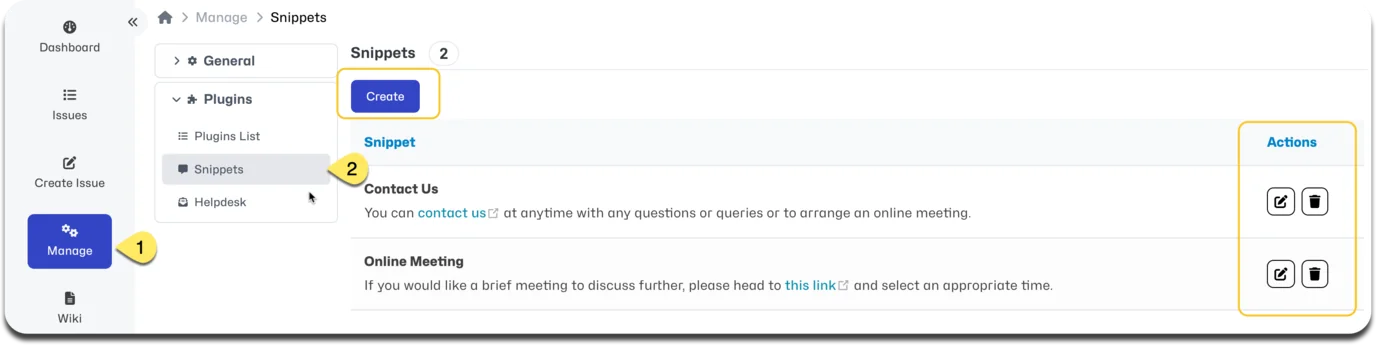
You can also edit Global Snippets via 'Manage' - 'Plugins' - 'Snippets'
Using Snippets
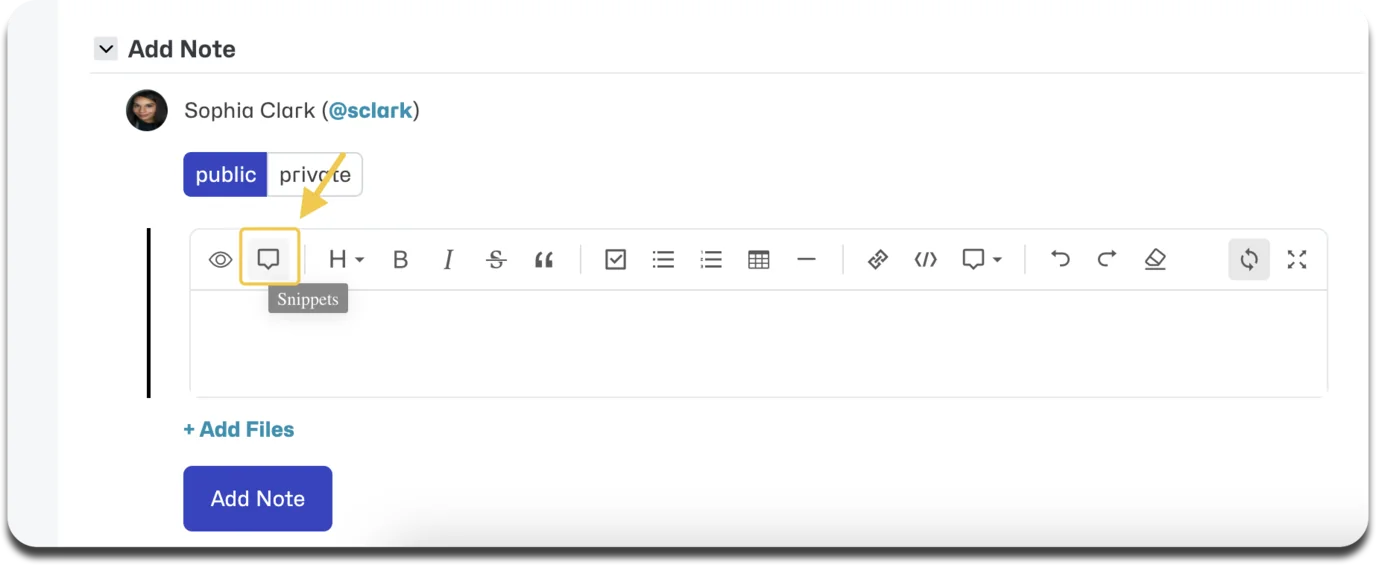
To use any snippets, you'll see a speech box in your toolbar editor, 2nd from the left. Click here to bring up the dropdown box which lists all available snippets. Both personal and shared snippets will be displayed here.
Placeholders
Snippets supports dynamic fields or placeholders to allow insertion of user data depending on the their role in relation to an issue. The following placeholders are supported:
{user} - inserts username of current user.
{reporter} - inserts username of the reporter of the issue.
{handler} - inserts username of the user to whom the issue is assigned.
There is also support for displaying first and last name of the user, reporter or handler rather than username. The required syntax is shown below:
{user:first_name}
{user:last_name}