
Using Tags
Using Tags - Classic UI article
There are multiple ways to organize your issues, including creating projects, categories, and tags. An issue can belong to one project and one category at any point in time. However, an issue can have multiple tags. Tags are also global so you can use the same tag across multiple projects. This enables flexibility in classifying issues for more than one purpose.
Tag features:
- An issue can have zero or more tags.
- Tags are organic, can be defined and used on the fly by any user* on any issue.
- Tags can be used to filter issues.
Examples of tags include:
- Patch - this issue has a patch attached.
- Localization - the solution for this issue will require localization work.
Think of tags as the equivalent of hashtags on X. They are a lightweight way to classify and filter issues.
Creating, Attaching, and Managing Tags
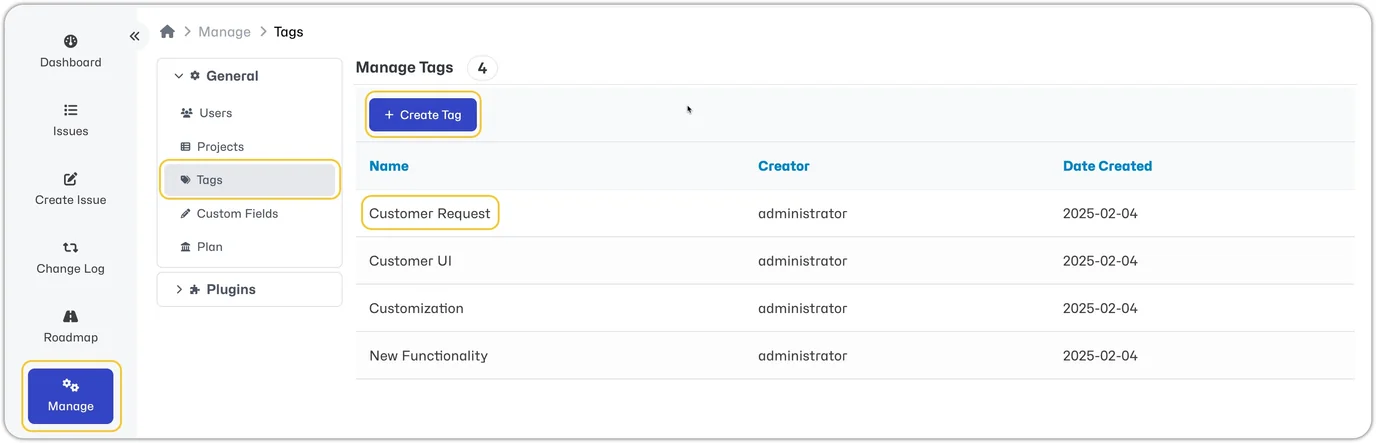
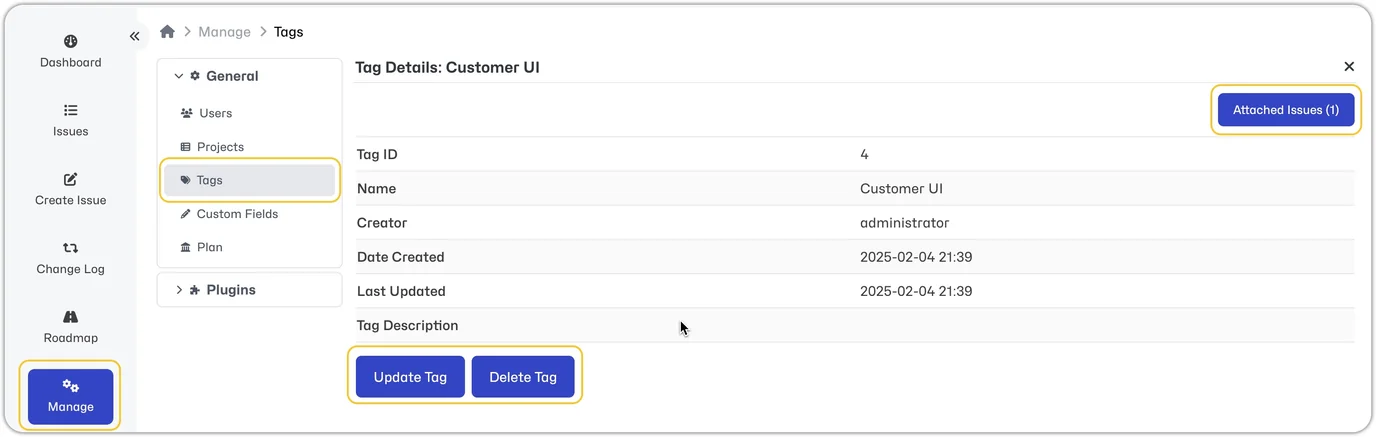
- Users with access to create, remove, and edit tags can manage tags by heading to the 'Manage' menu and selecting 'Tags' under the 'General' section. Then select 'Create Tags' or select a specific tag to update, delete, or view issues attached to it.
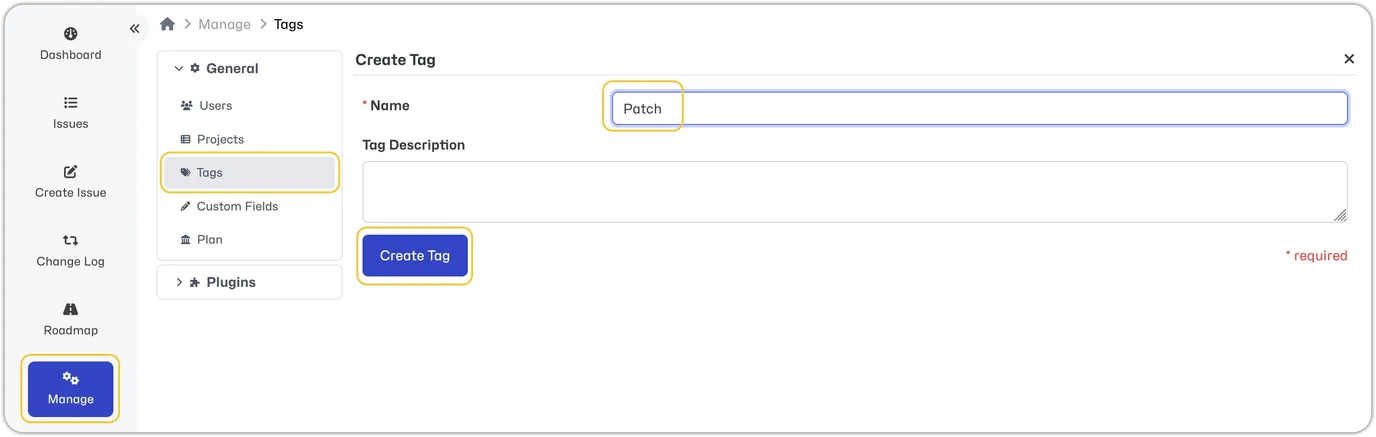
- Tags can be created on the fly by entering text into the Tags field when creating or editing an issue. A new tag will automatically be created and saved with the entered text.
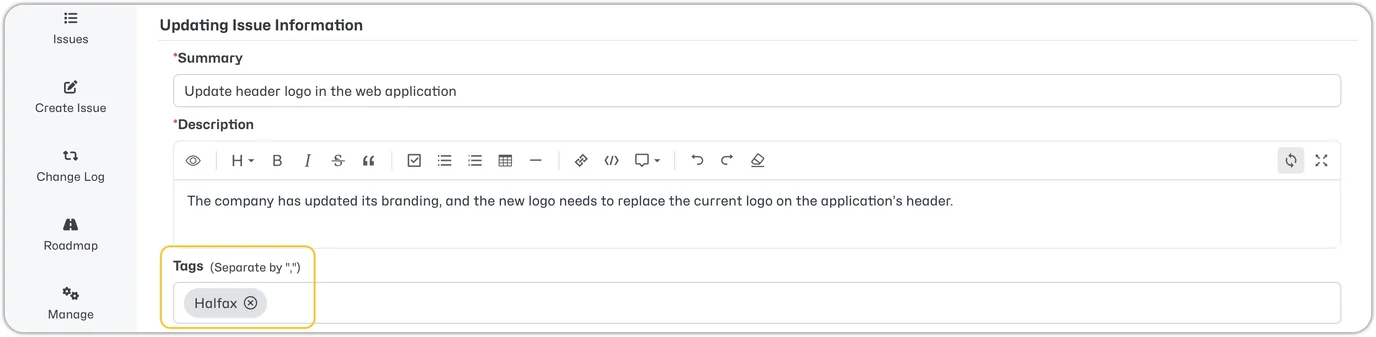
- Attach an existing tag to a ticket by entering the first few characters into the 'Tag' field and it will auto-complete.
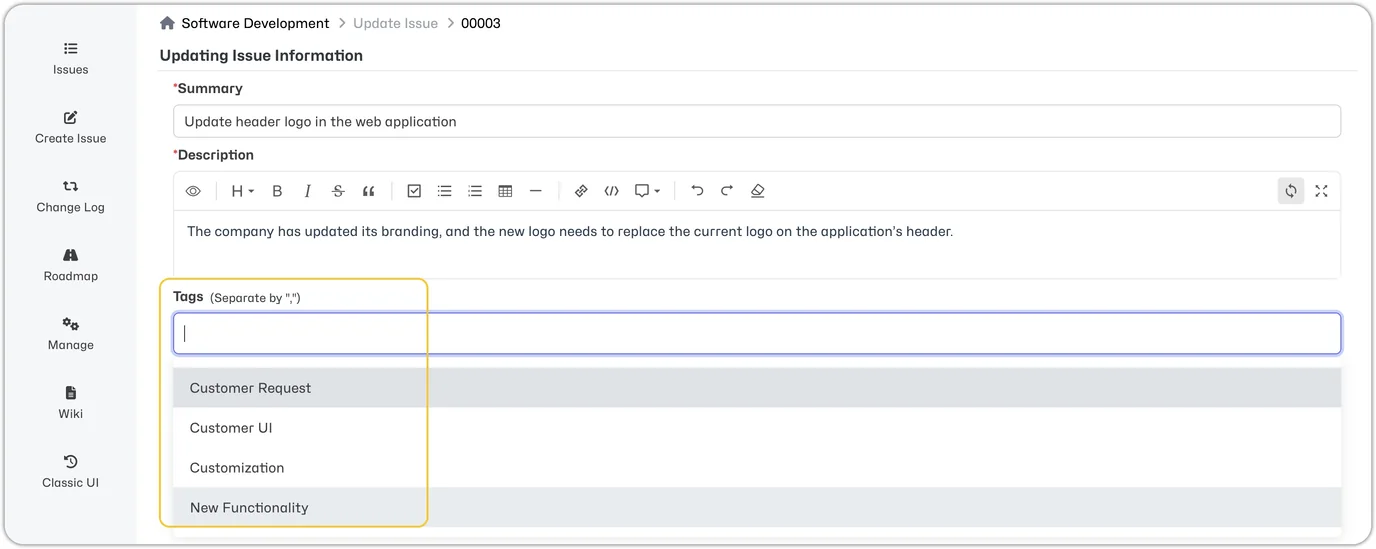
Tag Permissions
By default, all users have access to tags per their access levels. i.e., viewers can see tags; reporters can create and attach tags, etc. However, if you wish to tailor access further, you can do so via workflow thresholds under the 'Tags' section. Like all our threshold configurations, these permissions can be set for all projects or can be configured differently per project.