
Helpdesk - Reporting Issues via Email
If you are still using the Classic UI, please see the Classic UI Article for further help.
MantisHub provides the ability to report issues via email (also known as the Helpdesk feature). You can set up the Helpdesk:
- To receive emails ONLY from registered users in your MantisHub or
- To receive emails from registered and unregistered email addresses. This allows customers/clients to submit issues without creating individual accounts in your MantisHub.
These emails will automatically create issues in your MantisHub. The reporter(s) will receive the following email notifications:
- An auto-reply confirmation when an issue is created.
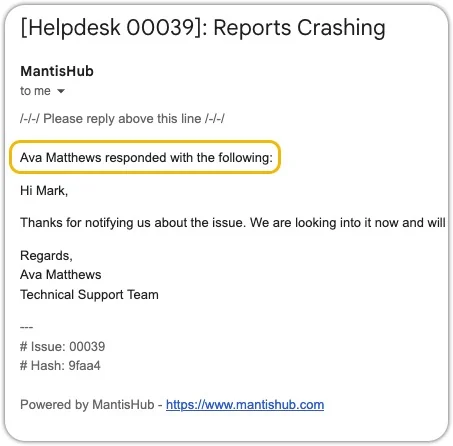
- A notification when a public note/"Response to Customer" is added.
- A notification when an issue is moved from an open (
New,Feedback,Acknowledged,Confirmed, orAssigned) to a resolved (ClosedorResolved) status. - A notification when an issue is moved from a resolved (
ClosedorResolved) to an open (New,Feedback,Acknowledged,Confirmed, orAssigned) status.
The email reporter(s) can reply to these notifications to add a note to the issue. Other changes, like assignment of the issue and private/"Internal Notes", do not trigger notifications.
How to get started:
- Configure the Helpdesk Settings
- Email Recipient, Content, & Sender information
- Email notifications, Commenting, & Replies
Configure the Helpdesk Settings
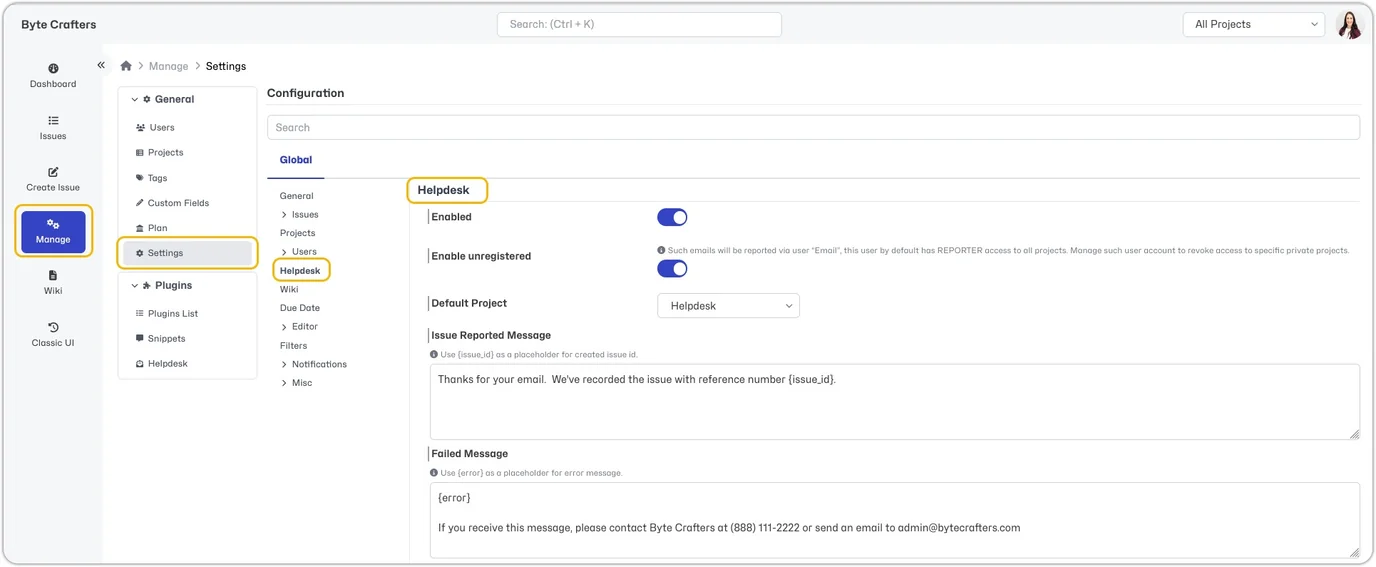
Helpdesk is installed by default. To enable this feature, go to Manage - Settings - Helpdesk.
Enabled: The Helpdesk integration is toggled to
enabledby default, allowing your MantisHub users to submit issues via email. Toggle off to disable.Enabled Unregistered: This is also toggled to
enabledby default and allows customers not registered as users in your MantisHub to submit issues via email once a default project is selected.- Issues created via email will show the reporter as "Email".
- This single user is created automatically AFTER the default project is set and has REPORTER access to all projects by default.
- The "Email" user is listed as the reporter for all issues submitted via email with an unregistered email address. The customer's real email address will be listed in the "Helpdesk" section in the issue details.
- If you wish to block the submission of issues via email for a private project, you will need to make sure to remove the "Email" user from the project(s).
- The "Email" user must be explicitly added for projects made private AFTER enabling Helpdesk.
- Issues created via email will show the reporter as "Email".
Default Project: Select a project from the dropdown to be the destination for issues created via email to
yourmantishubname@mantishub.io.- Unless this is set, emails to this address will NOT work.
- For email issue submission to other projects, review Email Recipient (To) Address below.
Issue reported message: Set the content for your auto-reply email when issues are created.
- You have a placeholder {issue_id} for the issue number, which you can include in this message.
Failed Message: Set the content for your auto-reply when issues fail to be created. You have a placeholder {error} for the failure reason that you can include in this message.
Exclusion For Forwarding Address (Optional)
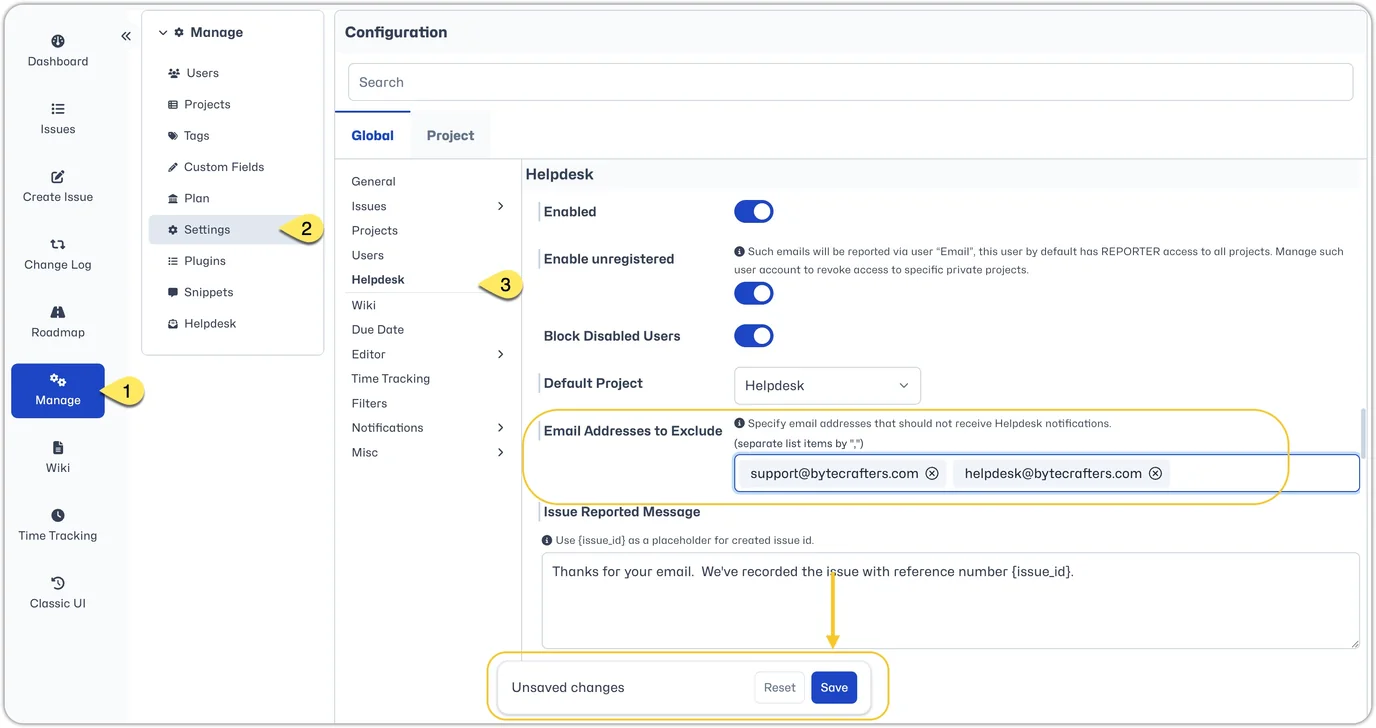
If you already have, and wish to continue using a personalised incoming email address for your support requests, then you will need to forward it to the MantisHub Helpdesk email address via your email provider, i.e., have support@yourdomain.com forward to yourmantishubname@mantishub.io.
You must also update the Helpdesk settings to prevent your forwarding email address from being included in emailed tickets as a cc'd recipient. If you do not update the Helpdesk setting to exclude the forwarding address, email updates will be forwarded to your Helpdesk email address, and a new duplicate ticket will be created in the system.
To add the configuration, go to Manage - Settings - Helpdesk and enter any email addresses you use for forwarding. Once updated, don't forget to click Save in the 'Unsaved changes' pop up box.
Change MantisHub Outgoing "From" Name (Optional)
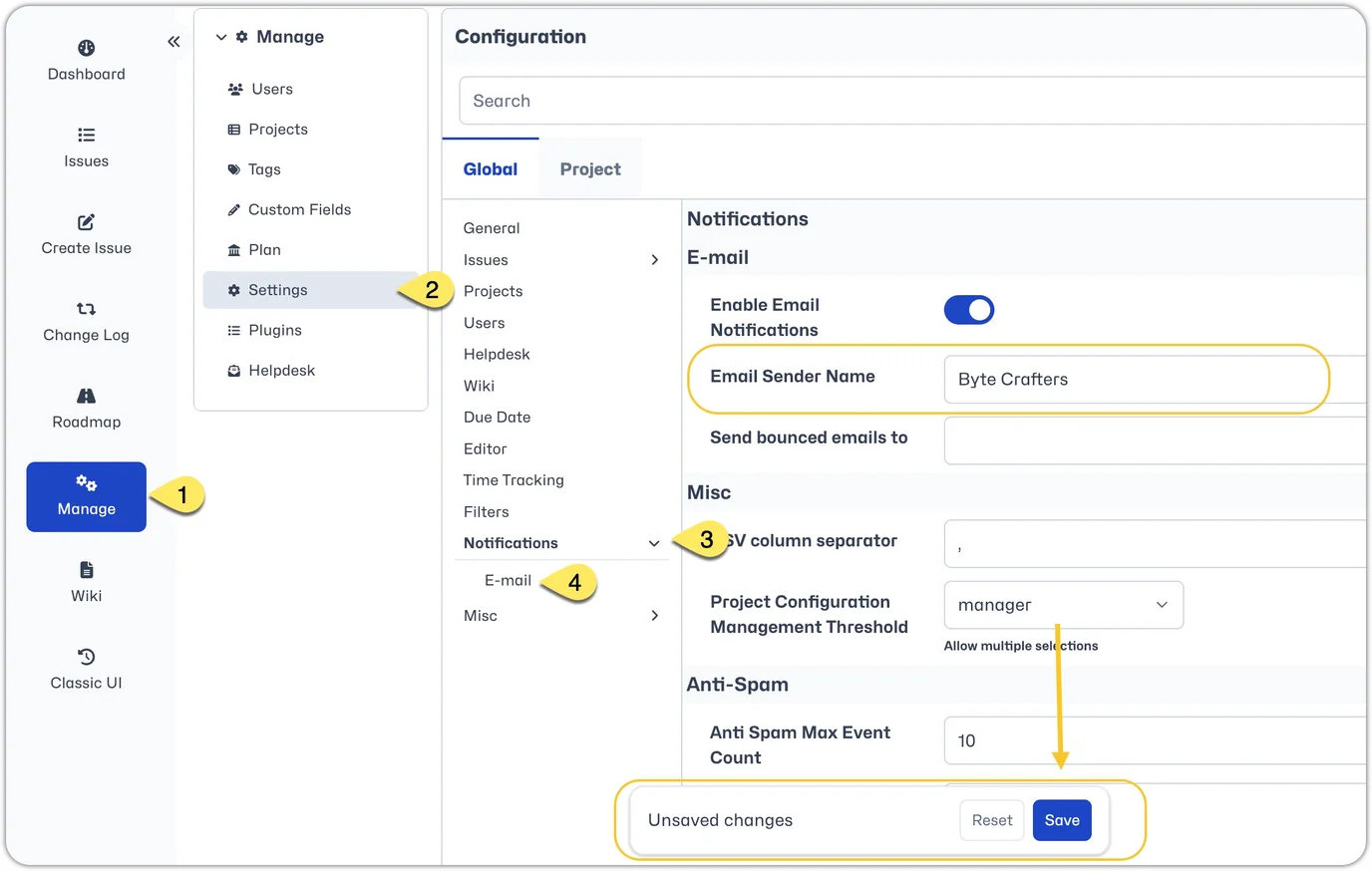
You may wish to update the "From" name of your MantisHub notification emails. By default, notification emails for all issues will come from 'MantisHub notifications@mantishub.io'. To change this, head to Manage - Settings - Notifications - Email. Under the "Email Sender Name" enter what you would like to have displayed and make sure to Click "Save" in the Unsaved changes popup.
Once updated, the new name will appear in any email updates sent. Example:
Before:

After:

Blocking of Disabled Users (Optional)
By default, any users previously registered in the system who have been disabled are blocked from submitting Helpdesk issues. Since you have disabled them, we don't allow them to circumvent this by submitting issues as an unregistered user. However, you can create a configuration option in the Classic UI to unblock them. Switch to Classic and review this article for details.
Email Recipient, Content & Sender information
After configuring the Helpdesk Settings, you need to know how to send an email that will create the desired issue. Several elements are involved: the email recipient, email content information including the subject, body, & attachments, and the email sender information.
Email Recipient (To) Address
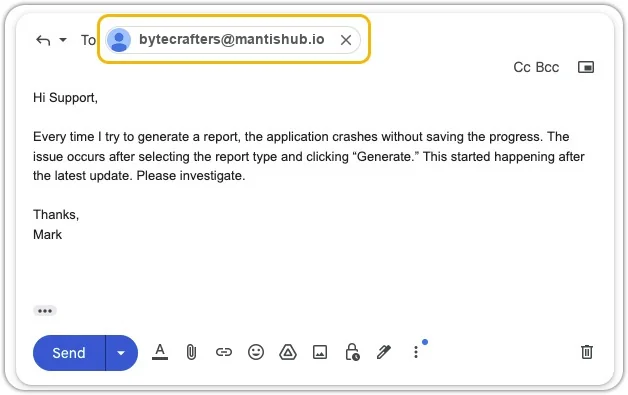
The destination email address will be yourmantishubname@mantishub.io or if you want to send to a specific project that is NOT your Helpdesk "Default Project" yourmantishubname+yourprojectname@mantishub.io. For the examples below, we will use "bytecrafters" as the MantisHub name, assuming the MantisHub URL is https://bytecrafters.mantishub.io. We will also assume there is a project called "nextbigthing".
bytecrafters@mantishub.io- Emails sent to this address will populate in your selected Helpdesk "Default Project". If no default project is selected, then the issue will populate in the registered user's default project, if that is not set either, then the email will be rejected.
bytecrafters+nextbigthing@mantishub.io- The+sign separates the MantisHub name from the project name. This address indicates that the issue should be reported under the project "nextbigthing". If there are non-alphanumeric characters, then replace them with underscores. For instance, "My Project" becomes "my_project".
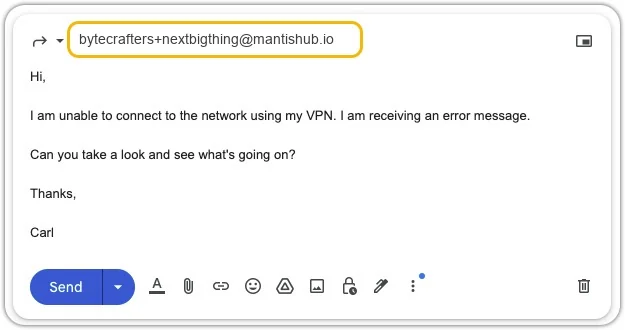
It is possible to use a forwarding email alias, such as support@bytecrafters.com, to forward messages to the MantisHub address bytecrafters@mantishub.io. Please follow the steps outlined in the Exclusion For Forwarding Address section above.
Email Content
Email Subject: This is used as the issue Summary.
Body: The email's text body is used as the issue Description.
Embedded images: Are attached to the issue as files with markers in the description for their location.
Attachments: Are attached to the issue as files.
All emailed issues will utilize the default category General. If, for any reason, this category is deleted, then emails will be rejected.
We do not support populating custom fields from an emailed issue. You cannot have a custom field be "Required on Report" in projects that have issues emailed to them, because the email will be rejected.
Incoming Email Sender (From) Address
If the sender email matches a registered MantisHub user account: The registered user will be the reporter of the issue.
If the sender email doesn't match AND unregistered emails are enabled: The 'Email' user account will be used as the reporter, and the sender email address will be included in the "Helpdesk" section of the issue.
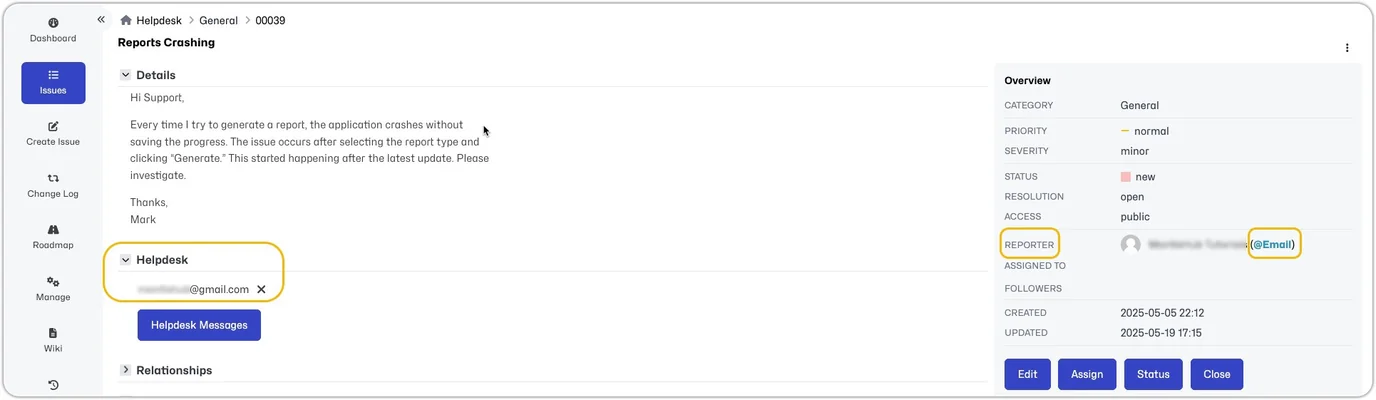
- If the sender email doesn't match and unregistered emails are NOT enabled: The email will be rejected. If you want clients without a MantisHub account to email issues to your MantisHub, you can configure your Helpdesk settings to allow unregistered email issue submissions.
Email Notifications, Commenting & Replies
Your customers will now be able to email in issues to your MantisHub projects. They will also receive notifications for any notes on the issue they reported and be able to comment on these issues by replying to such notifications. These comments will be added to the issue as notes. The reporters will also receive notifications whenever the issue is resolved or reopened.
Email notifications to the customer (reporter)
Team members can utilize private/"Internal Notes" to communicate internally without notifying the customer (reporter). The team can also use features like tagging and linking to related issues without alerting the reporter.
The unregistered email/Customer will get an email notification when the issue is:
Created.
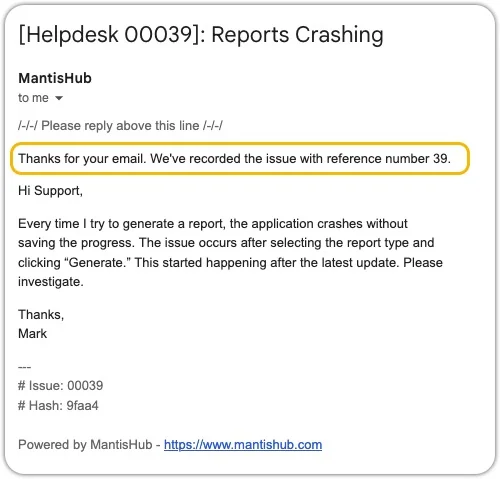
A public note/"Response to Customer" is added.
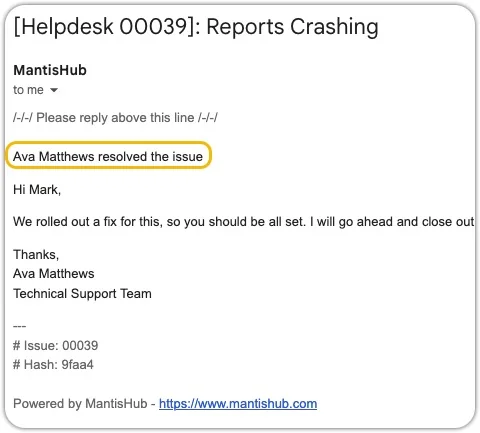
When an issue is moved from an open to a resolved status.
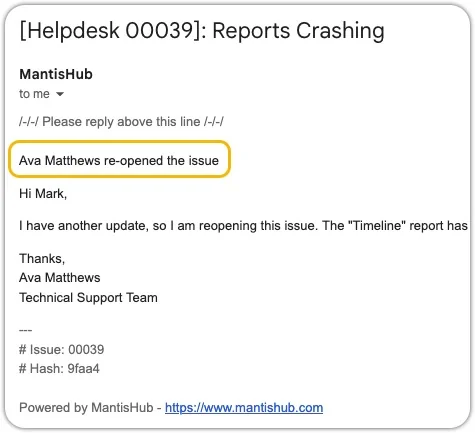
When an issue is moved from a resolved to an open status.
Commenting & Replies to Email Notifications
MantisHub notifies the reporter about changes that interest them, allowing quick responses from their mail client. These replies are recorded as notes on the relevant issues.
Key features include:
- Users can reply via email with a comment to be added to the issue as a note.
- Users can reply via email and include (cc:) others in the conversation.
- Included recipients can respond to the replies, and their messages will be added as a note.
The messages have a reply-to header that directs responses to the associated issue, ensuring clarity. This address includes the issue number and a hash to confirm the email’s origin, helping MantisHub prevent spam. Reply-to addresses will be formatted for the MantisHub account named "bytecrafters" as follows:
bytecrafters+1234-2613625338f7023cce84723439a97531@mantishub.iobytecrafters: is the MantisHub subdomain1234: is the issue number2613625338f7023cce84723439a97531: is a hash that is specific to issue 1234